Written by Outrank. Published by Mallary Labs LLC.
Published .
Schedule Post IG: Native, API and Media Rules for 2026
The post is approved, the asset is exported, and the calendar says Tuesday at 9 a.m. Then someone notices it carries a tagged product, a paid-partnership label, and a collaborator who hasn't accepted the invite yet. The scheduler takes it without complaint, which is exactly the problem.
A queue will accept a post it can't publish correctly. On Instagram the failure is quiet: a green tick in a dashboard, then an error at publish time, or a live post missing the shopping tags the campaign was built around. Teams searching how to schedule post IG content usually start with the timing question and end up with an operations problem.
The pattern repeats across agencies and product teams, and it rarely comes from a bad tool. It comes from treating scheduling as a calendar decision instead of a risk one. The teams that get reliable publishing run three gates on every post: feature support, media compliance, and a named person who owns the failure.
Table of Contents
- Choose the Right Scheduling Method for Your Account
- Check Media and Feature Rules Before You Queue
- How to Schedule an Instagram Post in Meta Business Suite
- How to Schedule Posts Through an API or Platform
- Fixing Scheduled Posts That Fail or Publish Late
- Monitor Your Posts After They Go Live
Choose the Right Scheduling Method for Your Account
Account count, whether the team can ship code, and whether the post needs a first comment decide the scheduler. Each post still has to pass feature, account, and media checks before it is queued. A failure goes to a named reviewer. It should not go out as a thinner version of the approved post.
Instagram's scale is why a single upload habit stopped working. The app opened in Apple's App Store on October 6, 2010, reached roughly 25,000 users on its first day, passed 1 million by December 2010, hit 10 million by September 2011, and had more than 100 million monthly users by February 2013, according to Instagram's product evolution history.
One or two accounts, no code. Meta Business Suite schedules a standard feed post in a few minutes and keeps Facebook and Instagram on one calendar. It does not attach a first comment at publish. Posts that need product tags, collaborators, a paid partnership, or a fundraiser stay with a person, not the queue.
Several networks, a small team. A third-party dashboard gives you one calendar across networks. Expect no Instagram first comment unless that tool's composer has a first-comment field you fill before queueing. Comparing scheduling tools built for multi-account publishing shortlists faster than trialling five dashboards. I would not move a month of content until one test post, with its tag and an accepted collaborator, clears, and someone is named for the rejection.
Code, agents, or high volume. Mallary's API, CLI, or MCP agent fits product teams and agencies that already automate. You choose a date, time, and time zone. Background queues send the post and show the result for every platform. Quota and media checks run before the job is queued, and you can attach several first comments at publish time on supported Instagram posts.
| Method | Best for | Main limits | First comment at publish |
|---|---|---|---|
| Meta Business Suite | Brands and creators with one or a few accounts | Scheduled content excludes product tags, collaborative, sponsored and fundraiser posts | No |
| Native scheduling in Meta tools | Teams that only post feed content | Same exclusions as Meta Business Suite; settings are fixed at scheduling time | No |
| Third-party dashboard | Marketing teams running several networks | An Instagram first comment goes out only if the composer has a first-comment field completed before queueing | No, unless that field exists |
| Mallary.ai API, CLI or MCP agent | Product teams, agencies and automation builders | Quota and media checks run before queueing | Yes, multiple first comments attached at publish |
Check Media and Feature Rules Before You Queue
Queue order is where most campaigns break. Teams finalise the caption and the slot, then validate the file last, when validation is the cheapest step and the one that decides whether anything else matters.
Feature support comes before file support
Instagram's help documentation states that scheduled content currently excludes product tags, collaborative posts, sponsored posts, and fundraisers, per Instagram's scheduling help page. A post carrying any of those schedules without an error and still needs manual publication or a redesign. That gap sits in the middle of every shoppable drop and most influencer campaigns, where the tag is the reason the post exists.
The same page notes that scheduled content preserves the privacy and audience settings configured at scheduling time. Set visibility before you queue, not on the morning it goes out.
Work through this list in order: account visibility, permissions on the connected professional account, tagged products, accepted collaborators, paid-partnership labels, fundraiser status, licensed audio, and any caption or media edit still in review.
Practical rule: if a post can't be published by the scheduler exactly as approved, it doesn't belong in the scheduler. It belongs to a person with a deadline attached.
Then validate the asset
The IG User media reference documents the feed image spec: JPEG, 8 MB maximum, a 4:5 to 1.91:1 aspect-ratio range, 320 to 1440 px width, and sRGB colour. Video adds container-level risk: MOV or MP4, the moov atom at the front of the file, and within the documented duration limit.
Video processing runs asynchronously, so a successful container creation response does not mean the file will publish. Store the normalised asset with its validation report, record the container ID, poll with exponential backoff, and mark the job permanently failed once the retry budget runs out.
Crop decisions belong upstream. The Reel resolution reference covers the pixel dimensions that survive Instagram's re-encode, and if you're putting paid spend behind the same asset, the Rapid Ads video spec reference lists what ad delivery expects, which is not identical to organic feed.
| Media check | Requirement | If the file fails |
|---|---|---|
| Feed image format | JPEG | Convert before container creation |
| Feed image file size | 8 MB maximum | Re-export at a lower quality setting |
| Feed image aspect ratio | 4:5 to 1.91:1 | Crop to a supported ratio |
| Feed image width | 320 to 1440 px | Resize within the range |
| Feed image colour space | sRGB | Convert the colour profile |
| Video container format | MOV or MP4 | Re-encode to a supported format |
| Video moov atom | At the front of the file | Relocate the atom, then revalidate |
| Video duration | Within the documented limit | Trim and revalidate before queueing |
A failed file gets re-exported to spec, not massaged inside the scheduler. Keep the validation report with the job so the next person doesn't repeat the diagnosis.
How to Schedule an Instagram Post in Meta Business Suite
This is the route most brand and creator accounts should default to, and the one people skip steps on most often. The whole job takes a few minutes if the account connection is already healthy.
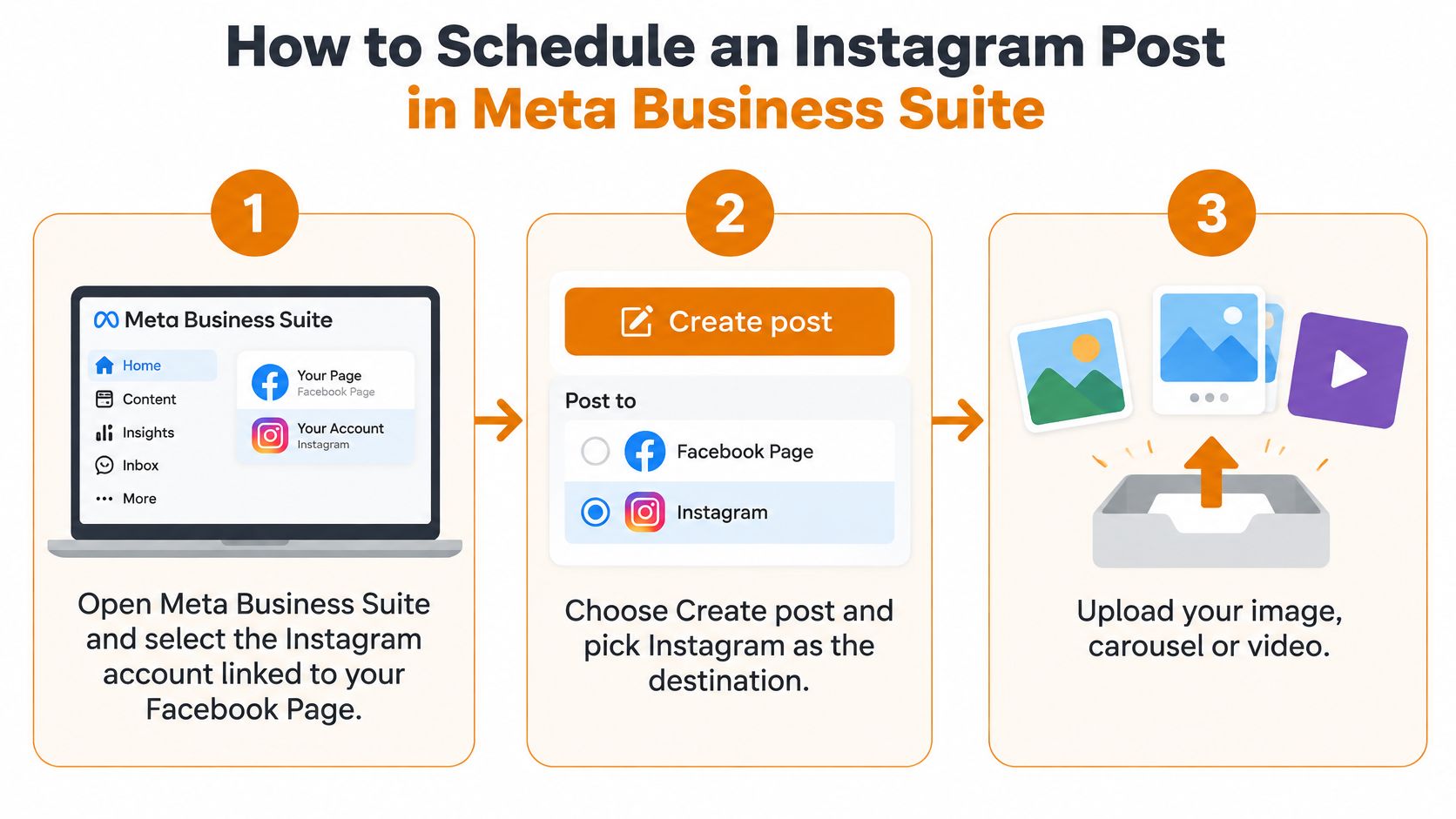
- Open Meta Business Suite and select the Instagram account linked to your Facebook Page. Scheduling targets the account your Page has admin rights on, so the connection is the first thing to confirm. The usual slip is two similarly named accounts under one business, and the post landing on the wrong brand.
- Choose Create post and pick Instagram as the destination. Leaving Facebook ticked is how a caption written for one platform gets published on two. Untick anything you're not actively reviewing.
- Upload the image, carousel or video, then write the caption and check the preview. The preview shows the actual crop for feed or Reels, and a 4:5 asset cropped into a square is the most common visual defect here.
- Select Schedule, set the date and time, and read the time zone in the picker. A slot set in your own time zone can land at 3 a.m. for the audience you were targeting. Change the zone deliberately rather than assuming the tool guessed right.
- Open the content calendar and confirm the slot. You're checking two things: that the post saved with a scheduled status and that nothing else sits in the same window on the same account. Double-publishing the same offer reads as a mistake to followers.
- Confirm the schedule and record which account it's queued on. A note in the campaign doc prevents the classic agency mix-up of assuming a post is live on a client account when it's sitting on a sibling brand.
A healthy schedule looks boring: the post appears in the calendar at the correct local time, with a scheduled status and the right account attached. Anything else is worth cancelling and redoing rather than editing in place.
How to Schedule Posts Through an API or Platform
A Tuesday 09:00 launch is one job until the checks fail. The product link sits in the first comment, a regional caption rides as a second variant, and the queue should return published, failed, or blocked with a reason. Feature, account, and media checks run before that job is queued. A bad Reel type, a stale token, or a dead asset URL stops the post and routes it to a named reviewer. It does not go out as a degraded publish.
Meta does not treat this as a single upload. You create a container, wait until processing finishes, then publish. Schedulers that hold up in a real campaign follow that order.
- Authenticate a permitted Instagram professional account. Keep a valid user or system-user token and refresh it on a schedule you control. A token that expires mid-campaign fails at publish time, with no warning in the calendar.
- Host the media at a publicly reachable URL. Meta fetches the file from that address. An expiring signed link from private storage fails the job. A stable CDN path is the one that survives the wait.
- Create the media container through the
/mediaendpoint with the correct media type, caption, and asset URL. A wrong media type on a Reel is a common reason a job never completes. - Poll the container's processing status. Video and Reels need this wait. A 200 from creation only means the container exists.
- Call
/media_publishonly after the container reports ready. Publishing early, or retrying a publish that already succeeded, produces a missing post or a duplicate.
The Instagram content publishing documentation sets a rolling limit of 100 API-published posts per Instagram account per 24 hours, with carousels counted as one post. Check that quota on the account before you queue. Give the job one idempotency key and reuse it on retry. A new key is a second post, not a recovery.
Queue design: one post is one job, and one job carries one idempotency key.
A managed layer can hold OAuth and token refresh, track rate limits per account, retry with backoff, and run those media checks before anything reaches the queue. Mallary's background queues send posts at the time you choose and show the result for every platform, so a stalled video shows as failed rather than missing.
Comment work after publish is a separate system from the queue. I send that handoff to Exerta on ad comment moderation tools. If you are building the publish path into your own product, the Instagram API overview covers what the endpoints expect.
Fixing Scheduled Posts That Fail or Publish Late
Read the table by symptom, not by cause. People often change a setting before they know which failure they're looking at, then introduce a second problem.
| Symptom | Likely cause | Fix |
|---|---|---|
| Video stuck in processing | Container not yet ready | Poll status and publish only after it reports ready |
| Media error on publish | File outside feed or video rules | Re-export within the spec table and revalidate |
| Post missed its time | Container created too early, or media URL private or expired | Host media at a stable public URL and publish after the readiness check |
| Quota error | More than 100 API posts per account in 24 hours | Spread jobs across the window and check quota before queueing |
| Duplicate post after retry | Retry sent without an idempotency key | Add an idempotency key to every publish job |
| Post published with wrong audience | Privacy settings saved at scheduling time | Recheck settings before queueing |
| Edit needed after scheduling | Publishing may have started | Cancel before publishing starts; deletion is blocked once it begins |
The edit case deserves its own habit. You can delete or cancel a scheduled post as long as our queue hasn't started publishing it, and once publishing begins, deletion is blocked. That means the safe window closes earlier than people assume, so cancel first and rewrite second.
For posts sitting in Meta Business Suite, open the content calendar, select the scheduled post, and cancel or reschedule it before its publish time.
Bound every retry. Three attempts with backoff, then a permanent failure status and an alert to a named reviewer. A queue that retries forever looks healthy and publishes nothing.
Monitor Your Posts After They Go Live
Scheduling changes when a post goes out. It doesn't change how many people see it. Instagram head Adam Mosseri reportedly said in March 2025 that using scheduled posts would not affect reach either positively or negatively, per this analysis of posting frequency. A 2025 dataset summarised from 2.1 million feed posts across 102,000 accounts found higher average reach per post at greater posting frequencies, but that correlation doesn't prove scheduling caused the lift.
Judge scheduling by responsiveness instead. Set a comment alert on every scheduled post and name one person to answer within a set window, an hour during the first day is a workable default. Then compare scheduled posts against unscheduled ones over the same period on saves, shares, comments, response time and audience geography.
Global teams hit a specific trade-off here: the hour that suits the audience often doesn't suit the people moderating replies. Assign cover for off-hours, or accept a slower first response and measure it rather than pretending the time zone doesn't exist.
Measure this, not that: response time and saves tell you whether the queue produced a conversation. Reach alone tells you whether the algorithm had a good day.
Start with one post this week. Watch the first 24 hours closely, log the saves, comments, response time and geography, and let that baseline set the next slot. Setup on a platform like ours is three steps: connect your accounts, choose how you want to post, then publish now or schedule and measure results.
Scheduling stops being fragile once your queue enforces the checks that your team currently remembers by hand. Mallary.ai runs Instagram feed posts, Stories, Reels and carousels through one connection, validates platform media rules before a job goes out, and attaches your first comments at publish time, so a post that can't publish correctly fails loudly to a named reviewer instead of shipping degraded. Connect your accounts, queue one campaign, and see the result reported per platform. Start at Mallary.ai.
Try it with Mallary
STOP!
Want ChatGPT or Claude to post on social media for you?
Connect your social accounts one time. Then tell your AI what to write. It can make your posts, share them, and reply on social sites that allow replies. You do not need to write code.
Pick your AI





Connect once. Ask in plain English. Mallary does the work.


