Resize Image to 1080 x 1080
Make a 1080 x 1080 square image. Keep the full photo with Fit, or fill the square and crop the edges.
Free to use. No signup. No watermark. Your images stay in your browser.
Your image
No image selected.
Your preview will appear here.
Position your crop
Drag the image or use the sliders to keep your subject in view. Then create your image to save this crop.
Preview fits this space. View at 100% to check the pixels.
Your image stays on this device. We do not upload it.
Image settings
Output limit: 4,096 px per side and 16 million pixels.
Choose an image to get started.
Your image is ready.
Download imageUse Mallary to share your next post.Your image is ready.
Post it everywhere with Mallary.
Create, schedule, and share posts across 10 social networks. Use Mallary in your browser, or connect your favorite AI tools.
- Post now or schedule for later
- 14-day free trial
- Official platform APIs


From this tool to your next post
Your square image is ready to share. Use Mallary to add it to posts for Instagram, Facebook, LinkedIn, and your other connected accounts.
JPG or PNG is a useful choice for Instagram, Facebook, and LinkedIn. Prepare a tall version separately when you need a Story image.
Make a tall Story version- Download the 1080 x 1080 image.
- Add it to Mallary and choose the accounts for your post.
- Review the crop and caption on each network, then publish or schedule.
Trusted by creators, founders and developers






Integrates with the tools you already use





"I automated the posting on 5 different platforms in under 20 minutes. Highly recommend!"
"I was totally confused by the official TikTok API. Mallary made it simple. Using it every day."

"OAuth management is usually a nightmare. Mallary abstracted that away completely."
Make the square crop work for your photo
Choose a setting here, then check your image in the editor.
| Setting | When to use it |
|---|---|
| An exact 1080 x 1080 image 1080 x 1080 px | Choose Fit to keep the whole source with space around it. Choose Fill for a full square with cropped edges. |
Canvas size. 1080 x 1080 is a 1:1 square with 1,166,400 pixels. Keep both dimensions at 1080 and leave the file-size target empty when the exact dimensions matter.
File size. A square with 1080 pixels on each side is not a 1 MB file. Format, detail, and quality change the byte size. A file-size target may reduce the dimensions.
See what Fit and Fill change
We resized this illustration with the same tool above. Fit keeps the full picture. Fill crops the edges to cover the frame.
1080 x 1080 px. PNG lossless encoding. White background. The examples use the tool's default image size.
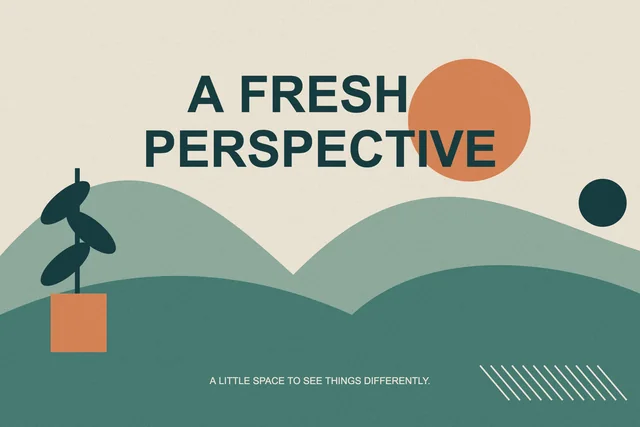
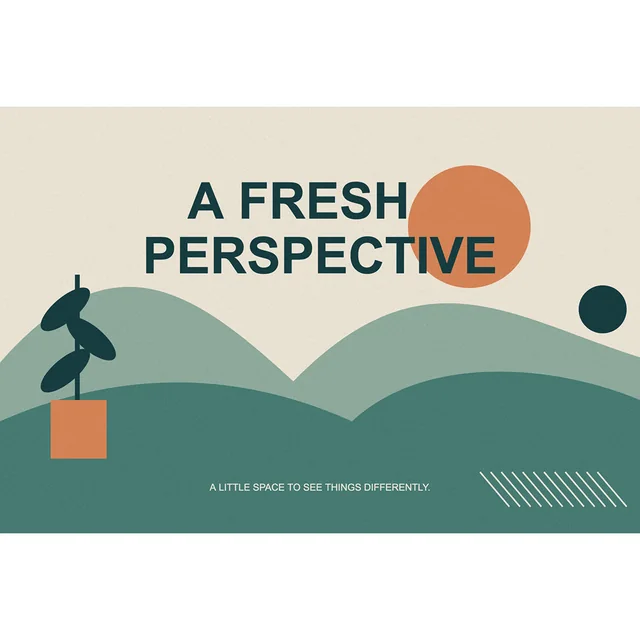
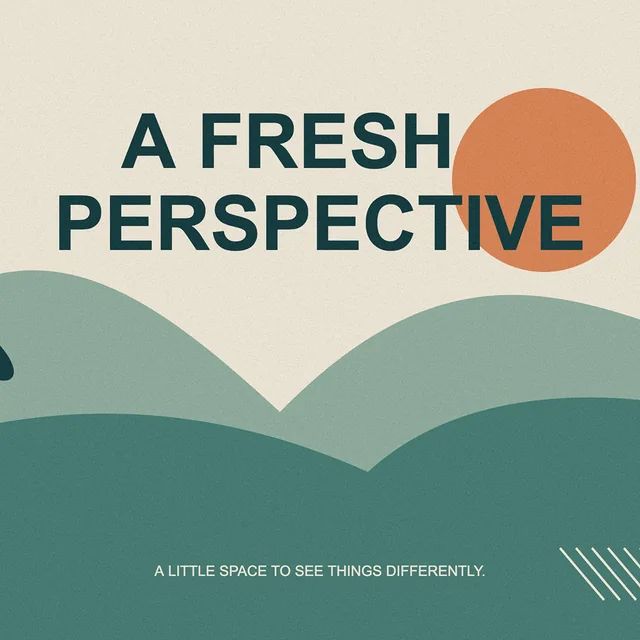
These are smaller previews of real exports from this tool. Sizes above describe the full files. Your result depends on your source image and settings.
A few things to know.
A 1080 x 1080 image has a 1:1 shape. Both sides have the same number of pixels.
Choose Fill for a square with no added space. A wide image loses some of its left and right edges.
Choose Fit if the whole photo matters. It adds space to the frame without stretching the image.
Your questions, answered.
What does 1080 x 1080 mean?
The image is 1080 pixels wide and 1080 pixels tall. It is a square, also called a 1:1 shape. These numbers describe its pixel size, not its file size.
Can I make a square without cutting off my photo?
Yes. Choose Fit to keep your full photo. If it is not already square, the tool adds space around it to fill the 1080 x 1080 frame.
Will a 1080 x 1080 image be under 1 MB?
Not always. File size depends on the image detail, output format, and quality. Use Compress Image to 1 MB if you need a file within that size target.