You have an idea for a post. ChatGPT can help you write it. With Mallary, you can also send that post to your social accounts from the same chat.
This guide takes you from setup to your first post. Start with a short text post. Then try an image and set a time for it to go live.
Before you start
Have these ready:
- A Mallary account (Get an account here)
- A ChatGPT account You'll sign in and open the plugin page in the next steps.
- At least one social media account that you can post to.
- A short post idea. A shop update, a useful tip, or a new product is a good start.
You do not need to write code or copy an API key. You will sign in to Mallary and allow ChatGPT to use it.
Step 01 / Set up Mallary
Connect your social media accounts
Create your Mallary account, or sign in if you're an existing user.
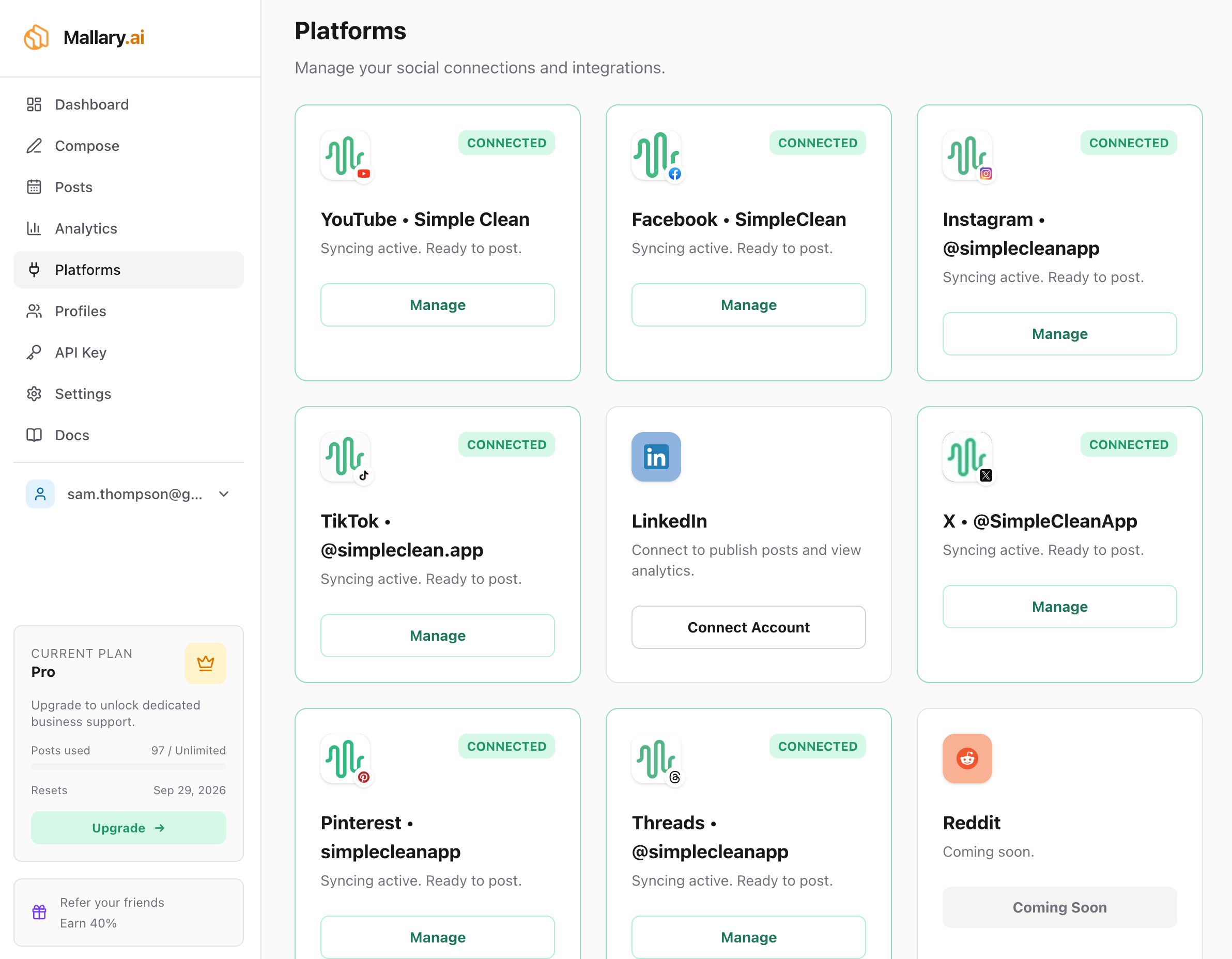
- Open the Platforms page on your Mallary dashboard.
- Pick a social media platform and click its connect button.
- Sign in on that platform's page. Choose the account or Page you want and allow access.
- When you return to Mallary, check the account name. Repeat for your other platforms.
Use an Instagram business or creator account.
For Facebook, connect a Page you can manage. A personal Facebook profile will not work.
Check before you move on: the right accounts should appear in the same Mallary profile.
Step 02 / Connect ChatGPT
Add Mallary to ChatGPT
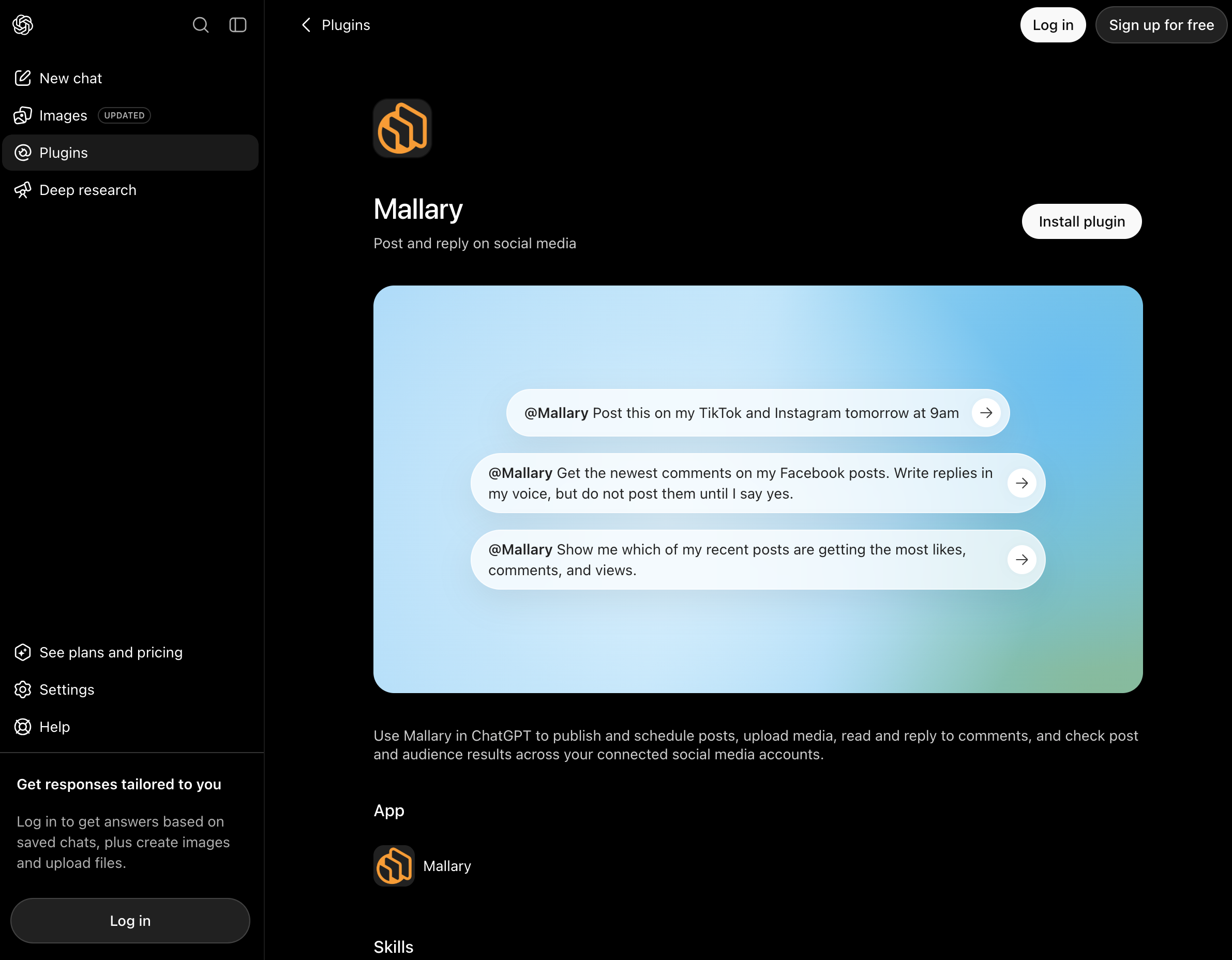
- Open the Mallary plugin page in ChatGPT (opens in a new tab).
- Click Install plugin.
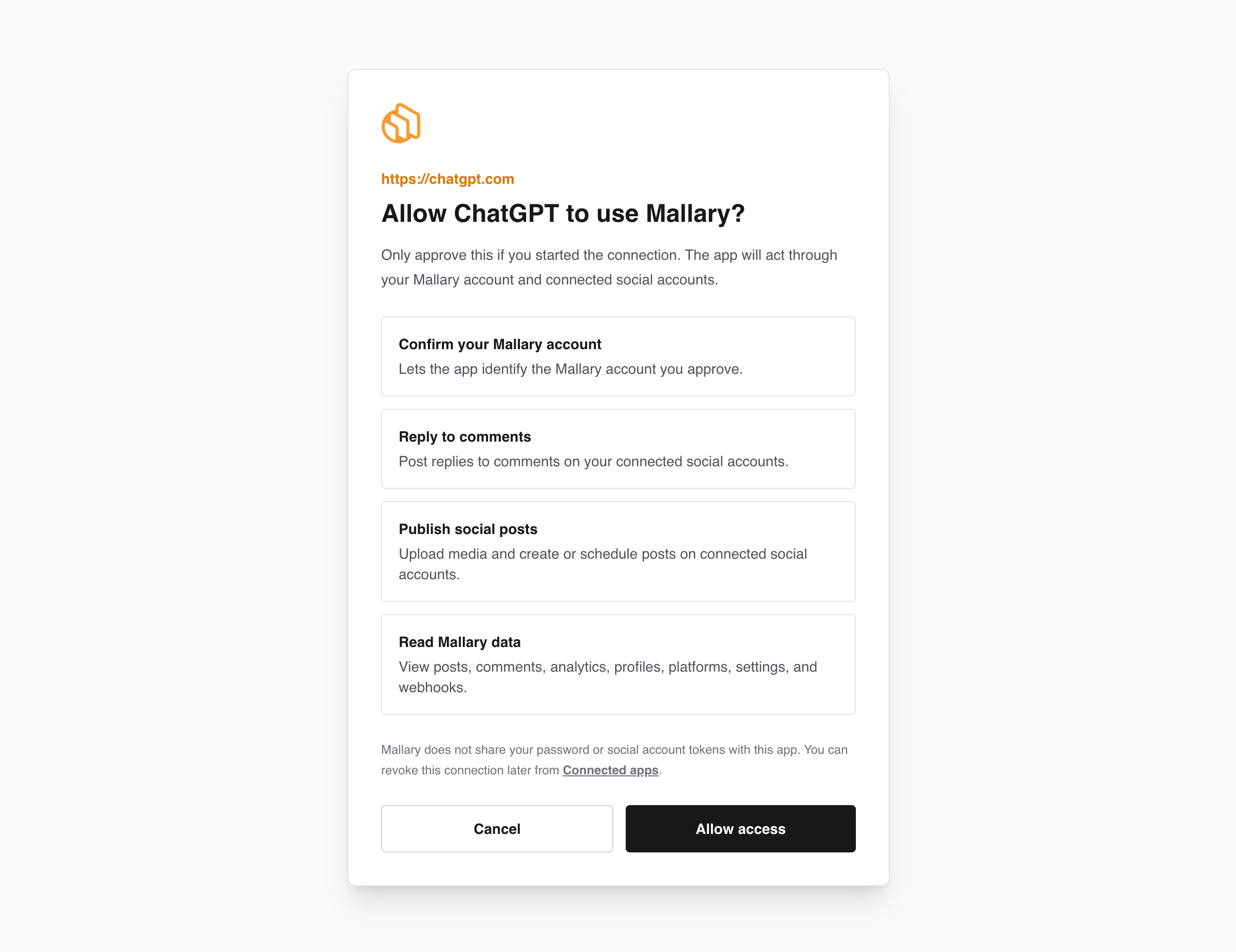
- You will be asked to sign-in to your Mallary account.
- You must approve the access request and approve the connection between Mallary and ChatGPT.
- Return to ChatGPT and start a new chat.
This sign-in method is called OAuth. It lets you connect the two apps without pasting your password into a chat.
Adding the plugin does not create a social post. You will choose your post and accounts in the next steps.
Step 03 / Pick where to post
Make sure ChatGPT sees the right accounts
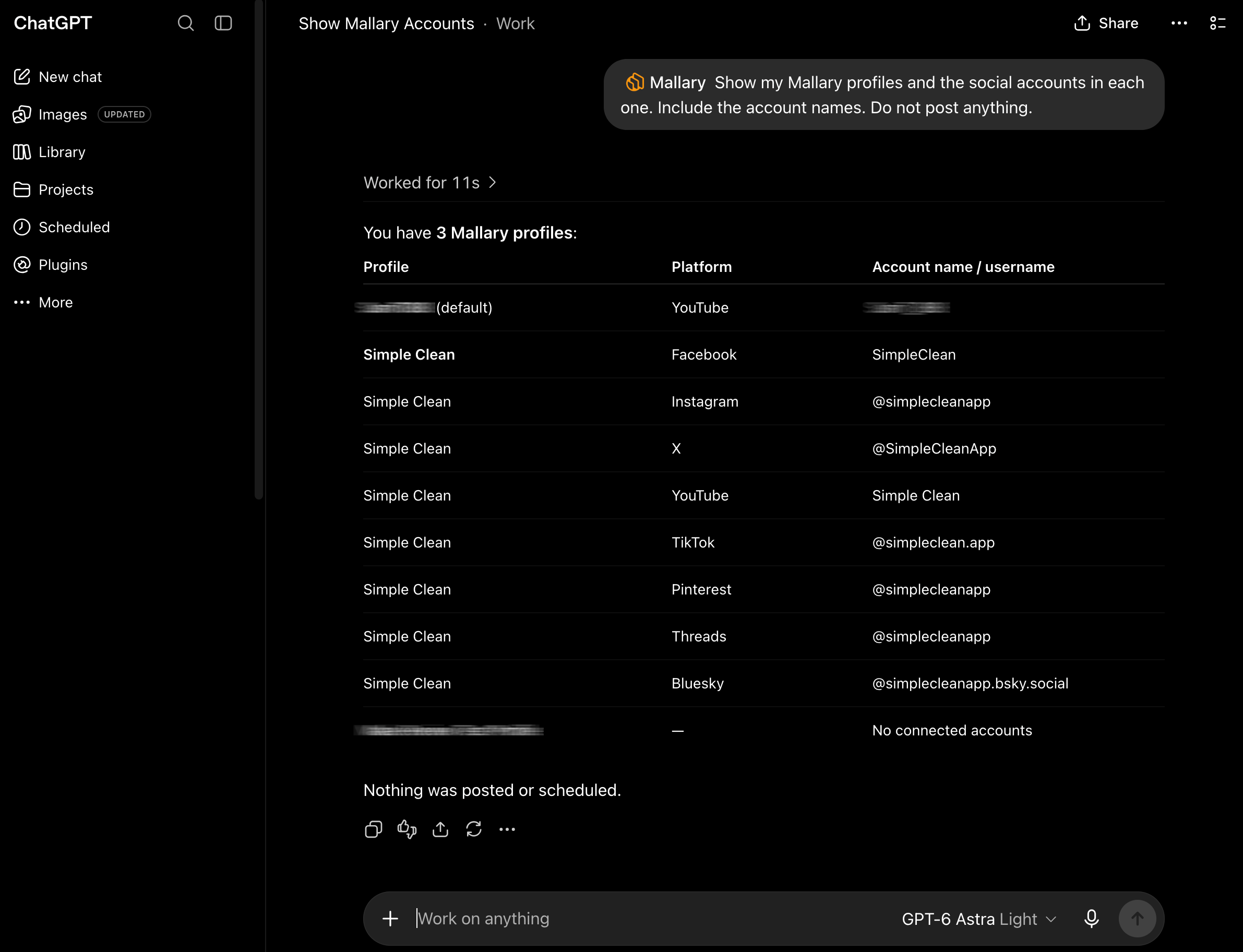
Start your message with @Mallary. Select Mallary if ChatGPT shows a list of apps. Then send this prompt:
@Mallary Show my Mallary profiles and the social accounts in each one. Include the account names. Do not post anything.
Look for the accounts you just connected. If an account is missing, go back to Platforms and check the selected profile.
If you run more than one brand, tell ChatGPT which profile to use. Include the account names so there is no guesswork.
@Mallary Use my [profile name] profile for this post. I want to use X and Threads. Confirm which accounts you found before we go on.
Replace the words in square brackets with your own names. Use this same profile for the rest of the guide.
Step 04 / Get the words right
Write and review your first post
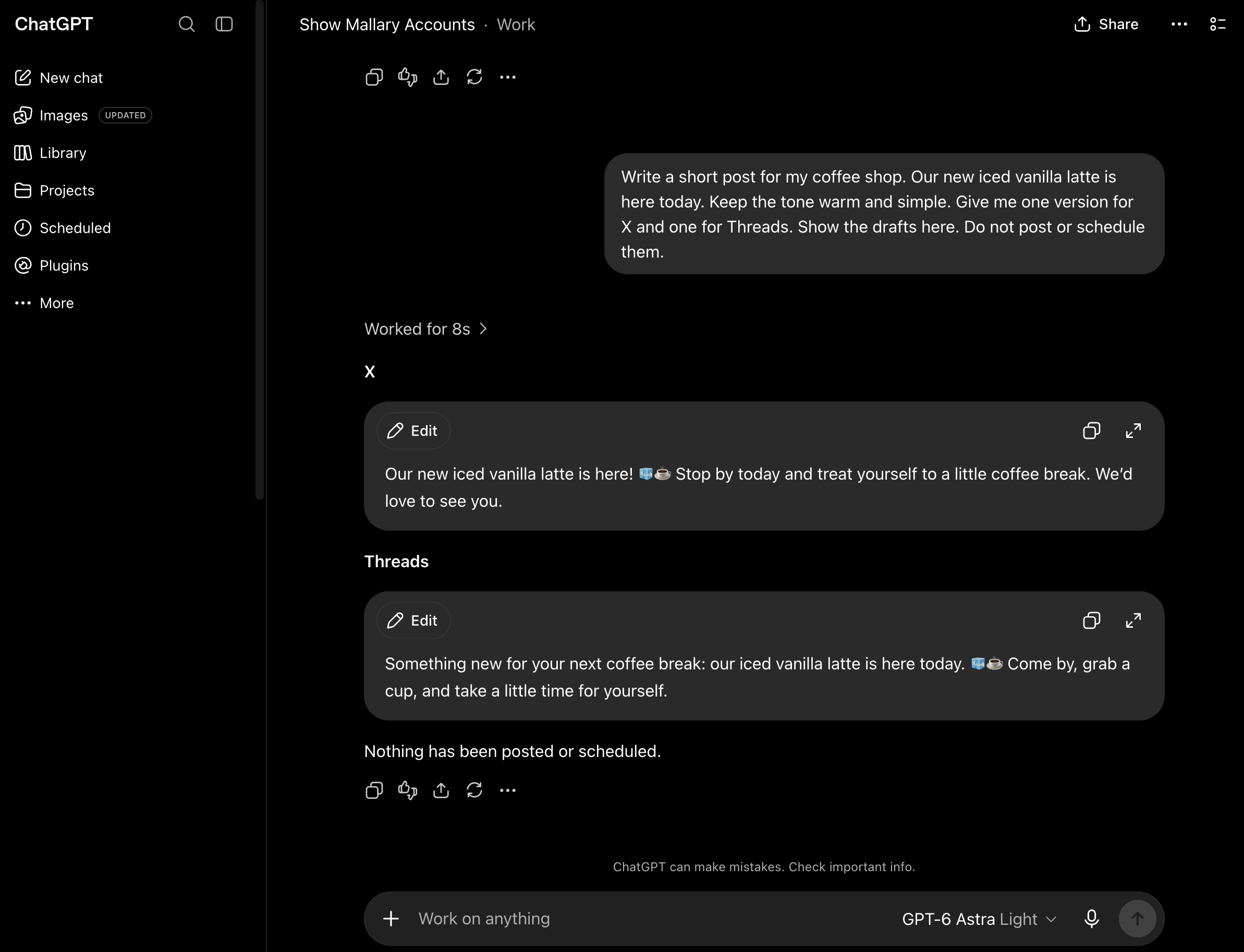
Let's say you run a coffee shop. You want people to know about a new drink. Ask ChatGPT for a short draft:
Write a short post for my coffee shop. Our new iced vanilla latte is here today. Keep the tone warm and simple. Give me one version for X and one for Threads. Show the drafts here. Do not post or schedule them.
Use your own news in place of the coffee shop example. Tell ChatGPT the facts it needs. Check names, dates, prices, and links before you use the text.
Saved drafts are available to all users. A draft shown in this chat is text to review. Ask for changes until it says what you want. To keep it in your account, ask ChatGPT to save it as a draft in Mallary without publishing or scheduling. New draft tools appear after OpenAI checks them. If they are not in your chat yet, use Save Draft in Mallary Compose.
Already have a caption? Paste it into the chat and say, “Use these exact words.”
Step 05 / Choose when it goes live
Post now or pick a time
First, ask ChatGPT to show the whole plan. Check the text, profile, and account names.
@Mallary Show the final text for my chosen X and Threads accounts in [profile name]. Check that each post fits its platform. I want to post now. Wait for my approval before you send it.
Once it looks right, give a clear go-ahead:
@Mallary I approve the post plan you just showed me. Publish those exact posts to those accounts now. Then show the status of each post.
ChatGPT may ask you to allow a Mallary action. Read the request before you allow it. This step sends a real post to your chosen accounts.
Want it to go live later?
Use this prompt instead of the publish-now prompt. Choose a future date and name your time zone. You can say “Eastern Time,” “ET,” or “New York time.”
@Mallary Prepare these approved captions for my chosen X and Threads accounts in [profile name]. Schedule them for [month, day, year] at [time] in [time zone]. Show the date, time, time zone, and accounts. Wait for my approval before you schedule them.
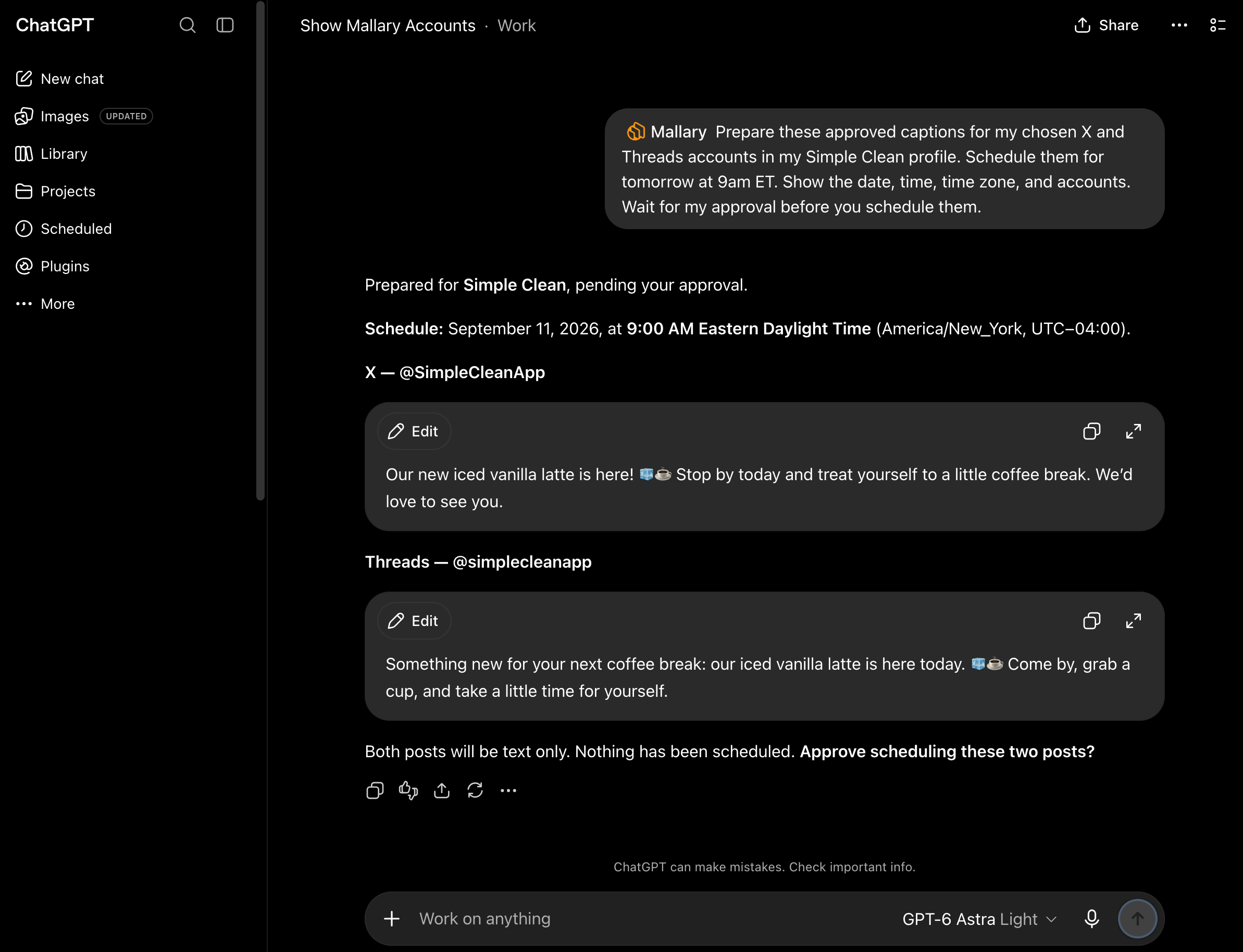
Check the plan, then tell ChatGPT to schedule it. Ask it to show the saved time for each post. You can also open the Posts page in your Mallary dashboard to review your schedule.
Mallary may still be sending a post after it accepts your request. Use step 7 to check when each platform has published it.
Step 06 / Add a photo
Use an image in your next post
Attach a photo in ChatGPT, or ask ChatGPT to generate an image.
Need a different shape or a smaller file? Use our free Instagram image resizer or image compressor. Download the new copy, then attach that file in ChatGPT before you ask Mallary to post it.
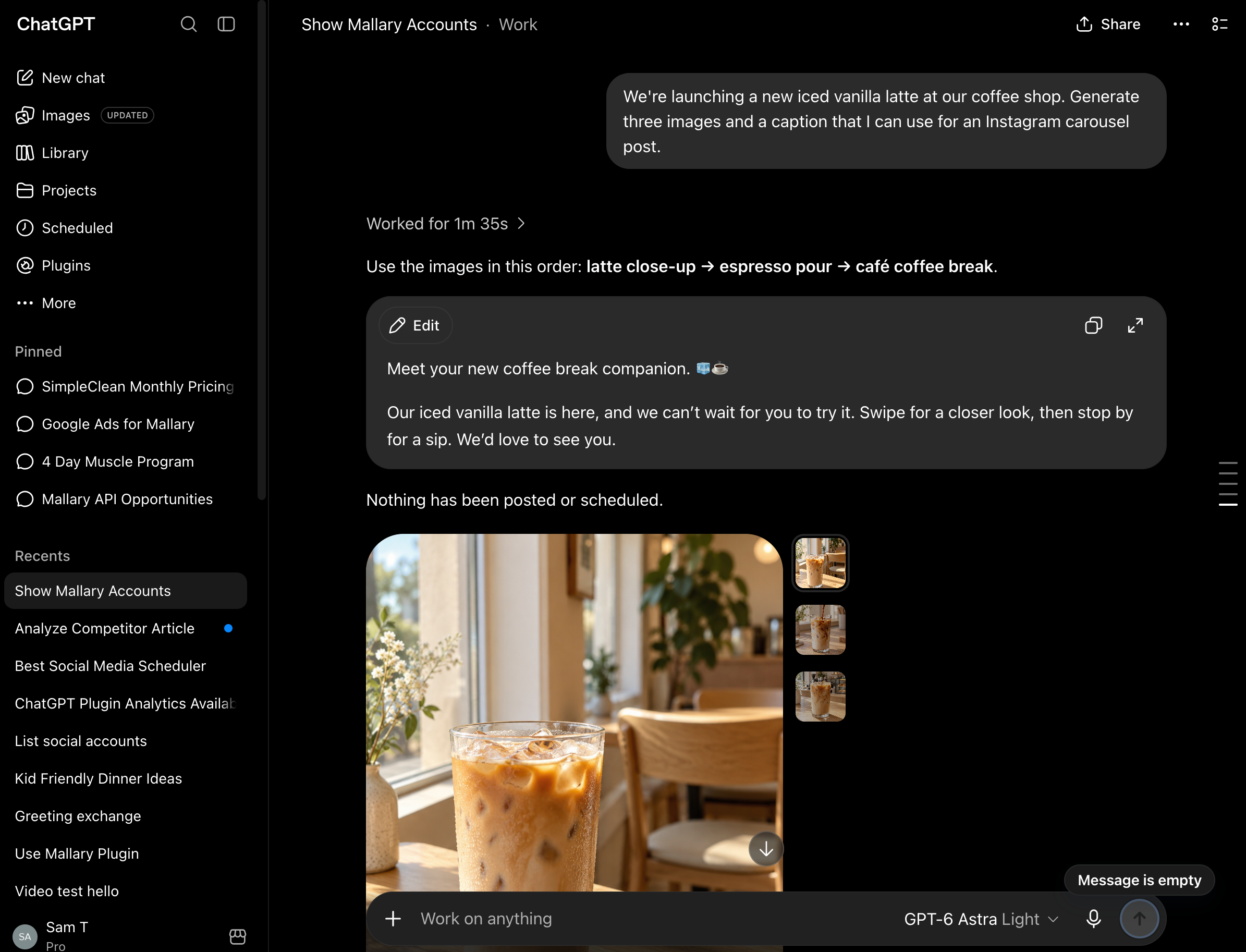
For our coffee shop, this could be a photo of the new latte. Once you can see the image in the chat, ask Mallary to use it:
@Mallary Use the image I just attached for a new post. Upload it to Mallary for this post. Prepare an Instagram feed post for with this caption: "Meet your new iced coffee. Our vanilla latte is here today." Check that the image fits. Show me the image, caption, and account before you publish.
Mallary uploads the chosen image so it can send it to the social platform. Uploading the image does not publish the post.
Review the image and caption. Then tell ChatGPT to publish that exact post, or give it a date, time, and time zone.
Use the same image on more accounts
Name each account in your request. For example, add your Facebook Page or LinkedIn account. Ask for a caption for each one if you want the words to differ.
Share several images in one post
Attach the images and ask for an Instagram carousel. A carousel is one post with images people can swipe through. Mallary supports up to 10 items in an Instagram carousel. Tell ChatGPT the order and ask it to check them before posting.
Other platforms have different limits. Start with one image if you want a simple first try.
Step 07 / Check the result
Check what went live
Each platform has its own result. A post can go live on X while the Threads post is still waiting or has failed.
@Mallary Check the posts we just created. Show the account, status, and live link for each one, if a link is available. Explain any error. Do not retry or create another post.
Open the live links and look at the posts. Check the words and image. If a post is still waiting, give it a little time and ask for its status again.
For posts set to go live later, use this:
@Mallary Show the posts scheduled for this week. Include the accounts, dates, times, and time zones.
You can also check your Posts on your Mallary dashboard. If one platform failed, read its error before you try again. Check the posts that went live so you do not send them twice.
What about videos?
Attach an MP4 or MOV video in ChatGPT and ask Mallary to upload it for your post.
- Keep your approved captions and schedule in your ChatGPT chat.
- Attach your MP4 or MOV video to the chat. The file can be up to 512 MB.
- Ask Mallary to upload the video and use it with your approved captions and accounts.
- Check the date, time zone, and platform choices before ChatGPT schedules the posts. Then check each result in Posts.
Uploading the video does not publish the post.
For a Reel, TikTok, or YouTube Short, ask ChatGPT to check each platform's video rules. Anyone with the Mallary video URL can view the file.
Format restrictions ChatGPT might hit when posting
These are social media platform rules, not Mallary rules. ChatGPT will catch them for you, but knowing them ahead of time saves a step.
| Platform | Keep this in mind |
|---|---|
| X | Start with short text. You can also use up to four images. |
| Threads | Use text, one image, or an image carousel. Keep the caption short. |
| Use a business or creator account. A feed post needs media. Use one image or ask for a carousel. | |
| Use a Page you can manage. Text and image feed posts work. | |
| Use text, image or video for this workflow. Check the chosen person or company Page. | |
| Bluesky | Keep text to 300 characters. You can add up to four images. |
| A Pin needs an image. Name the board and add a title. Include a link if you want people to visit a page. | |
| TikTok | A text-only post will not work. For a photo post, add images and choose who can see it. |
| YouTube | You need a video. Write the title and caption in ChatGPT. For a Short, ask Mallary to use the Shorts format. |
Check Mallary's platform list for the full list and current availability.
More prompts to try
Say which accounts you want to use. For a new post, say when it should go live.
Turn this idea into three short social posts: [your idea]. Give each post a different focus. Keep my facts the same. Show the drafts here so I can choose. Do not publish or schedule anything.
Make a simple image for this post: [your post idea]. Do not add words to the image. Show it to me before we use it in a social post.
@Mallary Show the results for my posts from the last 30 days. Compare posts on the same platform. Use the data you have and tell me which numbers are missing. Suggest one idea for my next post.
@Mallary Show the results for the latest Instagram post I sent through Mallary. Include views, likes, comments, and shares where available. Tell me when these numbers were last checked. Say if any data is missing.
Results can take time to appear. Each platform shares different data, so a missing number does not always mean zero.
@Mallary Show up to 10 recent comments on the latest Instagram post I sent through Mallary. Write a short, friendly reply to each question. Use the facts I have shared. Show each comment next to its draft reply. Wait for my approval before sending any replies.
Review the drafts and make any changes. Then say, “Send the replies I approved to those comments.”
Fix common problems
ChatGPT says it cannot use Mallary
Open the Mallary plugin page and check that it is connected. Start a new chat, type @Mallary, and select it. Ask for your accounts again.
If you cannot add the plugin, check whether your ChatGPT account or work account allows it. Use the Help Center if you still need help.
The wrong account shows up, or one is missing
Ask ChatGPT to list your Mallary profiles and accounts. Name the profile and account you want. Check that you signed in to the same Mallary account in both apps.
If the account is missing in Mallary too, open Platforms and connect it to the right profile.
Mallary asks me to upgrade
The Free plan does not include posting from ChatGPT. Use Starter, Pro, or Business, or a trial with paid features. Check your plan in Billing.
My image will not upload
Try a JPG or PNG. If your phone made a HEIC file, export it as JPG first. Attach the image again and tell ChatGPT which one to use.
A link to a web page is not the same as an image file. Do not paste a Google Drive share page or a private file link in place of the image.
The time is wrong
Use a full date, a time, and a time zone in your prompt. Ask ChatGPT to show what Mallary saved. You can also review the post in Posts.
If you need to change it, edit the existing post in Mallary. Do not create a second copy to fix the first one.
One platform failed
Ask for that post's status and error. You may need to reconnect the account, change the image, or shorten the text.
If Facebook asks you to reconnect, open Platforms in Mallary and reconnect the Page. Then check the existing post again before you retry it. Only retry the failed post after you fix the cause.
ChatGPT stopped before it showed the result
Ask Mallary to list your recent posts and check their status. The post may already exist. Do this before you send the same request again.
Still stuck? Get help from Mallary. Share the post ID and the error you see so we can find the right post.