Written by Outrank. Published by Mallary Labs LLC.
Published .
IG Save Reels: How to Save, Organize and Download Safely
You've found a recipe Reel while scrolling before bed, but you're not about to start cooking. You want to keep it, find it again, and perhaps share the idea with your team. An IG save Reels search sounds like a simple button question, until you discover that bookmarking a post, keeping a video file, and publishing that video elsewhere are different jobs.
Table of Contents
- Choosing Between Save, Download and Export
- How to Save a Reel and Organize It in Collections
- Finding Saved Reels and Fixing Missing Ones
- Why Saved Reels Are Bookmarks, Not Archives
- Build a Compliant Save-and-Republish Workflow
- Rights, Permissions and the Final Reuse Decision
Choosing Between Save, Download and Export
A save is a private reference to a post. A download creates a file on your device. An export is a separate preservation task for your own account content, not a way to turn someone else's saved Reel into your original asset.
For that late-night recipe, a bookmark is usually enough. For offline viewing, you need a permitted download. For a business campaign, you need a usable file and permission for the intended use.
Save, download and export options compared
| Action | What you get | Keeps licensed music | Who can use it | Best for |
|---|---|---|---|---|
| Save to Saved | Private bookmark in your Saved tab | Not applicable, no file | Any account that can see the Reel | Revisiting later without a public signal |
| Save to a collection | Bookmark sorted into a named or collaborative collection | Not applicable, no file | Any account that can see the Reel, subject to collection access | Organizing ideas by project |
| Download to device | Local video file, potentially with an Instagram watermark | No, licensed music may be missing or altered | Public Reels where the creator allows downloads | Personal offline viewing |
| Export your own Reel | Your account's available media through an account-data export, not a guaranteed original master | Don't assume licensed music is included or cleared | The account owner | Preserving your account's available content |
| Third-party downloader | External copy without established reuse rights | Unreliable | Access and creator permissions still apply; scraping creates risks | Not recommended for compliant workflows |
The music column matters whenever you need a file rather than a reference. The permission column matters before you try to obtain that file, especially if you're building an automated workflow.
Ordinary saves aren't public endorsements. Instagram's announcement about organizing saved posts explains that saved posts are private, unlike visible likes and comments. Collaborative collections should be treated as shared workspaces rather than private personal folders.
If you're comparing tools to save Reels for personal reference, Unfollowers Track provides another resource to assess against these distinctions. A tool's ability to obtain a file doesn't establish your right to use it.
For developers, the same separation belongs in the product requirements. Our Instagram API guide is useful context for planning an integration, but a user's bookmark shouldn't automatically become a media-ingestion request.
Practical rule: Use separate actions for save, download, and export. Don't hide them behind a single button that promises to keep everything.
How to Save a Reel and Organize It in Collections
Start in Instagram rather than a downloader. You'll retain the connection to the creator's post and see whichever save or download controls are available to your account.
Instagram's help documentation distinguishes saving from downloading, states that downloads aren't available on computers, and warns that downloaded Reels don't preserve music added from its licensed library. Those constraints should determine your routine, not an assumption that every Reel can become an identical local copy.
A routine you can repeat
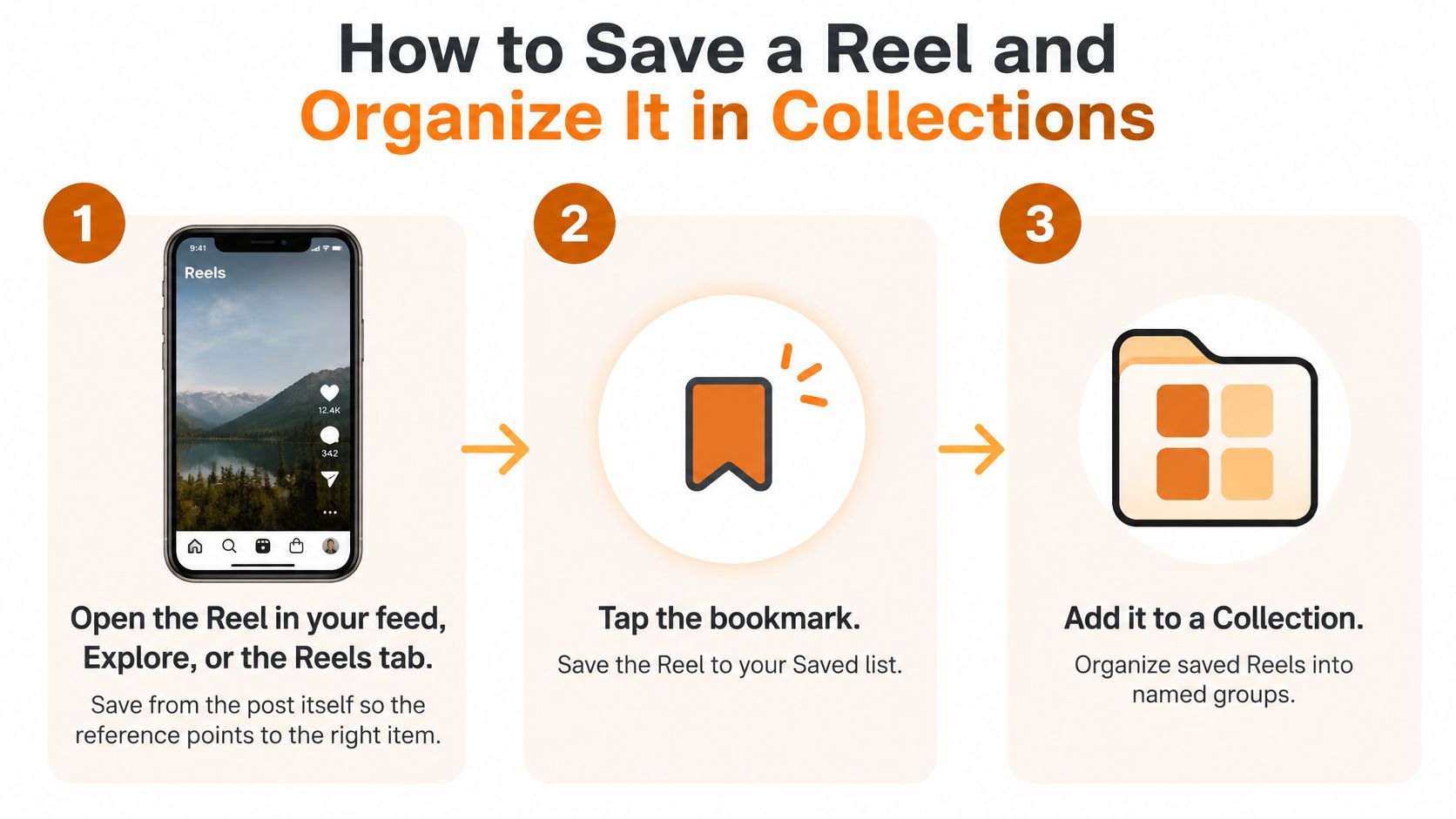
Open the Reel in your feed, Explore, or the Reels tab. Save from the post itself so the reference points to the right item. Open the full Reel rather than relying on a screenshot or a preview in a message.
Tap the bookmark. Save the Reel to your Saved list. If a bookmark isn't displayed directly, open the Reel's options or sharing controls and choose Save; control placement can differ across interfaces.
Choose Download only when you need a local file. Open the sharing options and select Download when it's offered. If you're using a computer, switch to the mobile app rather than assuming the missing button is an account fault.
Open your profile, then the menu, then Saved. Check All posts if you haven't filed the Reel into a particular collection. Confirm you're using the same Instagram account you used when saving it.
Add it to a Collection. Organize saved Reels into named groups. Choose a project name such as Recipes, Spring Launch, or Client Ideas, and use a collaborative collection only when other participants need access.
Reopen the collection to confirm the Reel is listed. Don't finish at the tap that appeared to save it. A quick retrieval check catches mistakes before the post disappears into an unrelated folder.
A finished setup should contain a short set of purposeful collections, not dozens of overlapping categories. Name collections for the decision you'll make later, such as Menu Tests, rather than a vague label like Interesting.
Set a download rule too: use a local file for an authorized offline need, then inspect it immediately. Check the picture, soundtrack, and any watermark before relying on it for a presentation or edit.
Finding Saved Reels and Fixing Missing Ones
A Reel that has vanished from Saved isn't necessarily an app glitch. First determine whether the source post still exists and whether your account can access it. Reinstalling Instagram won't restore a post the creator has removed.
Saved Reel problems, causes and fixes
| Symptom | Likely cause | Fix |
|---|---|---|
| Reel missing from Saved | Creator deleted the post, made the account private, or removed it | Check the source post; a deleted reference can't be restored from Saved |
| Cannot find an older save | Long Saved list without practical keyword or date filtering | Browse relevant collections and file recovered items into named collections |
| Cannot download a Reel | Private account, creator disabled downloads, or computer use | Use the in-app save, or ask the creator for an authorized copy |
| Downloaded Reel has no music | Licensed library audio wasn't retained | Replace it with cleared audio before reuse |
| Saved Reel shows as unavailable | Source removed or access changed | If you own the content, retrieve your original upload file |
Quick checks include changing accounts, checking All posts, opening the creator's profile, and inspecting your phone's gallery for a downloaded file. These resolve navigation mistakes without rebuilding your organization system.
A new source is needed when the original has been deleted, access is no longer available, or the creator hasn't authorized the copy you need. Don't spend your editing time trying to repair a bookmark that no longer points to accessible content.
Keep the maintenance small:
- File as you go. Add useful Reels to a collection when you save them, rather than leaving a large sorting job.
- Use project names. Rename ambiguous collections so teammates know what belongs there.
- Keep identifying notes. Record the creator handle and date alongside the idea you wanted.
- Inspect downloads. Play the whole file before relying on its audio or captions.
A missing bookmark is a retrieval problem. A missing original is a preservation problem. Treating them as the same issue sends you toward the wrong fix.
Why Saved Reels Are Bookmarks, Not Archives
Save-for-later isn't a knowledge-management system. A useful library needs context, retrievability, and a preservation plan. Instagram's Saved area gives you a convenient starting point, but it doesn't guarantee those things.
The Digiinte guide to Instagram downloader alternatives highlights the underlying weakness: saved items remain references to source posts, while large Saved libraries can be difficult to search through practical keyword, date, and filtering tools. Collections improve organization, but they don't guarantee future access.
Preserve the useful information
Say a bakery owner saves a decorating technique and later finds that the creator has removed it. A student might lose access to research clips after an account becomes private. A marketer might retain a large pile of accessible saves but have no way to identify the product demonstration they remember.
Those are different failures: availability, access, and retrieval. Creating another collection won't fix all of them, and an account-data request shouldn't be treated as a promise to recover someone else's removed video.
Use a simple Google Sheet or Notion database for content that matters operationally:
- Log the reference and its purpose. Keep the post link, creator handle, date saved, and a sentence explaining what you wanted to learn or use. Record the technique or takeaway in your own words.
- Add a rights status. Note whether the source is public, downloads are allowed, reuse permission is documented, and music is cleared. Mark unknown states as unknown rather than assuming approval.
- Review before planned use. Reopen the source, confirm access, and re-source anything your team intends to publish. Use a recurring review for active projects rather than trying to maintain every casual save.
The log won't resurrect deleted media. It will preserve the reason you saved it, the creator's identity, and the permission work still required. That makes the reference useful even when the original link stops opening.
Build a Compliant Save-and-Republish Workflow
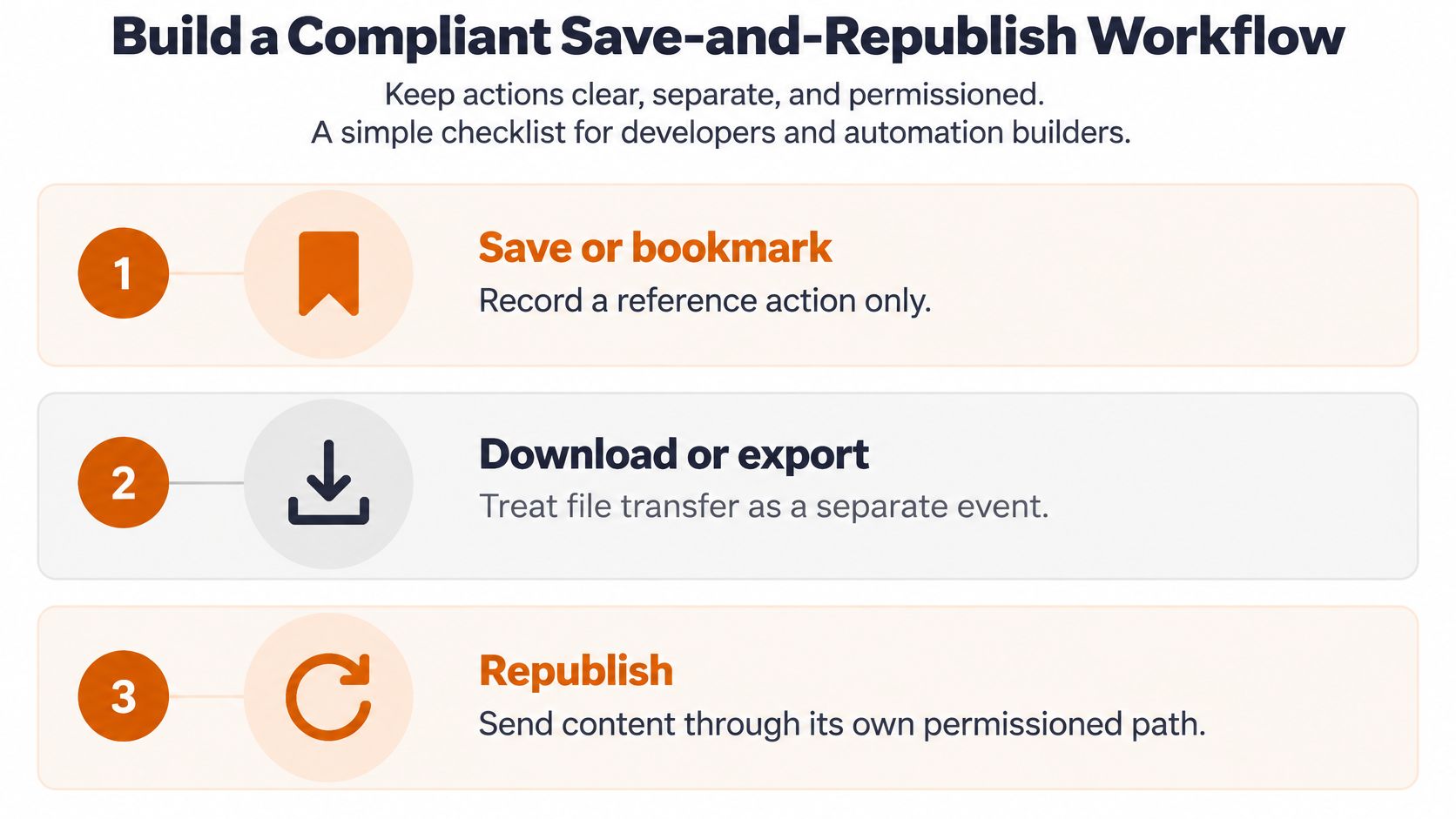
For developers, bookmark, download or export, and republish should be separate events with separate permission states and audit records. A successful bookmark event must not authorize a background file transfer or a publishing job.
Request explicit authorization, avoid scraping, and retain provenance when exporting a file. Store the source URL, creator identity, ownership status, permission evidence, and approval decision alongside the asset.
Validate before the upload
Use Meta's Instagram Reels video guidance to inform normalization, including a 9:16 frame, constant 30 FPS processing target, and the warning that Reels over three minutes aren't recommended to new audiences.
- Validate the container and codecs. Accept MP4 or MOV with H.264 video and AAC audio in your normalization pipeline. Inspect the media itself rather than trusting the filename extension.
- Normalize variable-frame-rate input. Use a constant frame rate to reduce timing problems during processing. Avoid repeatedly transcoding already compressed copies.
- Crop or pad deliberately. Preserve important captions, faces, and logos within the safe area. Review the rendered output rather than assuming an automatic center crop is acceptable.
- Check duration against the intended placement. Separate technical upload eligibility from suitability for discovery and the campaign's objective.
- Check file size. Validate against the destination's current limits before queuing the upload.
- Upload and verify. Inspect the published result for sound, cropping, captions, and account destination.
If a web page only needs to display the original post, compare embedding with re-uploading. The resource on video embedding explained by House of Lyrics provides context for that alternative, without replacing a permission review.
Make retries deliberate
After a platform accepts a post, we save the result. If the same job runs again, we check that saved result first to lower the chance of a duplicate post.
We don't retry errors that require you to change something, such as reconnecting an account, replacing disallowed media, or adding a missing required choice. Our guide to scheduling Instagram Reels offers related publishing context.
Put human approval before cross-network publishing. The reviewer should approve both the exact rendered asset and its documented reuse permissions, not merely the caption.
Rights, Permissions and the Final Reuse Decision
A downloadable file isn't a redistribution license. The download control answers whether Instagram offers a file transfer under the creator's settings. It doesn't answer whether your business can edit that file, add branding, or publish it elsewhere.
The Parsly guide to downloading Instagram Reels separates private saves from permitted public downloads and notes that private-account Reels can't be downloaded by other users. It also describes downloads as intended for personal use and potentially carrying an Instagram watermark.
Match the permission to the intended use
A private save lets you return to accessible content. It doesn't establish public reuse rights.
A downloadable public Reel gives you a permitted route to a personal copy. Before treating it as campaign material, obtain authorization for the proposed edit, destinations, and commercial context.
Your own original is the strongest starting point for reuse, but check every included element. Owning the footage doesn't automatically clear a library soundtrack for another platform or a different use.
Say a travel agency downloads a competitor's destination Reel, adds its own logo, and distributes it across its social accounts. The critical decision is the republish: the agency is presenting someone else's creative work in its own marketing. Adding credit alone doesn't resolve missing permission.
For teams working with excerpts, FindClout's guide to understanding permissions for content clips is a useful companion to an internal approval checklist.
- Written authorization. Keep the creator's permission and specify the intended edit and publishing destinations.
- Creator credit. Agree on how the creator will be named. Credit supplements permission; it doesn't replace it.
- Attribution intact. Don't remove watermarks or credits to make third-party content look like your own.
- Cleared soundtrack. Confirm rights for the new use, or replace the audio with appropriately licensed material.
Make the final check explicit
Before acting, ask whether the source is public or private, whether the creator permits downloads, and whether the soundtrack is cleared for your intended use. If a status is unknown, pause the reuse rather than allowing an automated job to interpret silence as approval.
For music selection, our guide to finding and using trending audio on Instagram offers practical context. Popularity is a creative consideration, not evidence of permission.
Approval boundary: Technical validation can tell you whether a file is suitable for upload. A rights review determines whether you should publish it.
Before publishing, we check file type, file count, video length, image shape, text length, and other platform media rules, and provide a clear message when something is wrong. Those checks support, rather than replace, your rights decision.
Use a straightforward rule set: save for reference, download only when permitted, preserve your own originals, and republish third-party work only with documented authorization and agreed credit. Keep the comparison table handy, but make approval specific to the actual asset and destination.
Mallary.ai brings social publishing behind a unified API and dashboard, with preflight media checks and saved publishing results that help reduce duplicate posts. Visit Mallary.ai to build a publishing workflow that keeps technical validation separate from your team's content-permission approvals.
Try it with Mallary
STOP!
Want ChatGPT or Claude to post on Instagram for you?
Connect your social accounts one time. Then tell your AI what to write. It can make your posts, share them, and reply on social sites that allow replies. You do not need to write code.
Pick your AI





Connect once. Ask in plain English. Mallary does the work.


