Claude can help you write a social media post. With Mallary, it can also send that post to your accounts or set a time for it to go live.
Turn one shop update into posts for Instagram and LinkedIn. Add a photo, check each post, and choose when to send it. Then use Claude to read comments and help you reply.
Before you start
Have these ready:
- A Mallary account with an active plan or trial. Compare Mallary plans.
- A Claude account that lets you add Mallary. Your Claude plan and your Mallary plan are separate.
- Social accounts you can post to. This guide uses Instagram and LinkedIn.
- One real update and one photo.
You do not need code or an API key. You will sign in to Mallary to link the apps.
Step 01 / Set up Mallary
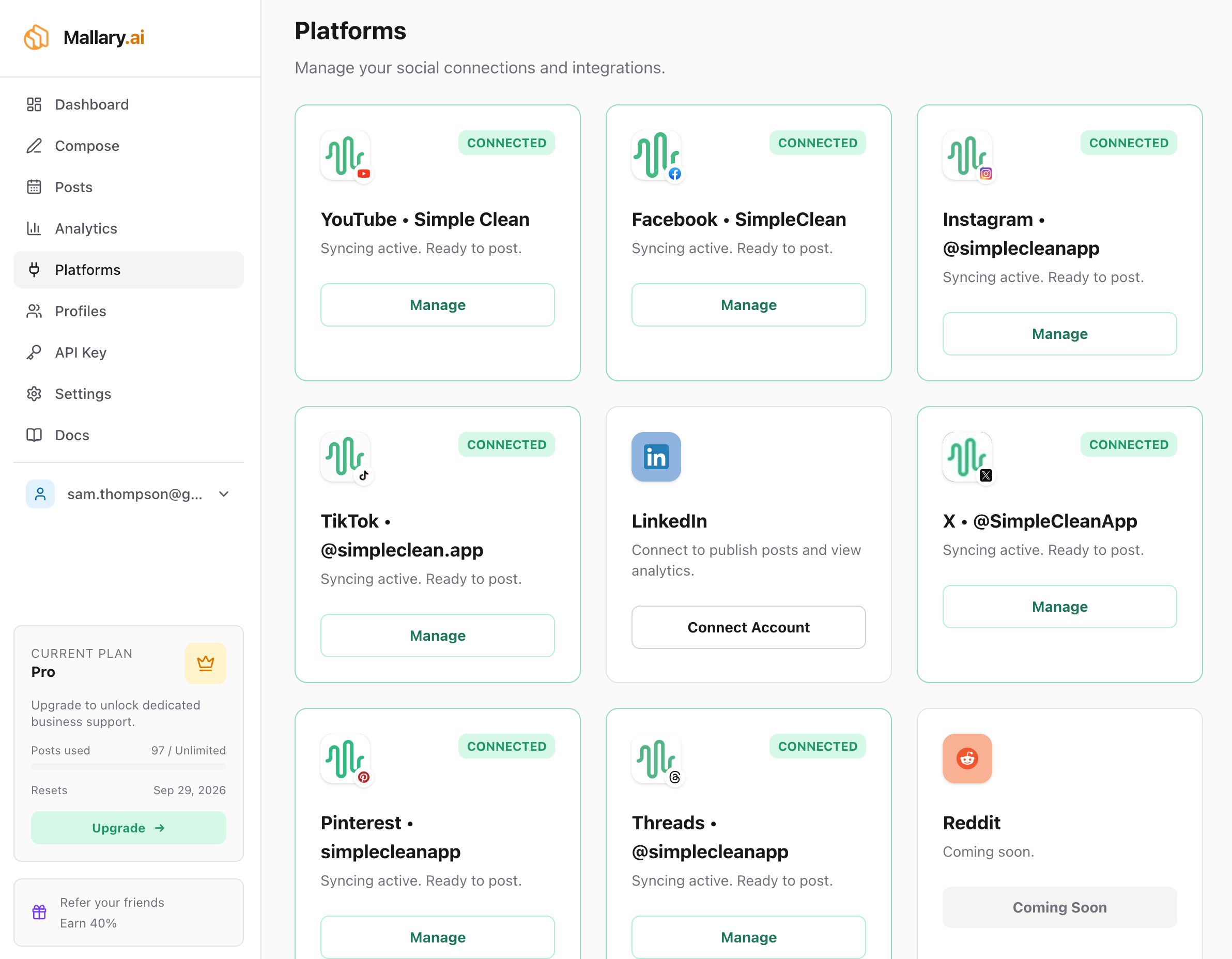
Connect your social accounts
- Create a Mallary account, or sign in.
- Open Platforms in your dashboard.
- Choose your Mallary profile. A profile keeps one brand's accounts in one place.
- Connect Instagram and LinkedIn. Sign in on each site and allow access.
- Check the account names when you return to Mallary.
Instagram needs a business or creator account. For LinkedIn, check that you chose the right person or company Page.
Keep both accounts in the same Mallary profile.
Step 02 / Connect Claude
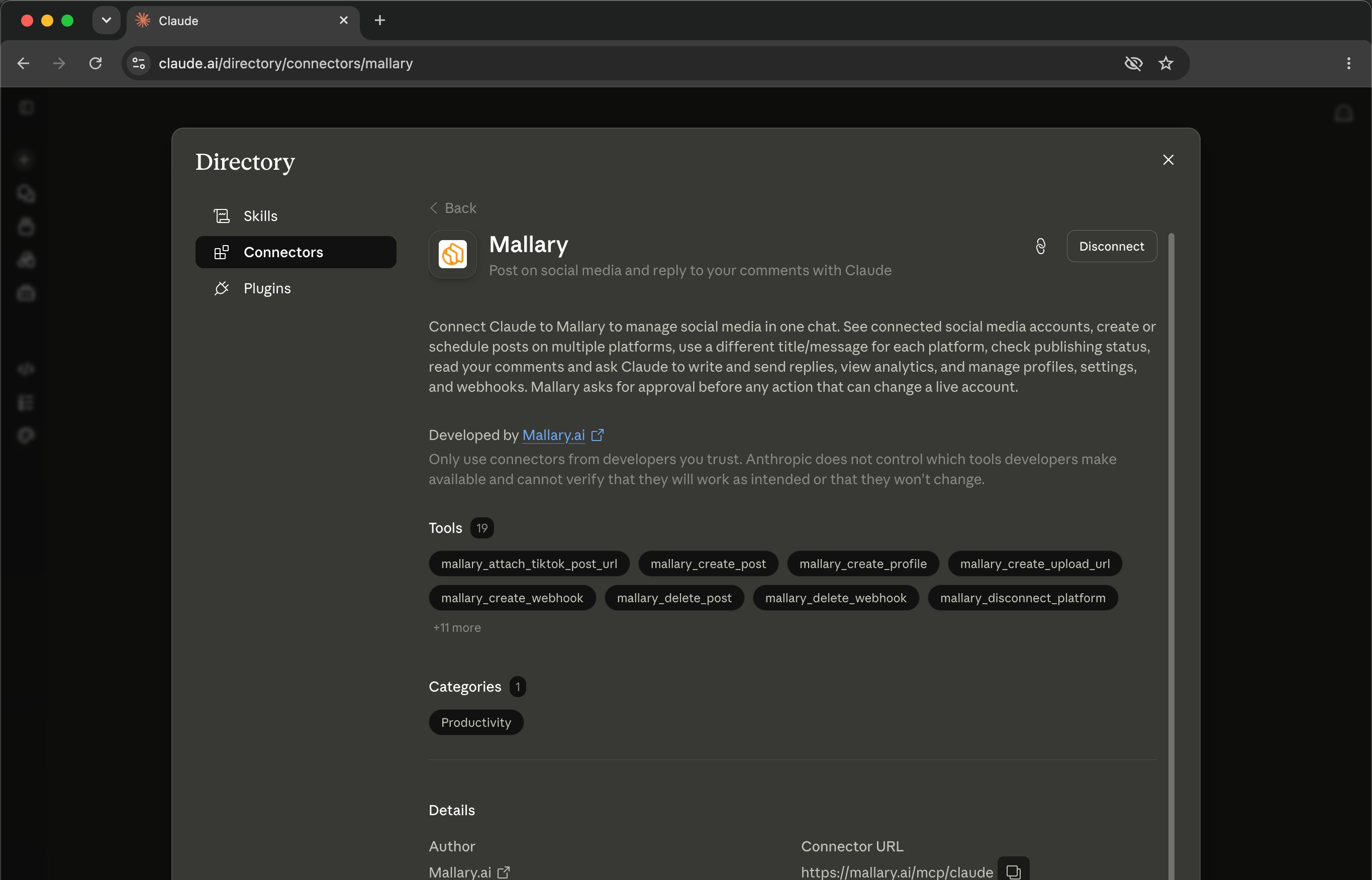
Add Mallary to Claude
- Open Mallary in the Claude Connector Directory (opens in a new tab).
- Click Connect or Install to add Mallary.
- Sign in to the same Mallary account you used in step 1.
- Read the access request, then allow the connection.
- Return to Claude and start a new chat.
This sign-in method is called OAuth. You sign in on Mallary's page. You do not paste your password into the chat.
Adding Mallary does not create a post. You will choose what to send below.
Step 03 / Pick your accounts
Ask Claude to check your accounts
Use Mallary to list my profiles and the social accounts in each one. Show the account names. Do not create or send any posts.
Tell Claude which profile and accounts to use:
Use my [profile name] profile in Mallary. For this task, use my Instagram account [account name] and my LinkedIn account [account name]. Confirm the accounts before we go on.
Replace each part in square brackets with your own details.
Step 04 / Write the words
Turn one update into two posts
Let's say your coffee shop has a new drink. Ask for a caption that fits each site:
Our coffee shop has a new iced vanilla latte. It is available today. Write one short Instagram caption for our customers. Write one LinkedIn post for local workers who want a coffee break. Use plain words and a warm tone. Do not invent a price, offer, link, or claim. Show both drafts here. Do not publish or schedule them.
Use your own news. Check the facts, names, and links. Ask for changes until it sounds like you.
These drafts are text in your chat. They are not saved posts in Mallary yet.
Step 05 / Add a photo
Add the image for your posts
An Instagram feed post needs media. Use a photo of the latte for both posts.
Claude needs to send the file to Mallary before Mallary can post it. If your Claude setup supports file uploads and network access, follow these steps:
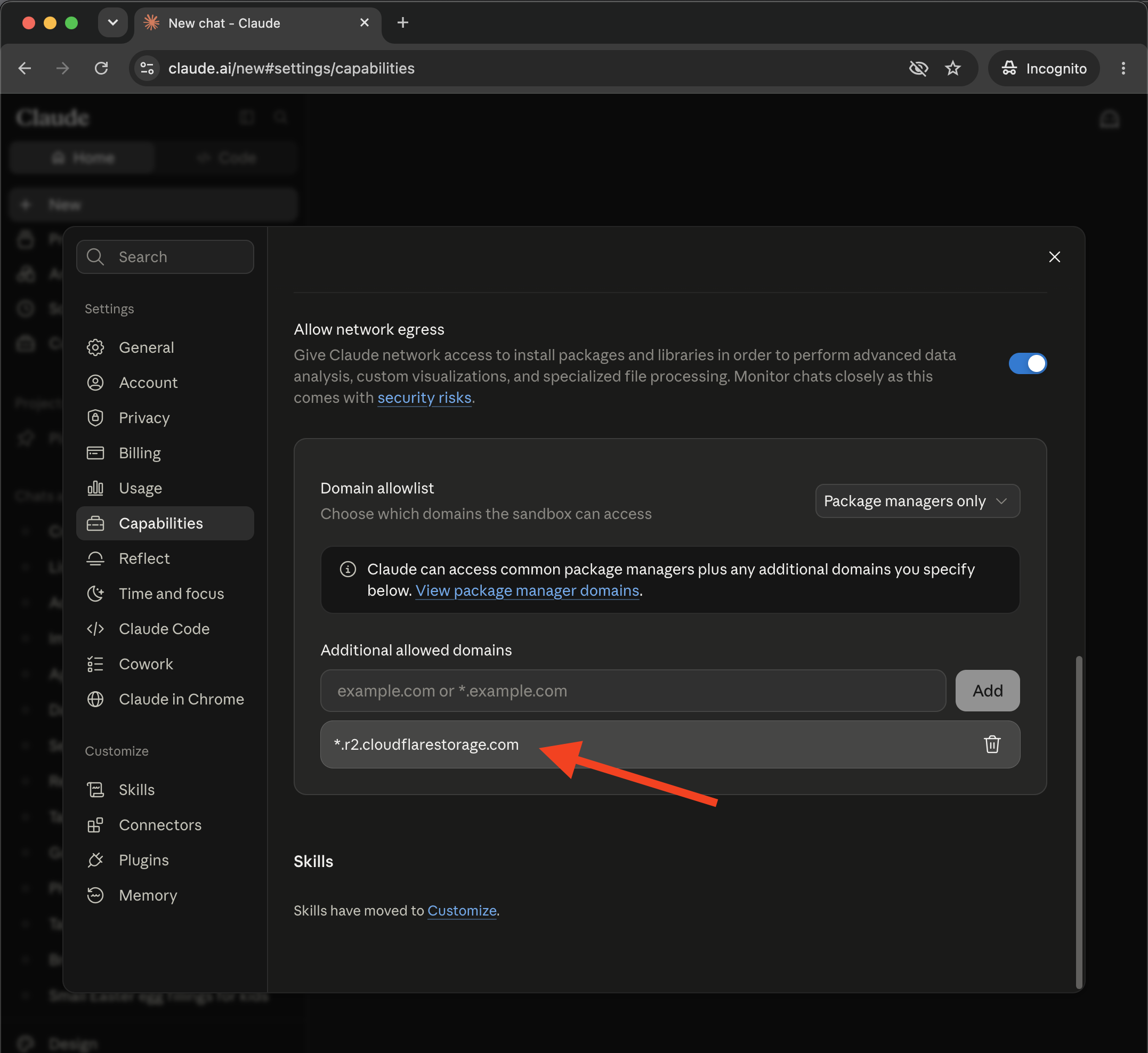
- Open Settings > Capabilities in Claude and turn on network access.
- Add
*.r2.to Additional allowed domains.cloudflarestorage.com - Start a new chat so the change takes effect.
- Tell Claude which profile and accounts to use. Paste your approved captions and attach your photo.
These settings can vary by Claude app and work account. See our Claude media help for details.
Use Mallary to upload the photo I attached for these Instagram and LinkedIn posts. Check that the image fits both sites. Show the image, each caption, and the account names. Do not publish or schedule anything yet.
Wait for Claude to confirm the upload worked. Getting an upload link does not move the file.
If Claude cannot upload the file
Open Compose in Mallary. Choose your profile and accounts, upload the photo, and paste your captions. Review each post there, then publish or schedule it.
If you send or schedule the posts in Compose, skip to step 7. Do not send them again from Claude.
For videos, write the caption in Claude and finish in Compose. Check each site's file rules there.
Step 06 / Choose a time
Review, then post or schedule
Check the full plan:
Show the final Instagram and LinkedIn posts for my chosen Mallary profile. Include each account name, caption, and image. Check that each post fits its site. Wait for my approval before you publish or schedule anything.
When the plan is right, choose one of these two options.
Post now
I approve the plan you just showed me. Use Mallary to publish those exact Instagram and LinkedIn posts to those accounts now. Then check the result of each post.
Read any action request before you approve. This sends real posts.
Post later
Choose a future date and name your time zone. You can say “Eastern Time,” “ET,” or “New York time.” Claude will turn that into the right time zone for Mallary.
Prepare the posts we reviewed for [month, day, year] at [time] in [time zone]. Show the date, time, time zone, and accounts. Wait for my approval before you schedule them.
Check the plan. Then say, “I approve. Schedule those exact posts at that time.” Ask Claude to show the saved time for each post.
Step 07 / Check the result
Make sure each post went live
A job ID or a queued status means Mallary has accepted the work. It does not mean the post is live yet.
Use Mallary to check the posts we just created. Show each account, post ID, status, and live link if one is available. Explain any error. Do not retry or create another post.
Open the live links and check the posts. One site may finish before the other. If a post is still queued, wait a little and check again.
Check a scheduled post's saved time now. Check its result after that time has passed. You can also use Posts in Mallary.
Used Compose? Check Posts, or ask Claude to list the latest posts in your chosen profile.
If Claude stops or loses its place, the post may still exist. Check recent posts first so you do not send the same post twice.
More prompts to try
Use Mallary to show this week's scheduled posts in [profile name]. Include the account names, dates, times, and time zones. Do not change any posts.
Use Mallary to show my post results from the last 30 days in [profile name]. Compare posts on the same site. Tell me which data is missing. Suggest one idea for my next post.
Each site shares different data. Missing views, likes, or shares do not always mean zero.
Fix common problems
Claude cannot find Mallary
Check that Mallary is connected in Claude. Start a new chat and ask Claude to use Mallary. If your work account blocks connectors, ask your admin for help.
An account is missing
Check the profile in Platforms. Make sure both apps use the same Mallary account. Ask Claude to list your profiles again.
The image upload fails
Check the allowed domain from step 5, then start a new chat. Try a JPG or PNG. A web page link is not an image file. If the upload still fails, use Compose.
The time is wrong
Check the saved date and time zone in Posts. Edit the existing scheduled post there. Do not create a second copy to fix the first one.
One site failed
Read that post's error. Fix the cause, such as a lost connection or an image that does not fit. Check all results before you retry only the failed post.
Still stuck? Get help from Mallary. Share the post ID and the error you see.
Quick answers
Can Claude post to social media?
Yes. With Mallary connected, Claude can post to the social accounts in your Mallary profile. Review the post and tell Claude when to send it.
Can Claude reply to my comments?
Yes. Claude can use Mallary to read comments on your posts and send replies. Follow step 8 to draft replies, check the words, and choose which ones to send.
Do I need an API key?
No. The Claude connector uses your Mallary sign-in. You do not need to copy an API key.
Is Claude Code the same setup?
No. Follow our Claude Code setup instead. Connect Mallary only once so its tools do not appear twice.