
Written by Outrank. Published by Mallary Labs LLC.
Published .
How to Upload Multiple YouTube Videos in 2026
The popular advice says to select all your files, drop them into YouTube Studio, and let the batch publish itself. That advice confuses file selection with publishing. You can upload multiple YouTube videos in one session, but each video still needs its own title, description, thumbnail, visibility, and publish time. It also has to survive channel limits, quota limits, and processing.
I would start every batch privately. Treat a finished transfer as an intermediate step, not a launch. The workflow below fits a creator uploading a handful of files, a partner delivering a library, and a team building repeatable jobs that can retry one failed video without creating duplicates.
Table of Contents
- Choose a Bulk Upload Method First
- Upload a Studio Batch of Up to 15 Videos
- Pair Every File With Its Own Metadata
- Build Resumable Jobs Instead of One Giant Request
- Fix Batches That Stall or Duplicate
- Schedule Only After Processing Succeeds
- Decide Whether Studio or a Queue Should Publish
Choose a Bulk Upload Method First
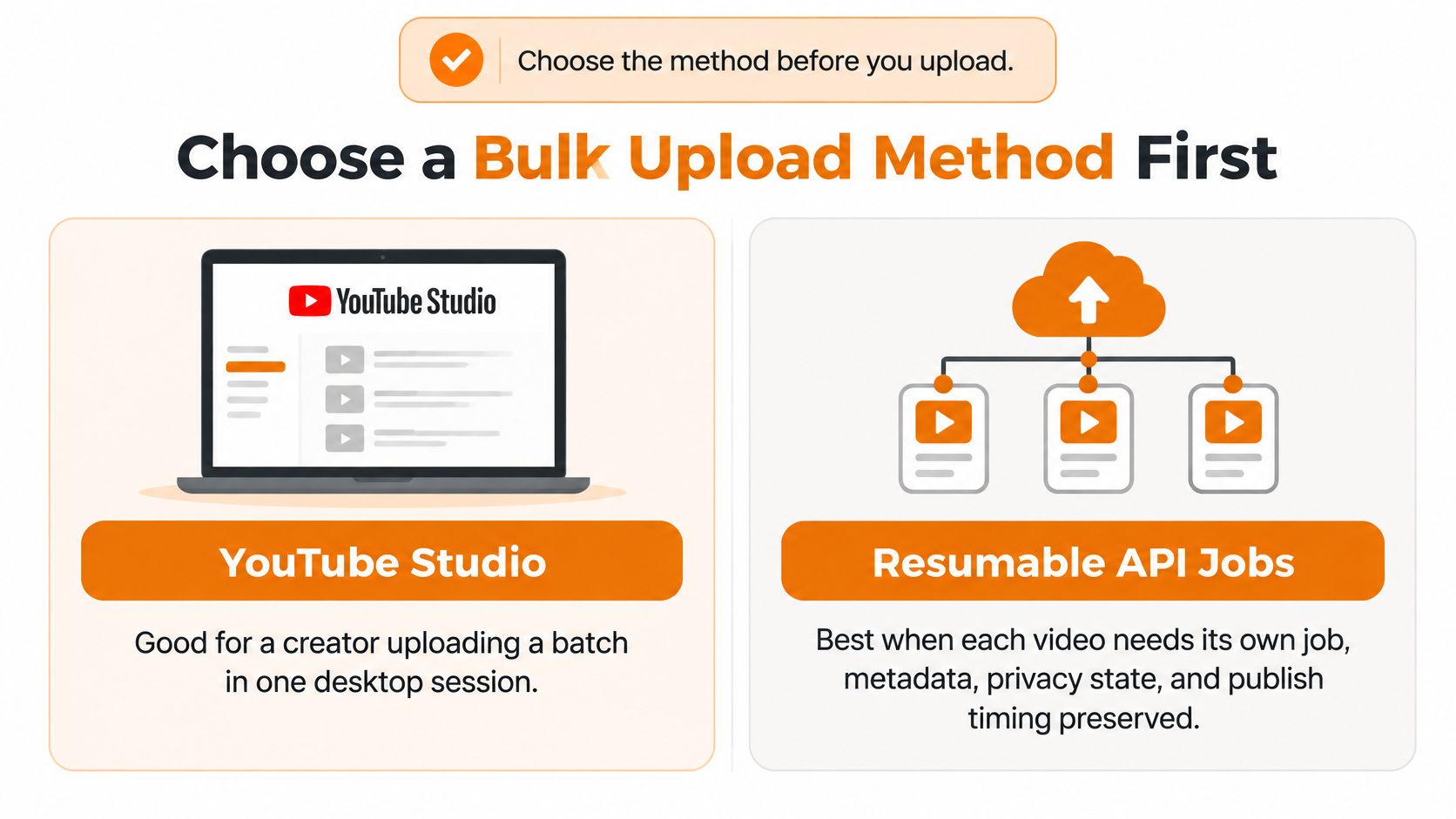
Choose the method before you upload. The right choice depends on whether you need a one-off session, a metadata package, or software that preserves per-video settings and retries only the failed item.
Compare the four routes
| Method | Best for | Batch ceiling | Still done by hand | Typical finish |
|---|---|---|---|---|
| YouTube Studio multi-select | One-off creator sessions | 15 files selected at once | Title, description, visibility, audience, playlist per video | Minutes to transfer, then processing |
| Package Uploader with spreadsheet or DDEX | YouTube partners | A metadata package of many assets | Validate metadata and watch package status | A couple of minutes to a couple of hours |
| SFTP or Aspera | Partners over 100 assets a month | High-volume file delivery | Transfer setup plus the metadata package | Hours, depending on size and changes |
| Data API videos.insert | Apps, agencies, multi-account tools | 100 insert calls a day by default | Resumable jobs, quotas, retries, processing polls | Transfer plus processing; 256 GB max file |
Studio is the fastest answer for a small, same-day batch. It isn't automation. You're still opening every card and making publishing decisions one video at a time. If you're generating the source clips first, an AI YouTube video generator can help you prepare draft files, but generation doesn't solve metadata, quotas, or processing checks.
The package route suits partners who already manage structured metadata. Files travel with a spreadsheet or DDEX file, validation happens before processing, and the team watches package status instead of clicking through individual upload cards.
The API route suits apps and agencies. It costs more to build, but it gives you per-video jobs, resumable transfers, explicit quota handling, and a record of what succeeded or failed.
According to official YouTube guidance, YouTube Studio allows up to 15 videos to be selected at once, while daily upload limits apply across desktop, mobile, and the YouTube API, with thresholds varying by region and channel history. That means a method tested on one channel can stall on another channel with a different history or strike status.
Decision rule: Use Studio for a small one-off batch, a package for partner libraries, and API jobs when retries, scheduling, or multiple channels matter.
Don't choose based on how many files you can highlight. Choose based on what happens when file nine fails.
Upload a Studio Batch of Up to 15 Videos
A Studio session works well when you're present for the whole batch and each video needs manual review. Prepare final filenames, titles, descriptions, thumbnails, and playlists before opening the uploader. You'll make fewer mistakes if the session is about entering finished decisions, not inventing them while progress bars move.
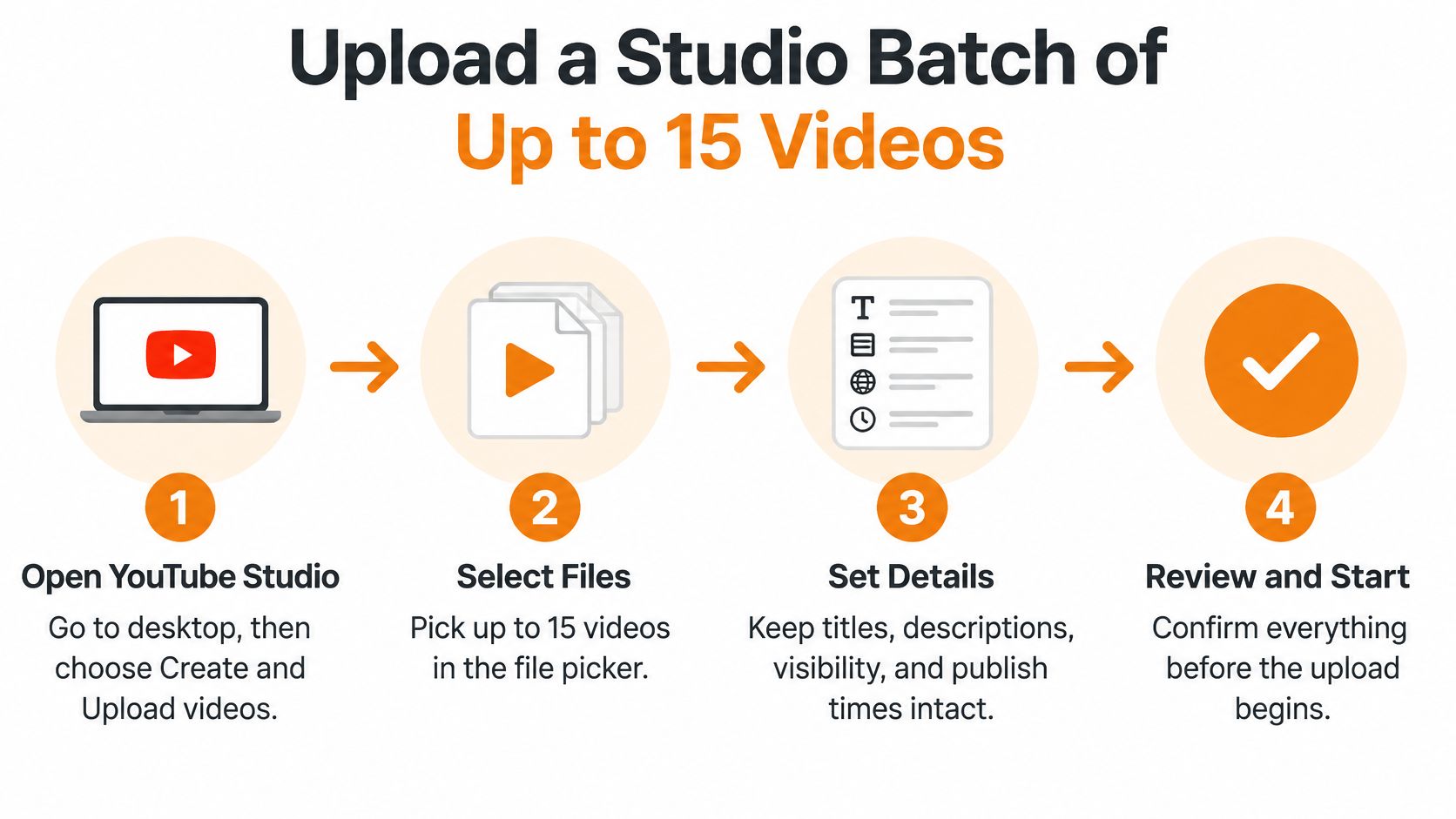
The YouTube upload help page states that YouTube Studio supports uploading up to 15 videos simultaneously from the upload interface, and each file is then opened individually to edit its title, description, visibility, audience settings, and other details. The same guidance separates that Studio limit from a channel-level upload limit across desktop, mobile, and the YouTube API, which can vary by country or region and channel history, with copyright or Community Guidelines strikes also affecting eligibility and capacity.
Run one session in order
Open YouTube Studio on desktop. Choose Create, then Upload videos. A desktop session makes it easier to monitor several transfers and correct details before saving.
Select the batch in the file picker. Pick no more than the session allows. If you've already uploaded videos today, don't assume the entire selection will be accepted, because the rolling channel allowance may be nearly exhausted.
Let every transfer start. Confirm that each expected file appears as its own upload card. This step catches a missing export, a duplicate file, or an accidental draft version before you spend time writing metadata.
Open the first card and replace the filename title. Write the intended title and description. A filename such as
final-export-v3.mp4is useful in your folder, but it's not a public title.Attach the thumbnail and playlist. Do this while you're looking at that video's title. Pairing the assets now prevents the common error of putting episode two's thumbnail on episode three.
Set the audience for that specific video. Choose whether it's made for kids or not. Don't carry the answer across the batch unless every video has the same audience status.
Set visibility to Private first. I would keep the entire batch private until processing and review are complete. You can choose Unlisted, Public, or a schedule later, after you've checked the actual watch page assets.
Save that card, then move to the next one. Repeat the title, description, thumbnail, playlist, audience, and visibility checks for every file. This is slower than the marketing version of bulk upload, but it's where accuracy comes from.
Keep the tab open until transfers finish. Closing the browser during a large transfer can leave you unsure which files completed. Let each progress bar reach its end before you start cleaning up local folders.
Review the channel uploads list. Open each private video and check for processing status, missing thumbnails, wrong playlists, and accidental duplicate titles. Fix metadata while the batch is still private.
Mistakes that waste the session
- Copying one description everywhere: Shared links and credits are fine, but episode-specific summaries, chapters, and calls to action should differ where the videos differ.
- Assuming one visibility setting covers all cards: Verify each card. One public video in an otherwise private batch can publish before its thumbnail or description is ready.
- Scheduling from the upload clock: A transfer finishing at 9 a.m. doesn't guarantee that the processed video is ready for a 9 a.m. release.
- Ignoring rejected files: Count the cards against your source list. A batch that starts with fifteen intended videos and ends with fourteen cards isn't complete.
A successful Studio session ends with a set of private videos, each carrying its own correct details. Publishing is a separate decision. That separation is the main reason this manual method remains useful.
Pair Every File With Its Own Metadata
Selecting a batch of files is only the start. Reliable multi-upload depends on matching each video to its own metadata and checking that pairing before submission. For recurring batches or work shared across a team, use a spreadsheet as the source of truth. Give each video one row, and make the filename in that row match the exported media file exactly.
In YouTube's eighth anniversary post, the company reported that users were uploading more than 100 hours of video every minute. A busy library needs a clear relationship between each media file and its structured metadata, along with a way to validate entries and track their status.
Build a row that can publish without guesswork
Include filename, title, description, tags, privacy status, publish time, playlist, thumbnail filename, language, and made-for-kids flag. Add a caption filename when captions are delivered separately. Put internal notes in a separate column so they are not copied into public descriptions.
Set filenames before export. Give the source video, thumbnail, and caption the same episode identifier. For example, episode-014.mp4, episode-014.jpg, and episode-014.srt make it easier to spot a missing asset without opening each file.
- Unique filename: Each row points to a distinct media file.
- Finished title: Remove placeholders, filename fragments, and duplicate titles.
- Explicit privacy: Specify private, unlisted, public, or scheduled for every row.
- Realistic publish time: Leave room for processing before release.
- Matched thumbnail: Confirm the named thumbnail exists and belongs to that video.
For examples of how titles, descriptions, and supporting fields are organized, browse YouTube metadata articles. Adapt the template to your publishing needs, then keep its fields consistent once production starts.
How partner packages use the sheet
YouTube's Content Manager Package Uploader lets partners submit video files with a spreadsheet or DDEX metadata file, validate metadata before processing, and track package status. That validation catches malformed rows before processing begins, when fixing a bad file-to-metadata match is still straightforward.
Bulk packages take longer than a single upload, and completion time varies with file count, file size, and metadata changes. For higher-volume delivery, YouTube documents SFTP or Aspera as transfer alternatives to the Package Uploader. These tools address delivery workflows, not metadata errors. A mismatched filename or missing privacy value still needs to be fixed in the sheet.
Before submission, sort by filename and check for duplicates. Filter for blank titles and privacy fields, and review publish times that have already passed. Confirm that every referenced thumbnail exists. If the same source files also need platform-specific versions, consult this social media video specs guide while preparing them.
A spreadsheet is ready when every row identifies one file, its public presentation, and its publishing outcome without requiring someone to interpret the intent.
Bulk systems follow their inputs exactly. If a row points to the wrong file, the system can apply the wrong title just as reliably as the right one.
Build Resumable Jobs Instead of One Giant Request
Selecting a batch of videos is only the start. Reliable bulk publishing means giving every video its own durable job, resuming interrupted transfers, and waiting for processing to finish before treating a timed release as ready. If one large file stalls or needs a correction, the rest of the queue can keep moving.
The photo below shows what this looks like in practice: several transfers in progress, each tracked as its own job.

Google's YouTube upload implementation guide describes resumable uploads using repeated PUT requests, chunk sizes that must be multiples of 256 KB, and continuation from the last confirmed byte after a network interruption. It also directs developers to poll videos.list for processingDetails and distinguish processing, succeeded, and failed. Transfer completion is not publication readiness.
Run each video through the same lifecycle
Validate before creating anything. Check the file, MIME type, metadata, privacy state, and OAuth scope. Reject invalid rows locally, before they consume an upload attempt.
Create one durable job per video. Store the channel, source filename, metadata row, intended privacy, and an idempotency key. Save the job record before making the network request.
Call
videos.insertonce for that job. Send the required resource parts and initiate a resumable session. Persist the response as soon as it arrives.Save the session URL and byte offset. Also store the filename and, when available, the YouTube video ID. If a worker stops, its replacement needs to know whether to resume, poll, or stop.
Upload chunks with repeated
PUTrequests. Advance the saved offset only after confirmation. A dropped connection should resume the file from the last confirmed byte, not restart the transfer.Limit concurrency. Run enough jobs to use available bandwidth without sending an uncontrolled burst to one channel. A bounded queue makes failures easier to isolate and retry.
Retry transient failures with exponential backoff. Network timeouts and temporary server errors may clear on another attempt. Validation errors need correction, not repetition.
Make retries idempotent. If the first insert may have succeeded, don't blindly create another
videos.insertresource. Reconcile the saved job and any returned video ID first.Poll processing after transfer. Use
videos.listwith the returned ID and readprocessingDetails. Keep the job in processing until YouTube reports success or failure.Show the job state. Send webhooks or update a dashboard with queued, uploading, processing, succeeded, and failed states. Report transfer completion as transfer completion, not as a published video.
Capacity belongs inside the queue
An admission counter should reserve one insert operation for each intended video. When the day's safe allowance is reached, defer remaining jobs instead of starting a batch that cannot finish in the available window. That gives the publishing team a clear status for each file: complete, queued, or awaiting correction, without creating duplicates.
For teams building this workflow, the guide to the YouTube API provides a broader endpoint reference. Keep reconciliation running after upload: a video may appear in the authenticated upload feed before it is publicly visible because processing still has to finish. Revisit unfinished IDs, close succeeded jobs, and surface processing failures for review.
Fix Batches That Stall or Duplicate
A batch that reaches 100 percent can still fail as a release. The file may have transferred while the video remains private, processing, or absent from the public page. Diagnose each job by separating uploaded, processed, and published; those states describe different outcomes.
The videos.insert API reference lists a maximum file size of 256 GB and accepts video/* or application/octet-stream media types. Google's quota documentation makes videos.insert one of the most expensive calls in the API, so each insert draws heavily from the project's daily quota. The table's “Default 100 videos.insert units per day” row should be read as a planning ceiling on how many inserts fit in a day.
Match the symptom to the cause
| Symptom | Likely cause | Fix |
|---|---|---|
| Only some of 15 files accepted | Channel daily limit, region, history, or strikes | Check allowance before selecting the batch |
| Bytes finished but video is not public | Processing still running | Poll processingDetails before announcing |
| Second copy of the same video | Retry called videos.insert again | Persist session URL and video ID; retry the job |
| Inserts stop after a round number | Daily project quota reached | Use an admission counter; defer the rest |
| 4K batch misses a launch minute | HD and 4K processing runs long | Upload early; schedule only after success |
| Wrong title on a file | Metadata row did not match the filename | Validate the sheet before the package runs |
A partial Studio batch is not necessarily a bandwidth problem. The channel's daily upload limit applies across desktop, mobile, and API, so selecting files in the interface does not bypass it. Check the channel's uploads for the day, including tests and deleted attempts handled by other team members.
Handle duplicates separately from partial uploads. Identify the job that created each video ID, preserve the intended copy, and mark the duplicate job resolved so automation does not recreate it. A collision-safe idempotency key, tied to the channel, source file, and intended metadata, helps prevent the same work from starting twice.
Resumable uploads also need durable state. If the session URL and confirmed offset were not saved, the next worker has no reliable point from which to continue. Persist both before sending more data, then update the offset after each confirmed chunk.
Quota exhaustion should be handled before jobs enter the queue. Reserve capacity before admission, stop new inserts before the planning ceiling, and defer remaining videos with their metadata intact. That keeps a coordinated campaign from releasing only its first part. For teams publishing across networks, the social media posting API overview describes the broader publishing pattern; the repair sequence here is specific to YouTube:
- List rows with a video ID. Poll those IDs and distinguish processing, succeeded, and failed.
- Leave succeeded items alone. Do not rerun completed videos just to make the batch look uniform.
- Resume rows without an ID only after reconciliation. Confirm that no earlier insert created a resource.
- Correct invalid metadata at the source row. Then enqueue only the affected video.
A reliable recovery process turns a partial batch into a finite repair list. Each file keeps its own job state, metadata, and retry path.
Schedule Only After Processing Succeeds
Upload early. Schedule late. That's the timing rule I'd use for any launch that has a fixed public time.
YouTube's video processing guidance states that HD and 4K videos can take longer to process. Its partner Package Uploader guidance says bulk packages may require anywhere from a few minutes to several hours, depending on file count, size, and update complexity.
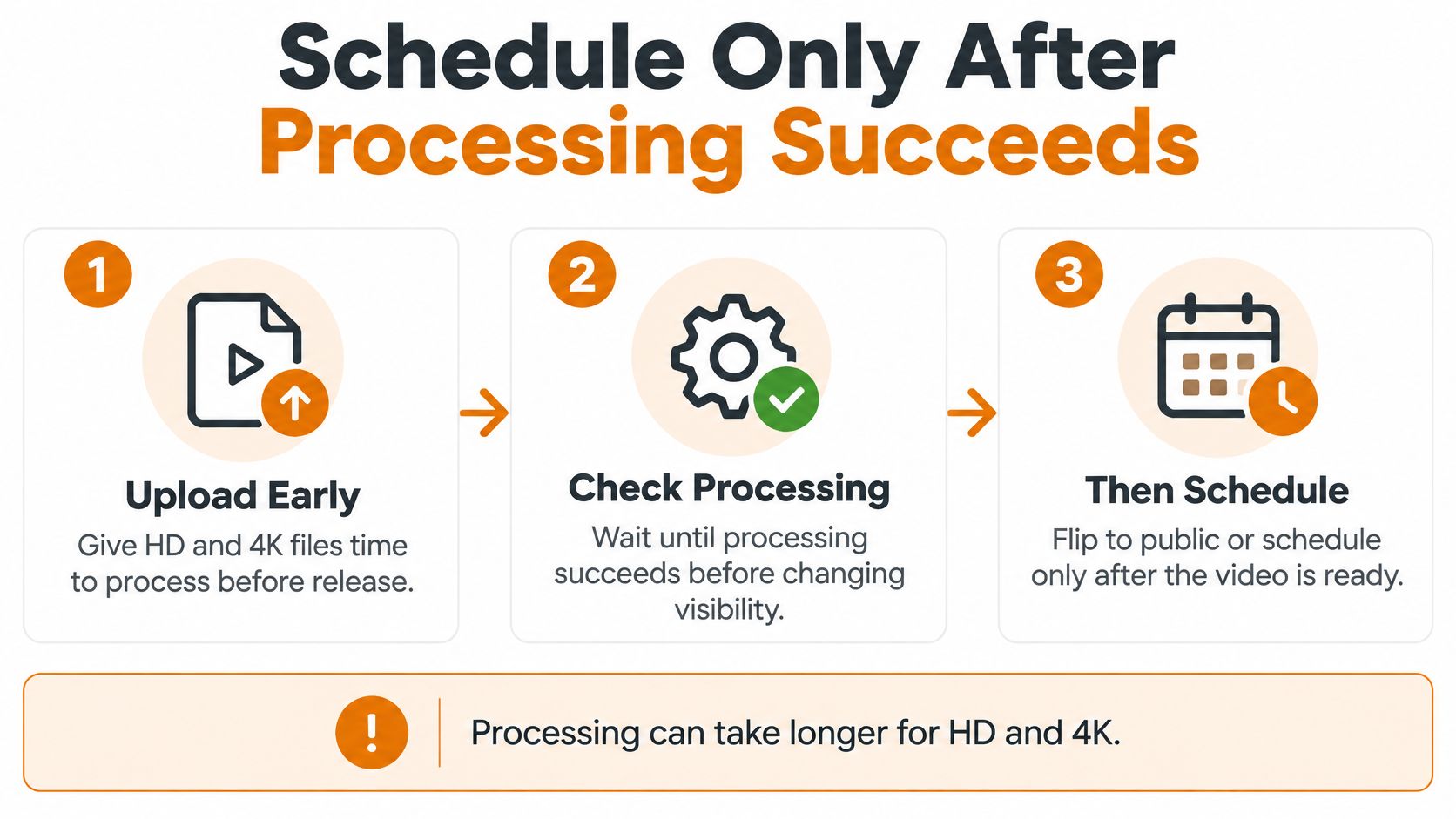
A completed progress bar only confirms arrival. Higher-quality renditions, thumbnails, captions, or other metadata may still be unavailable or invalid. If a global campaign goes public at that moment, viewers can land on an unfinished watch page even though your internal dashboard says the upload succeeded.
Use buffers based on the batch
Private-upload a routine 1080p batch the day before release. Give a 4K, caption-heavy, or multi-language batch earlier placement in the week. These aren't platform guarantees. They're operating buffers that leave room to replace a bad thumbnail, correct a caption file, or move a video that hits a channel limit.
Keep each video private until its custom thumbnail is attached and visible. Confirm captions where they're part of the release promise. Then apply the publish time from your metadata sheet.
- For a single launch minute: Wait for the slowest video, not the fastest one.
- For a multi-day campaign: Split the batch before it exceeds the daily channel or insert allowance.
- For several time zones: Set the schedule after every regional asset has cleared processing.
- For a sponsor deadline: Keep an approved private copy ready before the contractual publish window opens.
Don't give every video the same publish minute if the tail of the batch may be rejected or still processing. Staggering releases is less dramatic, but it prevents one delayed file from turning a coordinated launch into a partial one.
Run this preflight the evening before: file accepted, processing succeeded, thumbnail and captions present. If any answer is no, the video isn't ready to schedule.
Decide Whether Studio or a Queue Should Publish
Count the files and look at how the work repeats. If it's one channel, a small batch fits the Studio session, and nobody needs a retry log, finish in Studio today. Keep every video private until processing succeeds and you've checked its assets.
If titles already live in a sheet, the batch repeats every week, or several client channels share one launch window, stop clicking cards. Put each video on a queue that can preflight the file and metadata, preserve one job per video, defer work at a limit, and schedule only when the platform accepts the result.
Mallary fits that queue path for teams already publishing beyond one manual session. We can publish full YouTube videos and YouTube Shorts, and schedule YouTube videos when the post meets YouTube's rules. Before publishing, Mallary checks file type, file count, video length, image shape, text length, and other platform media rules, and gives a clear message when it finds a problem.
Your next action is concrete. Compare the batch with the Studio session ceiling and the API insert allowance, then either open Studio or send the sheet to a queue that won't mark the campaign done at 100 percent uploaded.
When your next batch is too repeatable, too large, or too time-sensitive for manual Studio cards, use Mallary.ai to publish and schedule full YouTube videos and Shorts through one preflighted workflow. Visit Mallary.ai to turn your finished files and metadata sheet into a queue that checks platform rules before anything goes public.
Try it with Mallary
STOP!
Want ChatGPT or Claude to post on YouTube for you?
Connect your social accounts one time. Then tell your AI what to write. It can make your posts, share them, and reply on social sites that allow replies. You do not need to write code.
Pick your AI





Connect once. Ask in plain English. Mallary does the work.


