Written by Outrank. Published by Mallary Labs LLC.
Published .
Schedule Facebook Posts: Step-by-Step Guide for 2026
Your webinar graphic is ready, the registration page works, and the caption has approval. You want the announcement to publish while you're handling something else, but Facebook offers different scheduling controls for a Page, a professional profile, and a Group. Then there's the question nobody wants to answer on launch morning: did the post go live?
To schedule Facebook posts reliably, treat the schedule as a campaign workflow. Choose the right publishing route, verify the queued item, assign someone to check delivery, and measure the result without confusing distribution with business value.
Table of Contents
- Pick the Right Way to Schedule
- Limits That Shape a Facebook Schedule
- How to Schedule a Page Post in Meta Business Suite
- Scheduling at Scale With the API and Automation
- Time Zone and Status Mistakes That Miss Posts
- Measure Scheduled Posts Without Fooling Yourself
- Decide When to Schedule and When to Publish Live
Pick the Right Way to Schedule
Facebook scheduling methods compared
| Method | Best For | Lead Time | Editable Before Publishing |
|---|---|---|---|
| Meta Business Suite (Pages) | Page admins posting directly | Native Page scheduling window | Yes, text, media, link, and location |
| Professional-mode profile | Creators posting from a profile | Use the dates accepted by the profile composer | Check the queued item under Manage posts for available controls |
| Groups Scheduled Posts | Group admins | Use the dates accepted by the Group calendar control | Check the item's controls in Scheduled Posts |
| Graph API scheduled_posts | Developers managing Page schedules in code | Endpoint and API-version rules set the interval | Use the supported update operation for the post type |
| Third-party scheduler or automation | Campaigns, bulk queues, multiple platforms | The tool's queue rules and Facebook submission rules apply | Use the tool's editing controls before its publishing cutoff |
The right tool is the one that matches where you're publishing and who owns the calendar. Don't buy a broader platform just because you need to publish an announcement while you're away from your desk.
Match the route to the job
For a small team managing a Page, Meta Business Suite is usually the sensible starting point. Keep preparation, scheduling, and final review in the native workspace unless you have a concrete reason to introduce another system.
Creators should start from their professional-mode profile, while community managers should use their Group's administrative tools. A Page connection in a scheduling app isn't proof that the same app can publish to every Facebook destination you manage.
For developers, the important distinction is between a calendar people operate and a queue software operates. A CMS-driven campaign needs identifiers, error handling, and status reconciliation, not just a date picker.
When an external scheduler earns its place
Choose a third-party tool when your team needs a shared cross-platform calendar, repeatable campaign preparation, or content arriving from another system. Evaluate the whole workflow, including approvals, cancellations, and delivery checks.
If content preparation is the bottleneck, Nereo's a toolkit for busy social media managers provides useful context for assessing supporting tools rather than treating publishing as an isolated task.
Practical rule: Schedule natively when the post fits the available window and needs no programmatic input. Otherwise, choose the route that gives your team one authoritative calendar.
Limits That Shape a Facebook Schedule
For Pages, Facebook's scheduling help sets a window of 20 minutes to 29 days before publication. That makes the native scheduler useful for upcoming campaigns, not an unrestricted archive of future publishing commitments.
Don't assume every Facebook integration accepts the same interval. API scheduling rules can differ by endpoint, version, and publishing surface, so validate the route you'll use before promising a campaign calendar to stakeholders. Our Facebook API guide is a useful starting point for separating native interface workflows from developer integrations.
A long-range editorial plan and an accepted Facebook schedule are different records. Keep both, but don't label an idea as scheduled until the publishing system has accepted it.
Use a rolling calendar
A practical approach is to maintain a broader editorial backlog and move approved content into the publishable window during a regular review.
- Keep future ideas outside the live queue. Store the campaign objective, proposed date, owner, caption, creative, and approval status in your editorial calendar.
- Refresh the queue each Monday. Add newly eligible posts and reconcile completed items with their published records rather than leaving stale entries marked as upcoming.
- Choose an initial slot deliberately. Use Active times as a starting suggestion, then account for when the announcement is useful and when someone can respond.
- Hold unfinished work as drafts. A scheduled placeholder with missing creative is easier to overlook than an explicitly unapproved draft.
This approach requires regular maintenance, but it avoids the false confidence of a calendar filled with posts Facebook hasn't accepted.
Use Planner as a revision workspace
Planner supports weekly or monthly review, along with changes to a scheduled post's text, media, link, and location. Its controls also let administrators duplicate, reschedule, move an item to drafts, or delete it.
Duplication is useful for recurring announcements, but check every inherited detail. A copied promotion can carry an expired offer, an old registration destination, or wording that no longer matches the creative.
Cancellation also has an operational cutoff. With Mallary, you can delete or cancel a scheduled post while we haven't started publishing it; once publishing starts, deletion is blocked.
Review a time-sensitive announcement the evening before publication. That leaves room to replace an asset or obtain approval without racing the publishing job.
How to Schedule a Page Post in Meta Business Suite
Say your Page is announcing a Saturday webinar. You want the announcement to publish ahead of the event, send readers to registration, and leave your team available to answer questions.
Prepare the final graphic and registration destination before opening the composer. Scheduling works better when the post is ready for publication, not when the calendar becomes a storage area for unfinished decisions.
Use this sequence to create and verify the queued announcement.
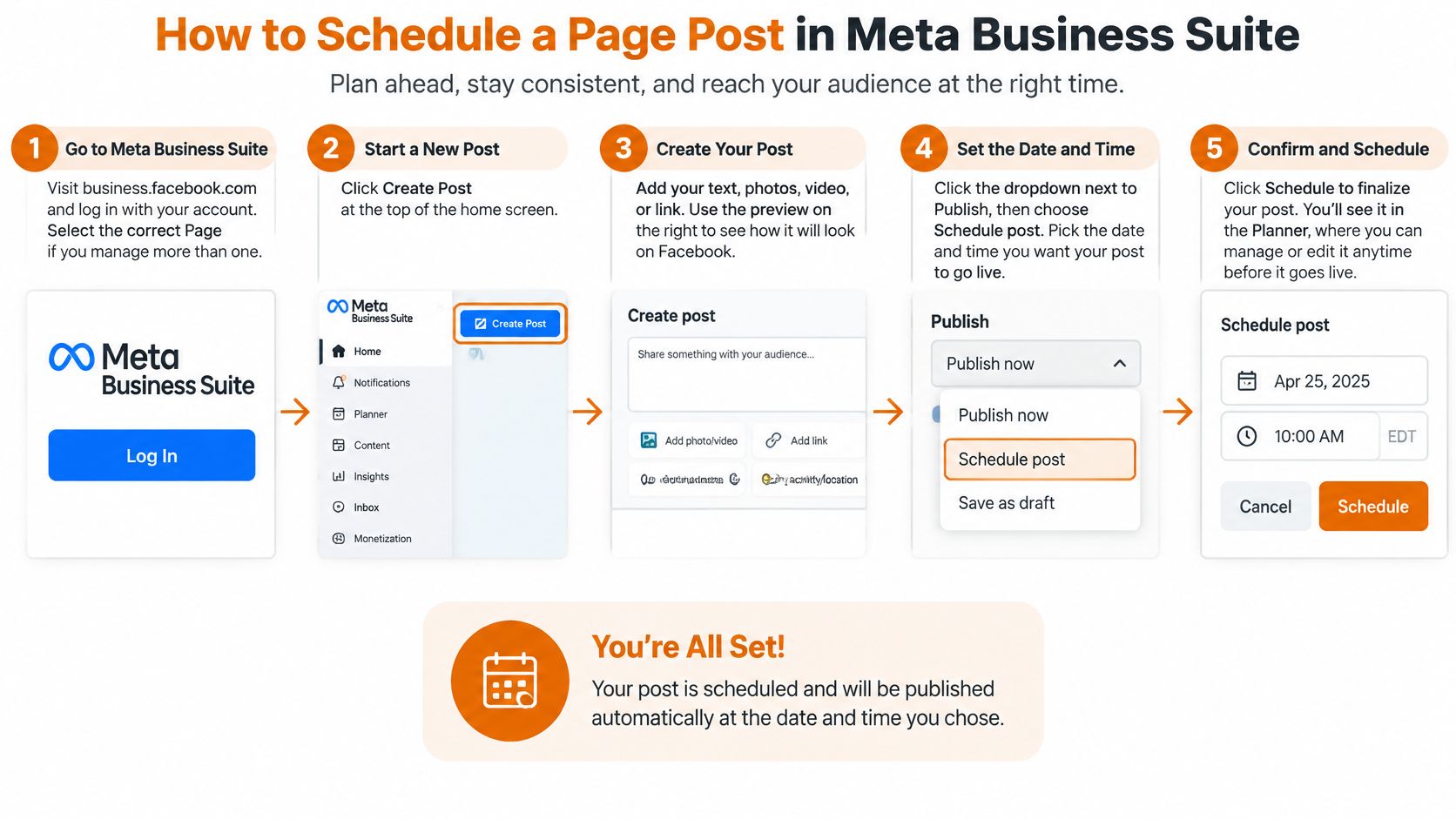
Create and confirm the Page post
Open Meta Business Suite and select the correct Page. Check the Page name and identity before composing, particularly if you manage client accounts. The avoidable slip is preparing the right announcement for the wrong business.
Select Create post, write the caption, and attach the media. Put the webinar's benefit in the opening line, then make the registration action clear. Check that the attached graphic matches the event details instead of trusting a familiar filename.
Open the publishing controls and choose Schedule. Don't leave the action set to immediate publication while you review the preview. If the post still needs approval, save a draft rather than assigning a speculative publishing time.
Choose the date and time, then inspect the time zone shown. Check Active times if you need an initial slot, but choose a moment that also suits the announcement and your team's availability. Don't assume a device or account you recently switched from uses the intended local setting.
Confirm the schedule and open Planner. Locate the announcement on the intended day, open it, and compare its saved details with the campaign calendar. A confirmation message isn't a substitute for checking the actual queued item.
A correct schedule has a visible scheduled time, appears on the intended Planner date, and can still be opened for revision. If any of those checks fails, resolve it before telling colleagues the announcement is ready.
Check the reader's destination
Open the registration page as a visitor, not only from an administrator's session. Confirm that the event name, availability, and signup action agree with the Facebook caption.
Also review the creative at a size similar to a feed preview. If the essential details only work when the image is enlarged, move the necessary information into the caption instead of expecting readers to inspect the graphic.
Use the correct variant for profiles and Groups
According to Meta's direct scheduling guidance, professional-mode profiles can schedule from Facebook and find queued items under Manage posts; Group administrators use the calendar control beside Post and manage the queue through Scheduled Posts in Admin tools.
For either setup, verify the destination before composing. If the scheduling control isn't available, check that you're using the intended profile mode or administrative role rather than searching for a Page-only menu.
Scheduling at Scale With the API and Automation
When content starts in a spreadsheet or CMS, manually copying every caption creates unnecessary handoffs. Build the workflow around a source record that stays connected to its Facebook publishing result.
A calendar still helps people review the campaign, even when software submits the posts.
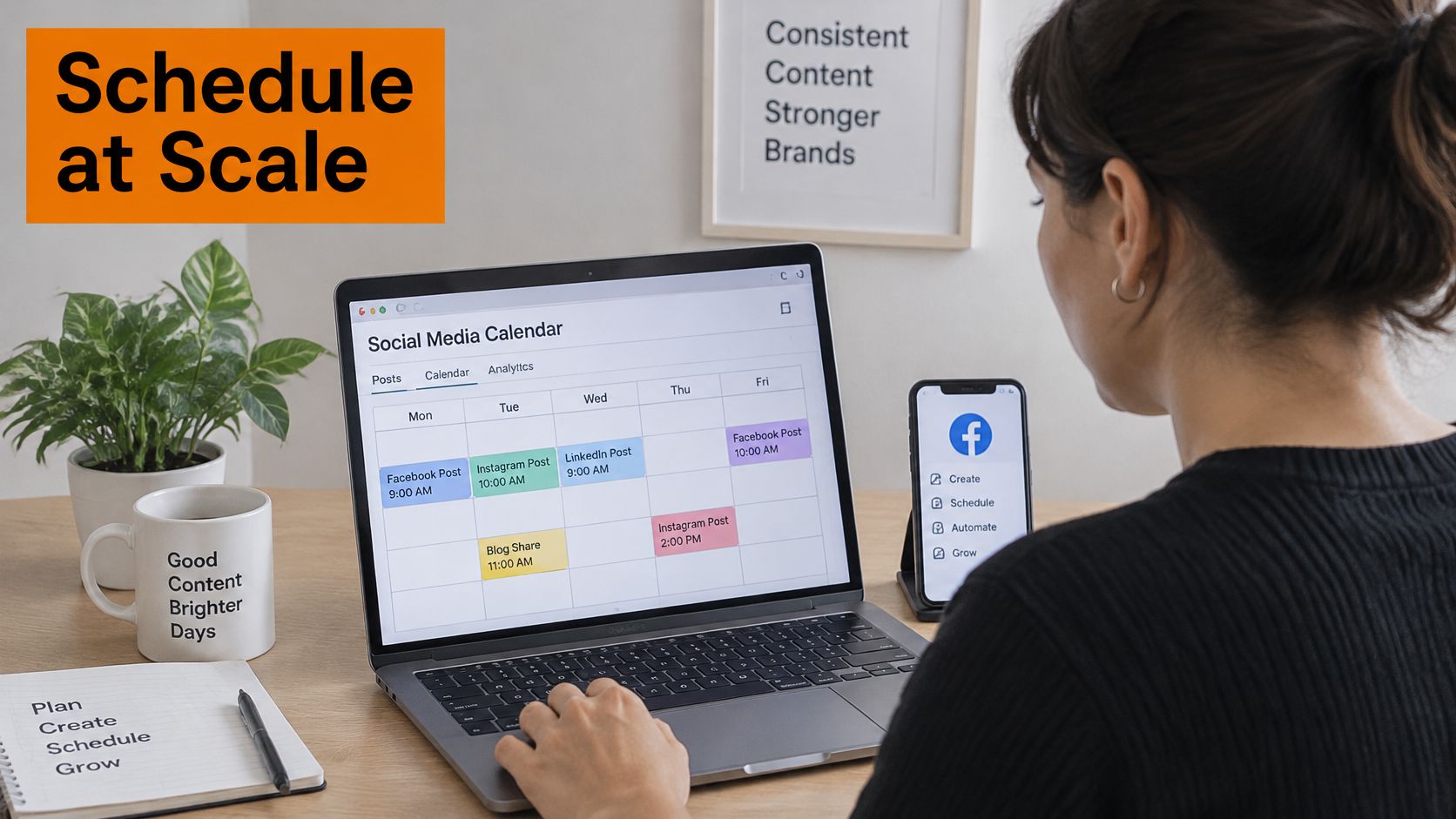
The Graph API's /{page-id}/scheduled_posts resource provides a route for retrieving queued Page posts. Don't treat that resource name as a universal creation or editing operation: use the appropriate publishing endpoint and supported parameters for the content you're sending.
Build around a durable source record
Trigger from approval, not merely creation. A new spreadsheet row or CMS event can start the workflow, but require a ready-to-publish state. Otherwise, an incomplete draft can become an automated publishing job.
Construct the payload. Include the destination, caption, media references, and intended publication time. Retain the local scheduling context alongside the timestamp so another person can audit the campaign.
Submit through the chosen publishing route. Validate the payload before sending it and record the response. If submission times out, investigate whether Facebook accepted the request before sending another copy.
Save the returned identifier. Store the Facebook post ID or scheduler job ID beside the source record. Use that relationship to reconcile later changes and delivery results rather than matching posts by caption text.
The same pattern works in n8n, Zapier, and Make. Check whether the available Facebook action supports the operation you need; when it doesn't, use an authenticated API request rather than forcing an unsuitable connector action.
For implementation decisions, our social media posting API guide explains the broader publishing integration approach.
Use a visual walkthrough to orient yourself, then test the actual actions available in your connected account.
Decide who operates the queue
A managed scheduler can remove the need to build your own queue-management layer. Mallary uses background queues to send posts at the time you choose and shows the result for every platform.
Migration still requires deliberate work. To move to Mallary, connect your social accounts and create new posts and schedules; existing social posts stay on their accounts, and we don't import another tool's post history or scheduled queue.
Assign a cutover owner and cancel overlapping jobs in the old system. Before enabling a campaign, submit a test post at a time accepted by your chosen route, verify its public appearance, and only then increase volume.
Time Zone and Status Mistakes That Miss Posts
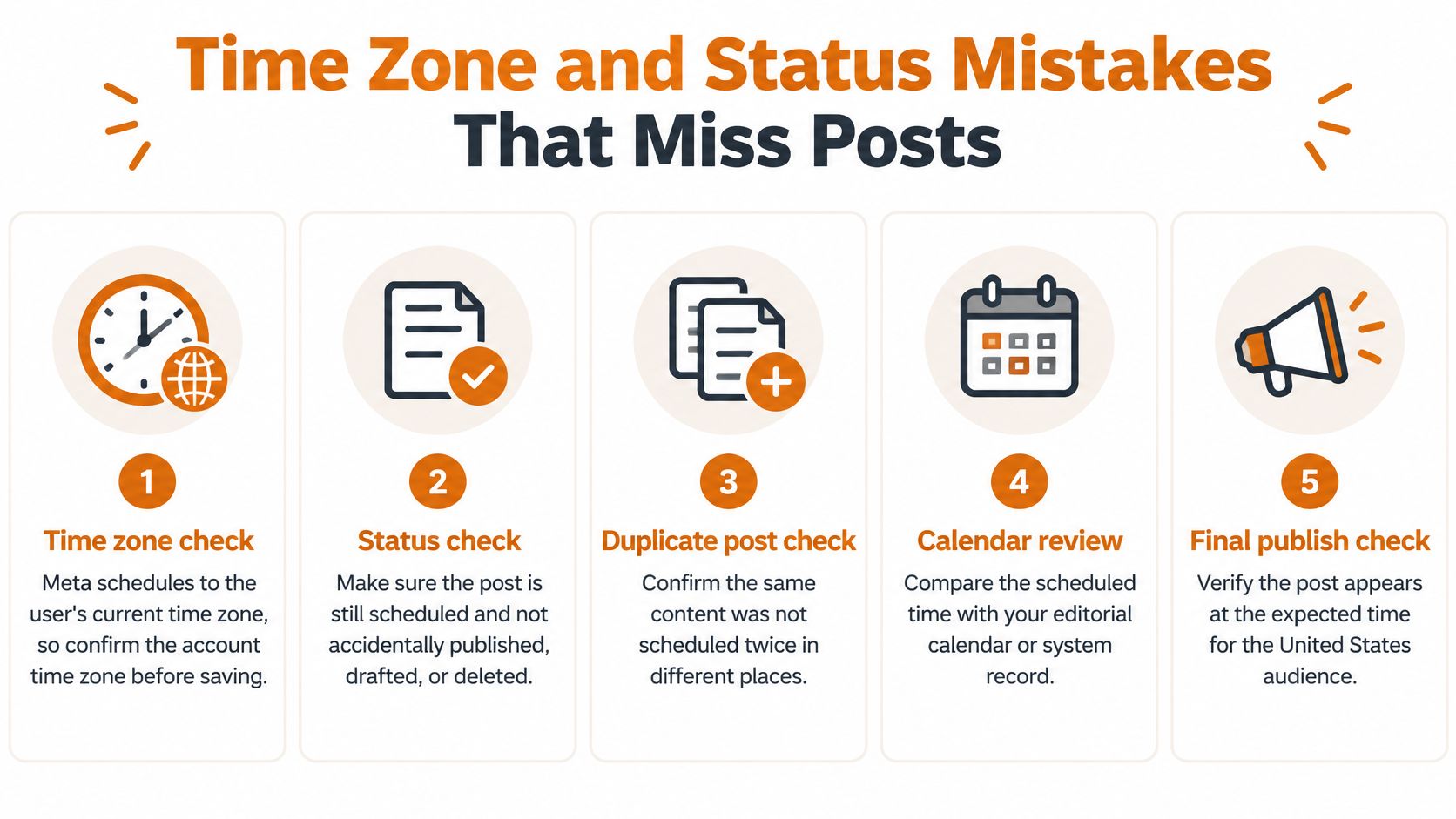
Meta's scheduling guidance states that scheduling times correspond to the user's current time zone. A UTC timestamp identifies an instant, but it doesn't preserve the intended local publishing rule.
For a multi-market campaign, store the canonical UTC instant, intended IANA time zone, and local wall-clock time together. That gives an operator enough context to distinguish an intentional timestamp from an incorrect daylight-saving conversion.
Diagnose the symptom before retrying
Scheduling problems, causes and fixes
| Symptom | Likely Cause | Fix |
|---|---|---|
| Post goes live an hour off | Daylight-saving conversion applied incorrectly to a UTC-only record | Store UTC, the IANA zone, and local time together |
| Post shows as sent but is not live | Scheduled or draft state confused with published | Reconcile states and check the published status |
| Post never appears | Scheduling request rejected or authorization expired | Inspect the error, validate the route's window, and refresh authorization |
| Bulk campaign stalls | Rate limit reached | Retry with backoff and spread the batch |
A request accepted by an API isn't proof of public publication. Track draft, scheduled, published, failed, and deleted separately, and preserve the platform's response rather than translating every successful request into sent.
Retries need an equally clear rule. If a connection drops after submission, look for the accepted job or post before creating another one; otherwise, the recovery attempt can become the duplicate.
Use this visual checklist during queue reviews.
Test failures before the campaign depends on them
- Authorization: Test expired permissions and token refresh, including who receives the reconnection alert.
- Local time: Run a daylight-saving boundary case and compare the stored instant with the intended local announcement time.
- Media rejection: Submit an unsuitable test asset and confirm that failure is visible to the content owner.
- Rate limiting: Confirm that delayed jobs remain queued and don't disappear after a rejected request.
- Retry safety: Simulate an interrupted response and check that recovery doesn't create duplicate content.
- Publication verification: Alert when a due item lacks confirmed published status after your defined grace period.
Measure acceptance rate, duplicate rate, on-time publication rate, and verification rate separately. Combining them into one success label hides whether the problem happened during submission, delivery, or confirmation.
Give every alert a named responder. A failure dashboard doesn't protect a campaign if nobody knows they're responsible for acting on it.
Measure Scheduled Posts Without Fooling Yourself
More Views don't necessarily mean more people saw your post. Meta's introduction of Views makes Views the primary distribution metric across Facebook formats and explains that photo and text post Views include repeat appearances on screen.
That distinction matters when comparing publishing slots. A post can accumulate additional exposure among the same audience without expanding its unique audience or generating more registrations.
Metrics to read for scheduled posts
| Metric | What It Counts | Use It To Judge |
|---|---|---|
| Views | For photo and text posts, appearances on screen, including repeat views | Overall distribution |
| Reach | Unique people who saw the post | Audience size |
| Shares | Sharing actions | Content worth spreading |
| Comments | Replies and questions | Conversation and early engagement |
| Click-throughs | Clicks to the link | Interest in the call to action |
| Conversions | Attributed actions such as signups or sales | Business result |
Compare like with like
Keep the format, audience, time zone, objective, and conversion window consistent when comparing scheduled and immediately published content. A webinar announcement and an entertaining video aren't a useful test of scheduling, even if they published at similar times.
Use comparable creative and offers, then record differences that might explain the outcome. Paid promotion, a changed landing page, or a different audience can matter more than whether someone clicked Publish manually.
For interpreting conversation signals, use our guide to measuring social media engagement. When the campaign needs a financial assessment, Wojo Media's explanation of how to measure ROI from social media campaigns provides useful context beyond platform engagement totals.
Choose the business outcome before choosing the winning posting time. Otherwise, it's too easy to select whichever metric makes the calendar look successful.
Run a usable comparison
- Choose a narrow test: Use one content format and a consistent campaign objective.
- Vary the publishing method deliberately: Compare similar scheduled and manually published posts without changing every other campaign input.
- Keep attribution consistent: Apply the same tracking approach and allow the same conversion window.
- Judge the outcome carefully: Prefer qualified registrations, leads, or sales over an isolated distribution increase.
Keep testing across comparable publishing opportunities rather than declaring a universal best time from a standout post. Scheduling should improve your operating routine without lowering the value of what you publish.
Decide When to Schedule and When to Publish Live
Schedule predictable content; keep context-sensitive content close to publication. Product explainers, recurring educational posts, and evergreen tips usually allow advance preparation because their usefulness doesn't depend on a breaking conversation.
A launch announcement needs more judgement. You can prepare it early, but don't release it until the product, landing page, support team, and offer are ready.
Meta's guidance on rewarding original creators emphasizes original content and relevance. A successfully delivered queue item still needs something worth distributing; automation can't repair stale creative or an announcement that no longer fits the moment.
Make the decision during the weekly review
- Sort by freshness: Separate content that can wait from content that needs a final contextual decision.
- Check readiness: Confirm approval, assets, destination pages, and acceptance by the publishing route.
- Assign coverage: Give someone responsibility for checking delivery and responding to the opening conversation.
- Review outcomes: Adjust future slots using business results and audience response, not calendar convenience alone.
Publishing live doesn't mean writing in a rush. Prepare the caption and assets in advance, then let a responsible person make the release decision when conditions are clear.
Likewise, scheduling shouldn't mean abandoning the post after submission. The useful time saving comes from removing repetitive publishing work while keeping human judgement available for changes and questions.
Start with a small batch this week. Check that every item appears when intended, opens the correct destination, and has an owner for follow-up before you expand the calendar.
Mallary.ai offers scheduled publishing and analytics in every plan, with a queue where you choose each post's date, time, and time zone. Visit Mallary.ai to connect your accounts, schedule your next approved posts, and review their publishing results before scaling your workflow.
Try it with Mallary
STOP!
Want ChatGPT or Claude to post on Facebook for you?
Connect your social accounts one time. Then tell your AI what to write. It can make your posts, share them, and reply on social sites that allow replies. You do not need to write code.
Pick your AI





Connect once. Ask in plain English. Mallary does the work.


