Written by Outrank. Published by Mallary Labs LLC.
Published .
Post Scheduler for Facebook: How to Build One
You've got tomorrow's launch post written, the creative approved, and a calendar entry that says publish at 9 a.m. Then someone asks which 9 a.m., whose account it's posting from, and what happens if the API times out. That's the moment a simple timer stops being enough.
A reliable post scheduler for Facebook isn't a countdown. It's a durable job with a stored destination, a normalized timestamp, a saved post ID, and failure states you can act on. Facebook introduced native scheduled posts for Pages on May 31, 2012, according to The Verge's coverage of scheduled posts and administrator roles. At launch, scheduling could be set at least 10 minutes in advance, used 15-minute intervals, and extended up to six months into the future. The model hasn't changed in principle. Prepare early, pick a precise window, and control who can publish.
Table of Contents
- Requirements to Check Before You Queue a Post
- Connecting Pages and Getting a Page Access Token
- How to Build the Scheduling Job Step by Step
- Media, Stories and First Comments at Publish Time
- Timing, Cross-Posting and What Scheduling Cannot Fix
- Troubleshooting Failed, Missed and Duplicate Posts
- Confirm the Pipeline With One Pilot Post
Requirements to Check Before You Queue a Post
| Requirement | What to verify | Failure if missed |
|---|---|---|
| Destination | Facebook Page ID, not a personal profile | Post cannot be created or goes to the wrong account |
| Page Access Token | Token from a user with publish rights on that Page | Authorization error at submit |
| Permissions | pages_manage_posts and pages_read_engagement granted to the app | Permission error or blocked post |
| Photo count | Up to 10 photos in one multi-photo feed post | Media validation error |
| Publish time | Future time with explicit time zone, stored as a UNIX timestamp | Post goes out at the wrong hour |
| Minimum lead time | Current minimum in Meta documentation | Schedule rejected as too soon |
| Cross-posting | Destination explicitly chosen for Facebook and Instagram | Unintended cross-post |
Run these checks before you persist anything. Destination comes first because a valid payload sent to a profile ID still fails, and a valid Page ID for the wrong client is worse than a failure. Confirm the ID against the Page list returned for that user, not against a spreadsheet someone pasted into a ticket.
Access is the next gate. Your Page Access Token has to belong to that Page, and the app needs both publishing and engagement permissions. You don't want to discover a missing permission at publish time, when nobody with admin rights is online to reauthorize it.
The Two Checks Teams Skip
Time zone conversion gets skipped because local testing looks correct. A developer in Berlin queues 09:00, the server stores 09:00 UTC, and the post lands an hour or two late. Nothing errors. Your logs show a successful submit with the wrong intended hour, which makes this the hardest failure to spot after the fact.
Cross-posting gets skipped because defaults feel harmless. If Instagram isn't an explicit field in your job record, you can't prove later whether a second destination was intended or inherited. Store it as true or false, never as an empty value.
Practical rule: If a check can fail silently, log the value you checked, not just the result.
In the logs, a pre-queue failure should read plainly. Name the field, the Page ID, the expected value, and the value you received. "Validation failed" tells the on-call person nothing at 8:55 a.m. before a 9:00 launch.
Connecting Pages and Getting a Page Access Token
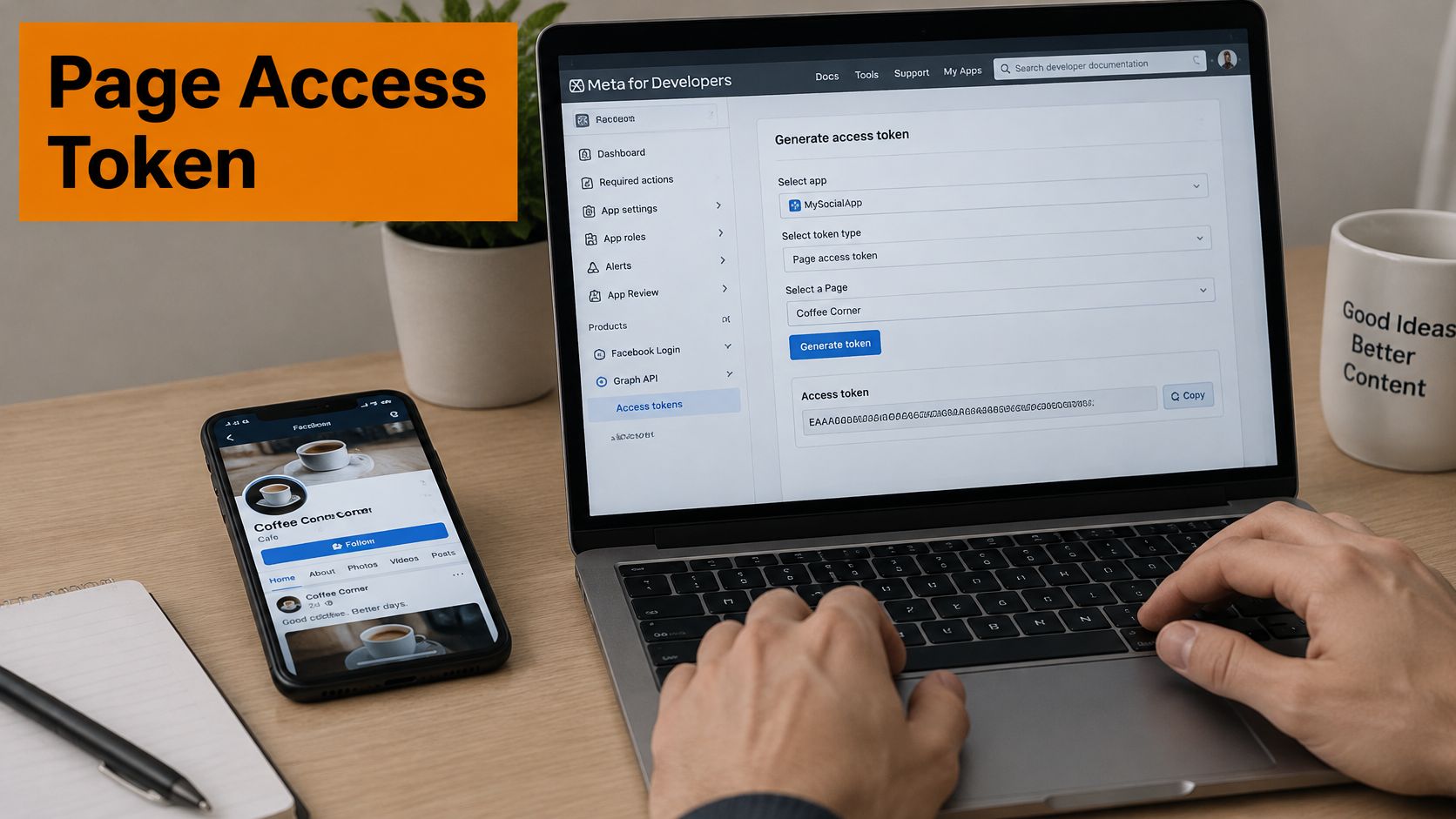
A user token can't post to a Page directly because publishing acts as the Page, not as the person. Meta separates those identities on purpose. You use the user token to discover which Pages that person manages, then you use each Page's own token to publish.
Setup in Order
- Create the Meta app: Add the Facebook Login product with a use case that covers Page publishing, because permissions you can't justify won't survive review.
- Request permissions: Ask for pages_manage_posts and pages_read_engagement, then complete app review before anyone outside your team connects a Page.
- Get an admin to connect: A Page admin signs in and grants the Pages your scheduler should manage. Teams sorting out who should hold admin rights first will find practical context in this guide to adding Facebook admins for estate planning firms, since the access hygiene applies well beyond that niche.
- Exchange the token: Trade the short-lived user token for a long-lived one, then call the Pages listing endpoint to read each Page's own access token.
- Store Page tokens safely: Keep them encrypted, keyed by Page ID, and never in client code where anyone can extract them.
- Schedule refresh early: Record expiry and run your refresh job before execution, not after a publish fails.
Each step protects the next one. Review without a clear use case stalls. A long-lived user token without Page tokens still can't publish. Page tokens without expiry records will eventually expire, and a campaign post may fail on a weekend.
If you don't want to own OAuth, token refresh, and app review yourself, a managed platform handles that flow for you. On Mallary, users connect their social accounts, then post from the dashboard, API, MCP, or CLI, and posts already on the account stay where they are. Our Facebook API guide covers how that connection model fits a product workflow.
Finish with a live read. Call the Page with its token and confirm the response returns the Page ID you stored. If those two values don't match, don't queue anything.
How to Build the Scheduling Job Step by Step
Build the job as a record in a database, not as a single request you hope succeeds. Meta's model supports that approach, since the Meta Page scheduled posts reference exposes scheduled_publish_time and uses is_published to distinguish a scheduled post from one already published.
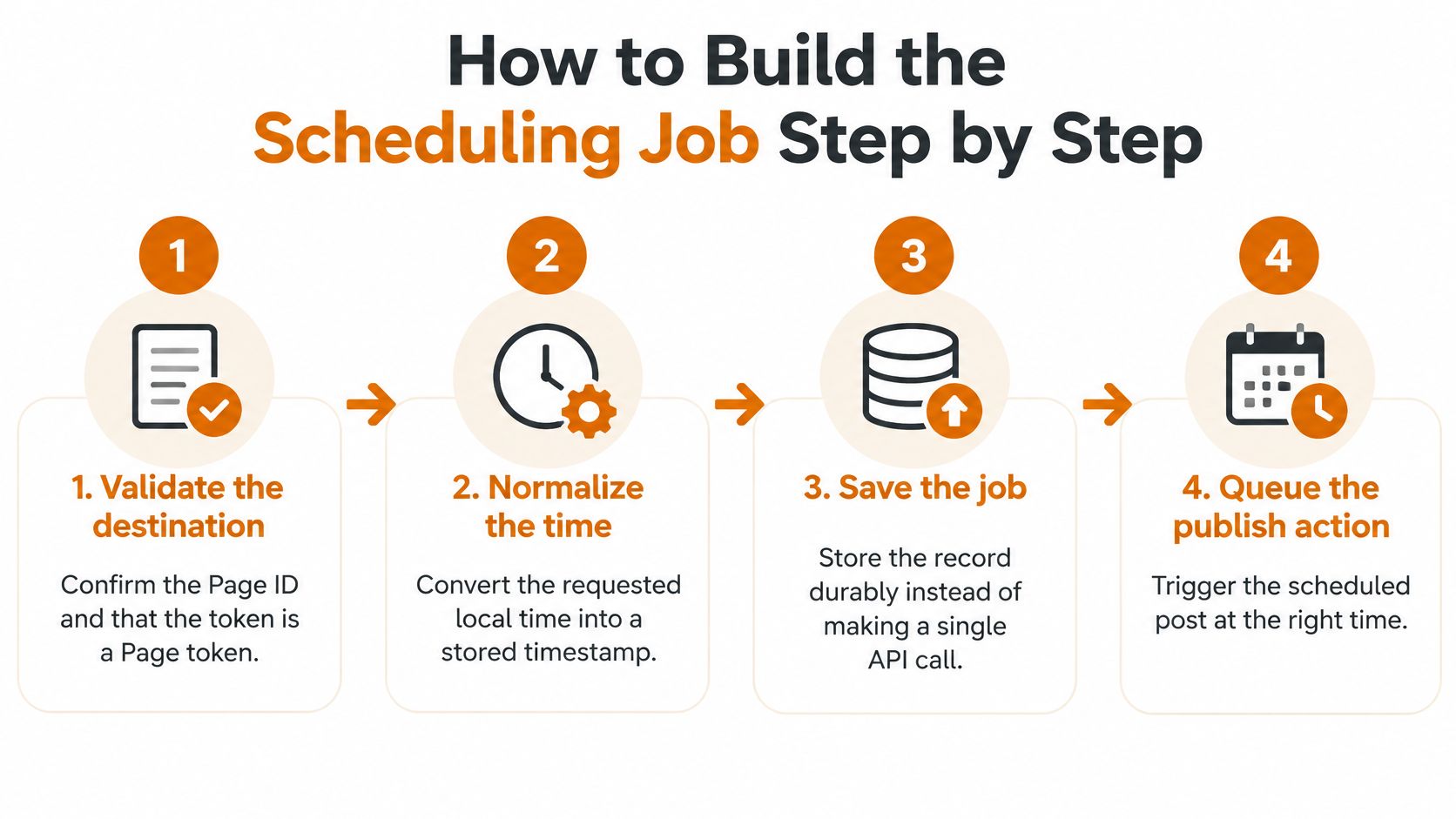
- Validate the destination: Confirm the Page ID and check that your token is a Page token for that Page. This catches the most expensive error early, which is publishing valid content to the wrong client.
- Normalize the time: Convert the requested local time and its time zone into a UNIX timestamp before you save anything. A timestamp in the wrong zone is a silent error, and it's the most common cause of a post at the wrong hour.
- Persist before submitting: Store an idempotency key, a hash of the payload, the Page ID, and the intended timestamp. If your worker crashes mid-submit, that record lets you recognize the job instead of creating it twice.
- Submit and keep the post ID: Send the post with scheduled_publish_time and save the returned identifier immediately. That ID is your handle for every status check, edit, and support conversation that follows.
- Track status until confirmed: Poll or consume updates until the post is live. An accepted schedule is not proof of publication, so don't mark the job done at acceptance.
- Route failures by type: Classify errors as transient, authorization, media, or policy, and retry only the transient ones. Retrying a policy rejection just produces the same rejection faster.
Why the Order Matters
Persisting before submitting feels backwards to developers used to saving results. It's the step that makes retries safe. Without a stored key and payload hash, a timeout leaves you guessing whether Meta received the post, and guessing leads to duplicates.
Tracking status feels optional until it isn't. Meta documents a dedicated troubleshooting flow for scheduled posts that fail, including inspecting the failed item and publishing it manually. Your scheduler should surface that failure state and alert someone before the campaign deadline, not after a client notices the missing post.
An accepted schedule means Meta took the job. It doesn't mean your audience saw anything.
Your creative pipeline benefits from the same discipline. Teams producing assets ahead of a queue often look for studio-quality content for marketing teams so the media arriving at step three is already sized, approved, and final. Late creative swaps invalidate your payload hash and force a new job.
On Mallary, you choose the date, time, and time zone for each post, and we keep scheduled posts in a queue. After a platform accepts a post, we save the result, and if the same job runs again we check that saved result first to lower the chance of a duplicate post. That's the same state machine, handled for you.
A healthy finished job shows four things. You can see the stored post ID, the published flag flipped to live, the intended timestamp you normalized in step two, and a dated status log with no gaps. If any one of those is missing, the job isn't confirmed, whatever the queue says.
Media, Stories and First Comments at Publish Time
Photos
A photo post can fail before it reaches Facebook if its media fields do not match the intended format. Validate the payload shape and count the photos before saving the job. Facebook multi-photo feed posts support up to 10 photos, so an 11-photo set should be rejected during preflight, while it is still easy to correct. Check each image's dimensions and aspect ratio against Facebook's current requirements before queuing it. The Facebook image resizer can help prepare images for that check.
Video and Stories
Video needs separate validation for format, length, and aspect ratio. Reusing photo fields can produce a job that queues successfully but fails when Facebook processes the media. Stories follow a separate publishing path, so build and validate a Story payload independently, even when it uses the same creative as a feed post.
Mallary can schedule videos for Facebook, Instagram, YouTube, TikTok, X, Pinterest, Threads, and Bluesky when the post meets each platform's rules. It can also publish Facebook feed posts and Stories. Validate media before scheduling; an accepted job is not proof that the platform will publish it.
Audio needs its own review. A video can pass format checks and still include music that is not cleared for its intended use. If editors add tracks late, review LesFM's guide to Facebook music before approving the final file.
First Comments
A first comment can keep a link or call to action out of the caption. The publishing sequence depends on the returned post ID: create the post, capture its ID, then submit the comment against that post. Mallary offers a Social Media Scheduling API and a Comments Under Post feature under its Publish product, which can attach first comments at publish time.
Treat the comment as a separate job after the post is live. If that step fails, record and retry the comment alone. Resubmitting the post to repair a missing comment can create a duplicate on the Page.
Test the complete payload before a campaign. Use a launch-style post with a three-photo set and one first comment on a test Page. Confirm that the photos appear in order and the comment sits under the correct post. Then use the tested payload shape in production.
Timing, Cross-Posting and What Scheduling Cannot Fix
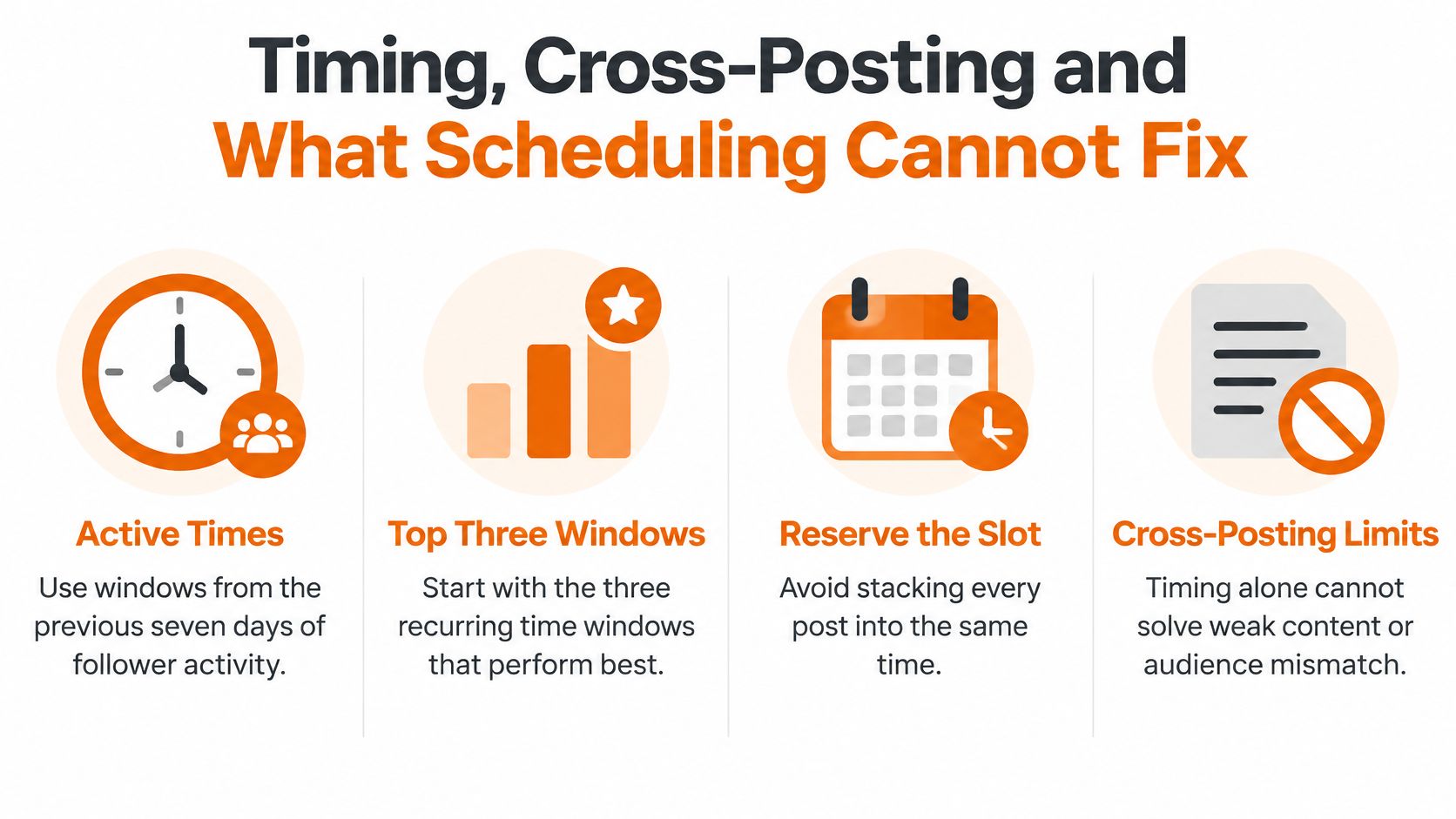
There's no universal best time hiding in a blog post. Meta Business Suite's Active Times feature recommends publication windows based on when followers were most active on Facebook and Instagram during the previous seven days, according to the Meta Business Suite scheduling help page. That's a starting hypothesis drawn from your own audience, not an answer.
Run Timing as an Experiment
Pick the top three recurring windows and reserve comparable content for each one. Change one variable at a time, whether that's creative format, hook, call to action, or posting time. Run each timing cell across several comparable posts before you change it, and keep a holdout window so you don't mistake ordinary daily variance for a gain.
| Metric | What it tells you |
|---|---|
| Reach | Audience size the post reached, compared with the Page's rolling baseline |
| Three-second video views | Video posts only, to judge how well the opening hooks viewers |
| Link clicks | Outbound clicks per impression, to judge call-to-action performance |
| Reactions, comments and shares | Engagement signals that feed ranking, read per impression |
| Meaningful conversions | Conversion events per impression, checked against a holdout window |
Compare everything against the Page's own rolling baseline, not raw totals. Totals move with audience size and content mix, so a bigger number can hide a weaker post. Per-impression rates tell you whether the window helped.
Destinations and Limits
Connected Facebook and Instagram accounts may publish to both by default, and Meta allows the destination to be deselected. In your own Post Scheduler for Facebook, make destination an explicit field. Preflight should confirm Page identity, media compatibility, time zone, permissions, and cross-post intent before queueing.
Scheduling sets when a post becomes available. It doesn't decide whether the post earns reach. Prior interactions and predicted engagement shape ranking, so a well timed post with no conversation still fades. Say a team tests three windows for two weeks and sees a comment-led gain in only one of them. That gain probably came from replies in that window, not the clock alone, so the fix is staffing the comments, not moving every post there.
Troubleshooting Failed, Missed and Duplicate Posts
Start with duplicates, because they're the costliest mistake and the easiest to prevent. After a timeout, never resubmit blindly. Look up the saved post ID and idempotency key first, because if a record exists, Meta already accepted the post and your retry creates the second copy your audience sees.
| Symptom | Likely cause | Fix |
|---|---|---|
| Authorization error at submit | Expired or wrong Page token | Re-exchange the token and store the fresh Page token |
| Post published at the wrong hour | Local time sent without a zone conversion | Convert to a UNIX timestamp before submitting |
| Post appears twice | Blind retry after a timeout | Check the saved post ID and idempotency key before retrying |
| Media rejected at submit | Too many photos or unsupported file | Validate media count and format before queueing |
| Scheduled post never goes live | Accepted schedule never confirmed | Poll status and alert before the campaign deadline |
| Post cannot be deleted | Publishing has already started | Edit or follow up instead; cancel only before publishing begins |
Reading the Table in Practice
An authorization error at submit almost always means the token is expired, revoked, or belongs to a different Page. Re-exchange it and store the fresh Page token keyed to that Page ID. Don't retry with the same token and expect a different result.
A post at the wrong hour points to a missing zone conversion. Check the timestamp you stored against the local time the user picked. If they differ by a neat offset, you've found it.
Media rejected at submit means your validation happened too late or not at all. Move count and format checks ahead of queueing so the user fixes the file while they're still in the composer.
For a post that's accepted but never live, pull the status log for that job ID. If Meta marks the scheduled item as failed, inspect it in Meta's troubleshooting flow and publish manually where needed. Polling plus an alert before the deadline turns that into a recoverable incident instead of a missed campaign. Our guide on why you can't post on Facebook covers the account-side blocks that sit behind some of these failures.
On cancellation: You can delete or cancel a scheduled post as long as we haven't started publishing it. Once publishing starts, deletion is blocked.
That boundary matters operationally. If a post is already publishing, plan an edit or a follow-up correction instead of fighting the delete button.
Per-platform results keep you from misreading an incident. Mallary uses background queues to send posts at the time you choose and shows the result for every platform, so you can check the Facebook result specifically. I would always confirm it's a Facebook-only failure before assuming a broader outage and paging the wrong people.
Confirm the Pipeline With One Pilot Post
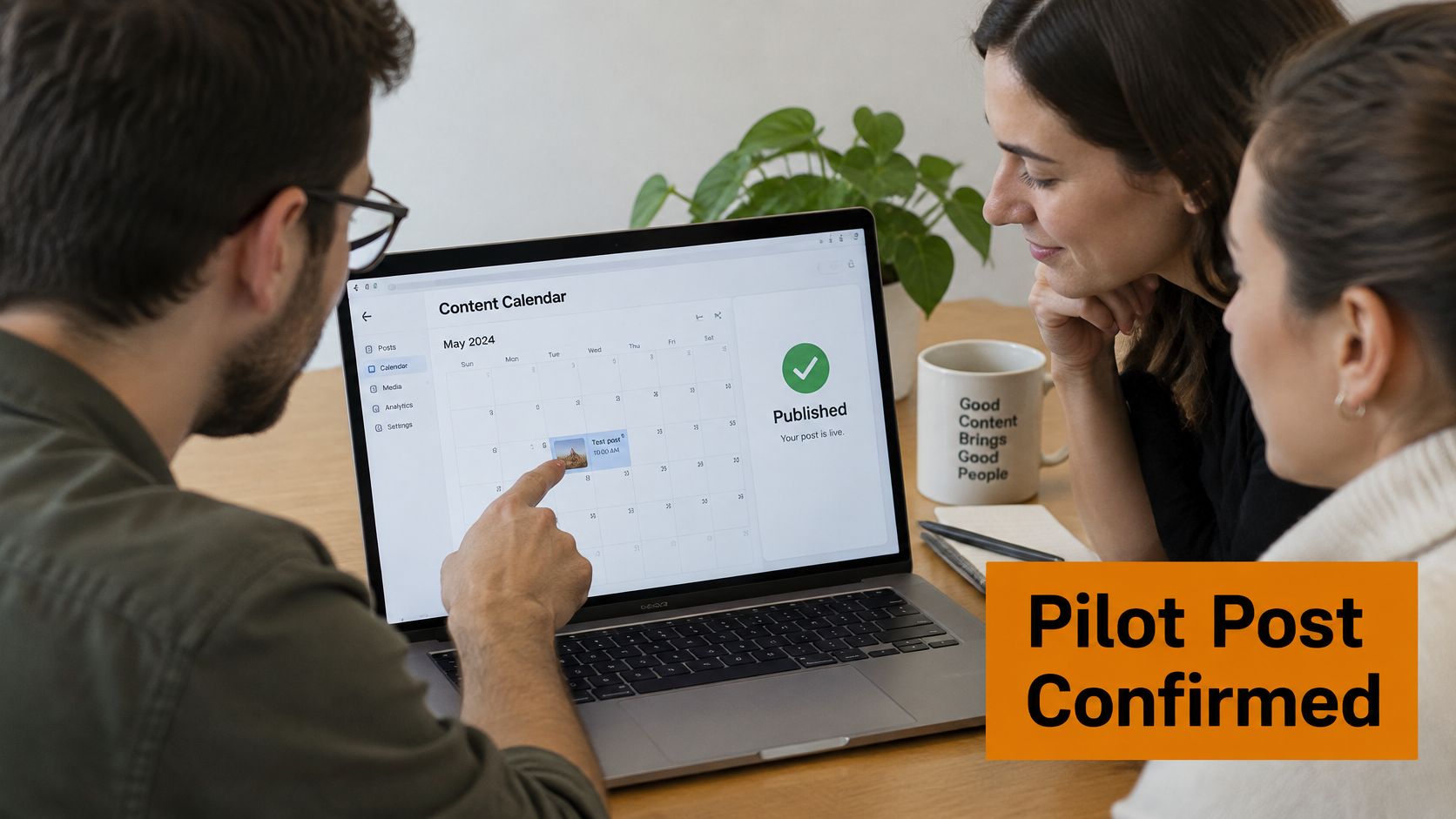
Run one pilot through the full pipeline before you trust it with a campaign. Connect one Page and queue a test post about 30 minutes ahead in a clearly stated time zone. Then confirm the stored timestamp, the status change to published, and the returned post ID. Add a first comment and check that it appears under the post.
Go-Live Checklist
- Tokens: Refreshed, with expiry recorded and a refresh job scheduled before execution
- Permissions: Confirmed on the live app, not just in development mode
- Media: Validated for count, format, and aspect ratio before queueing
- Time zones: Verified by comparing the stored timestamp with the picked local time
- Idempotency keys: Stored with the payload hash before every submit
- Failure alerts: Routed to a named person who'll act before the deadline
Then make the build-or-buy call. Build in-house if your team can own token rotation, app review, and retry logic, and budget engineering hours for the job state machine and its failure paths. That's ongoing maintenance, not a one-week project, because Meta's rules and review expectations keep moving.
If that ownership cost looks steep, consider a managed option. Mallary offers a Social Media Scheduling API, with API, CLI, and n8n and Make support for building saved social media workflows and adding social posting to your own app. Compare that against the engineering hours a custom Post Scheduler for Facebook takes to build and keep healthy.
I would ship the pilot first either way. Schedule it, confirm the result end to end, and only then expand to a second Page. A pipeline you've watched succeed once is worth more than a design document that assumes it will.
Build your Facebook scheduling on a queue that stores post IDs, confirms publication, and guards against duplicates, without maintaining OAuth, token refresh, and retry logic yourself. Mallary.ai lets you schedule Facebook feed posts and Stories with an explicit date, time, and time zone through the dashboard, API, MCP, or CLI. Visit Mallary.ai to connect a Page and run your first pilot post today.
Try it with Mallary
STOP!
Want ChatGPT or Claude to post on Facebook for you?
Connect your social accounts one time. Then tell your AI what to write. It can make your posts, share them, and reply on social sites that allow replies. You do not need to write code.
Pick your AI





Connect once. Ask in plain English. Mallary does the work.


