Written by Outrank. Published by Mallary Labs LLC.
Published .
Post Multiple Videos on Instagram: Carousels or Reels
You've got a folder full of finished clips, a deadline this afternoon, and one account to fill. Posting them one by one in the app means repeating captions, trims, and cover frames until you lose track of what's live. To post multiple videos on Instagram without that mess, you need two decisions upfront, which format fits the goal, and whether every clip will pass validation before it's queued.
Table of Contents
- Choosing a Format
- Video Specs and Transcoding Before You Upload
- How to Post Several Videos in One Carousel
- Choosing a Mallary.ai Route
- How to Automate a Bulk Carousel Upload
- Failed Posts and Fixes That Actually Work
- Run a Test Batch Before You Schedule the Month
Choosing a Format
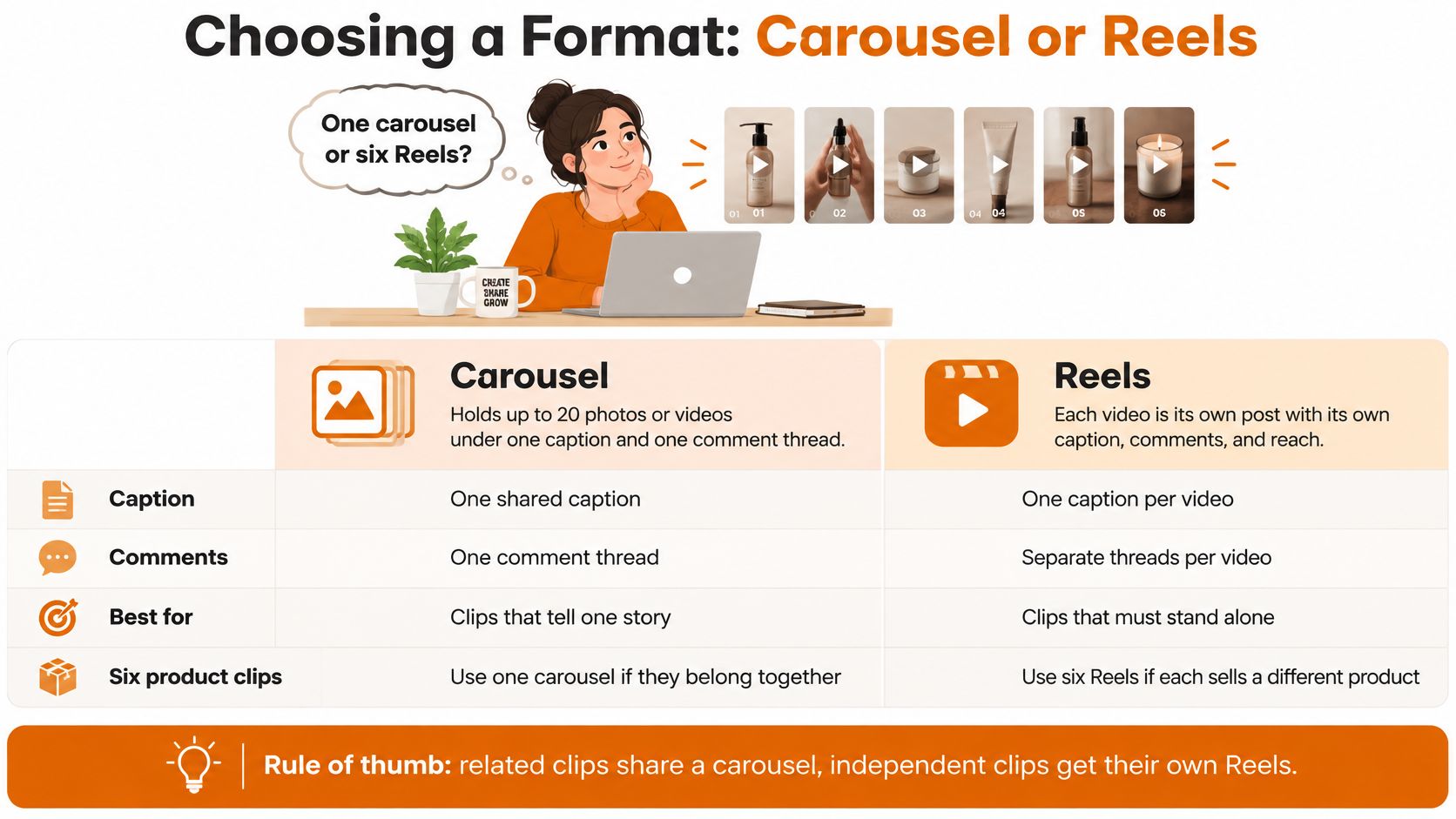
A campaign has six product clips ready to publish. Put them in one carousel when viewers need the sequence to understand the story. Publish six separate Reels when each clip can attract and inform viewers on its own. The format changes how people encounter the clips, and what they can do with them.
A feed carousel groups up to 20 photos or videos under one caption and comment thread, though some sources still cite a 10-item limit. Check the limit in your Instagram app before building the batch. Carousels suit tutorials, product walkthroughs, and before-and-after sequences where each item adds context.
What the Numbers Actually Say
A Fanpage Karma analysis of nearly 700,000 Instagram and TikTok posts from January to May 2025 found that carousels generated 13% higher reach and 51% more interactions than Reels. Those results describe that study's sample and comparison, not a guaranteed outcome for every account.
Choose by campaign goal, then check performance on your own account. A carousel keeps related clips together, with one caption and one discussion. Separate Reels give each clip its own chance to be discovered, but every Reel needs a clear opening and enough context to work alone.
Multi-Video Formats Compared by Goal
| Format | Video limit | Best for | Captions and comments | Main risk |
|---|---|---|---|---|
| Feed carousel | Up to 20 items (some sources cite 10) | Sequential tutorials, walkthroughs, saves | One caption and one comment thread | One weak slide drags the rest down |
| Separate Reels | One video each, up to 3 minutes | Discovery and top-of-funnel reach | One caption and comment thread per Reel | Each clip must stand alone |
| Teaser Reel plus carousel | One Reel plus one carousel | Reach and depth in one campaign | Two posts to write and track | Messaging drifts if not kept consistent |
| Staggered Reels series | One Reel every few days | Ongoing education over several weeks | Separate caption per post | Slower momentum; audience can lose the thread |
Quick test: Remove a clip. If the remaining sequence becomes confusing, use a carousel. If each clip answers a different question, separate Reels are a better fit.
You can also pair formats. Publish a teaser Reel to introduce the campaign, then use a carousel for the full sequence. Keep the message and call to action consistent, and account for the extra caption, cover, and post to manage.
Video Specs and Transcoding Before You Upload
A carousel can publish even when one clip has the wrong crop or gets shortened. Check each file against the destination before it enters the upload queue. That catches both hard rejections and silent changes.
Instagram's requirements can differ by publishing method and destination. Check Meta's official Instagram video requirements before setting export limits, and confirm the current carousel-video duration limit for the specific publishing endpoint you use. Don't apply the Reels duration limit to carousel items. For export quality settings, see this guide to uploading high-quality videos on Instagram.
Check Each File Before Upload
| Property | What to verify | What can go wrong |
|---|---|---|
| Container and codecs | Confirm the file format, video codec, and audio codec meet Meta's current requirements for your destination | Rejection, missing audio, or unexpected re-encoding |
| Frame rate and scan | Check the supported frame rate and use progressive video if required | Stutter or processing failure |
| Resolution and aspect ratio | Confirm the destination's accepted dimensions and aspect ratio; keep carousel items consistent | Cropping, misaligned slides, or clipped text |
| Bitrate and file size | Check Meta's current limits for the destination and publishing method | Slow processing or rejection |
| Duration | Verify the limit for each destination. Reels and carousel items may have different limits | A clip may be rejected or trimmed |
For a batch of portrait clips, a common production choice is to export all files at the same dimensions and use one framing rule. That is an example workflow, not a substitute for checking the destination's current requirements.
A Repeatable Transcoding Pass
Use FFmpeg to bring source clips into a consistent format, then use ffprobe to inspect the outputs. Set your codec, frame rate, resolution, bitrate, and duration against Meta's current requirements for the destination. Avoid copying a preset from a third-party specs page without checking it against the official documentation.
Mixed aspect ratios create visible problems. A 4:5 clip in a 9:16 set may be cropped to fit, cutting off faces or text near the edges. Choose either a deliberate crop or letterboxing, then apply that rule consistently across the batch.
Check duration per file and per destination before anything is queued. Record the destination and its current limit alongside the export preset, so a carousel clip is not accidentally checked against Reels rules. Name files in posting order, such as 01_intro.mp4 and 02_demo.mp4, to make failed uploads easier to trace.
How to Post Several Videos in One Carousel
The manual app flow works fine for a single post. It breaks down only when you rush the order or skip the preview, so work through it deliberately.
The Six Steps
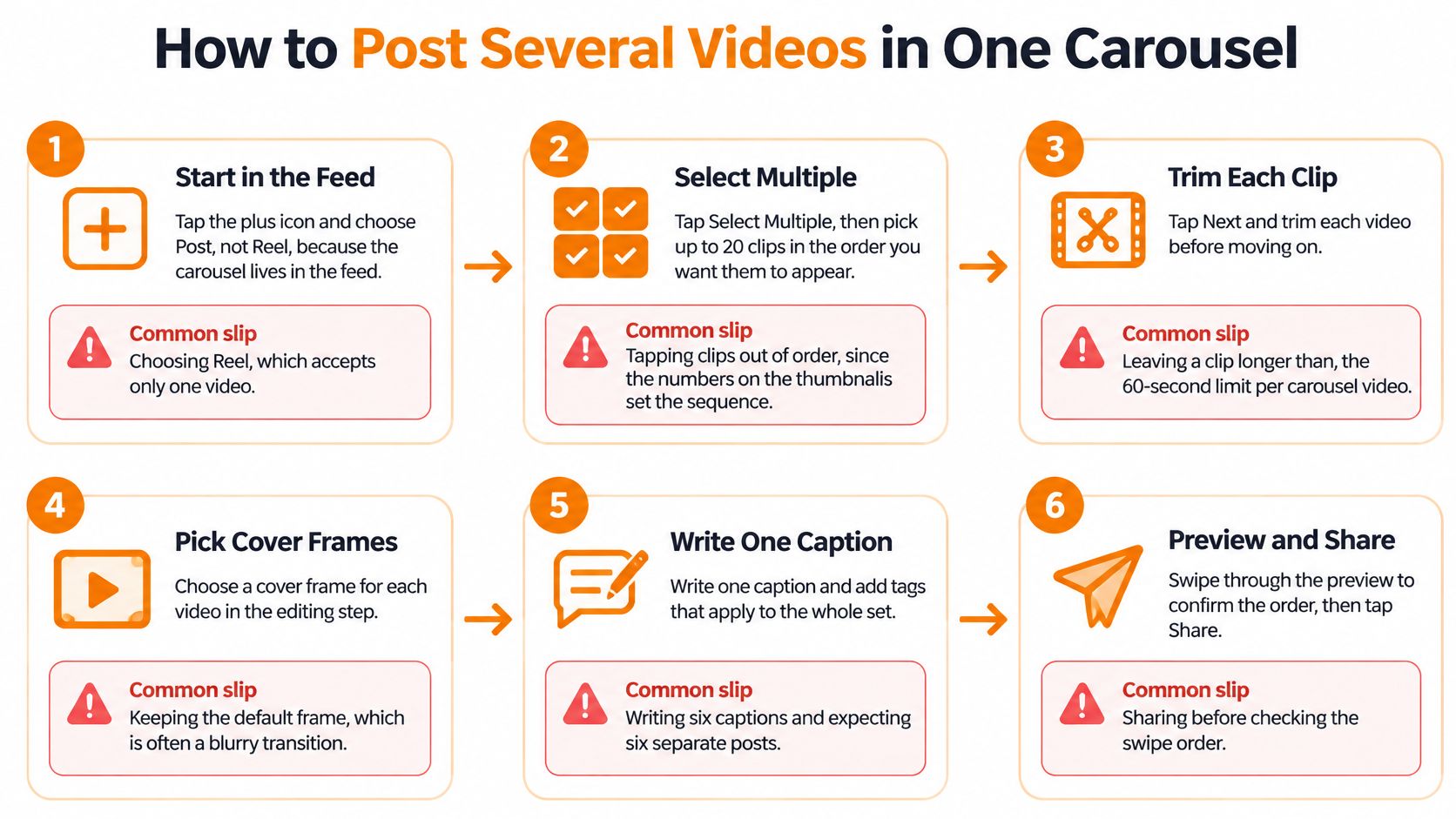
- Start with Post, not Reel. Tap the plus icon and choose Post, because the carousel lives in the feed. Choosing Reel limits you to one video.
- Tap Select Multiple and pick in storyboard order. The number badges on the thumbnails set the final sequence. Tap clips in the order viewers should see them, not the order you shot them.
- Trim each clip and choose its cover frame. The first slide becomes the thumbnail people see before swiping. A default frame is often a blurry transition, so pick one deliberately.
- Confirm every clip shares one aspect ratio. Mixed ratios crop unevenly across slides. If one file differs, go back and re-transcode it instead of accepting the crop.
- Write one caption with one call to action. Add tags, location, and alt text that apply to the whole set. Six clips in a carousel still get a single caption, so don't draft six.
- Share, then swipe through the live post on a phone. Check order, crops, and cover frames in the grid and in the feed. This takes a minute and catches most ordering mistakes.
For separate Reels, choose the Reel option instead, upload one clip, write a caption that stands alone, publish, and repeat. Each Reel needs its own hook in the first seconds because viewers won't have context from the previous post.
The short walkthrough below shows the same selection flow on a real device.
Meta Business Suite can schedule feed posts and Reels for a set time, which helps with timing. It doesn't run the per-clip preflight checks covered later, so validate your files first and set the schedule second.
Choosing a Mallary.ai Route
A content team scheduling a few client batches may prefer a visual queue. A product team publishing from its own database may need an API instead. All four routes use the same publishing engine and preflight checks; the choice is about how your team prepares and submits each batch.
The dashboard suits creators and marketing teams who want to upload clips, arrange them visually, review the sequence, and schedule posts on a calendar. It works well for occasional batches, though repeated manual uploads can take time.
The API fits teams that create posts from a product, CRM, or content database. Your system submits jobs programmatically, and webhooks report status changes. This overview of the Instagram API explains what an integration involves.
Routes for Bulk Video Posting
| Route | Who uses it | How it handles batches | Best when |
|---|---|---|---|
| Dashboard | Marketing teams and solo creators | Multi-file upload, ordering and calendar scheduling | A few batches a month and visual review matters |
| API | SaaS builders and developers | Programmatic job creation with webhook status updates | Posting is part of your product or CRM flow |
| CLI | Developers and scripting teams | Batch submission from a manifest file | Schedules live in version control or CI |
| MCP and no-code (n8n, Zapier, Make) | AI agent builders and automation teams | Workflow or agent triggers per asset | Videos arrive from another tool |
The CLI works well when developers manage schedules through a manifest in version control or a CI job. That record makes it easier to trace which files were submitted, in what order, and for which account. It does require someone to maintain the script and manifest.
MCP and no-code routes, including n8n, Zapier, and Make, suit workflows where another tool or an agent produces the video. A file arriving in storage can trigger a publishing job, reducing manual handoffs. Check the workflow's failure alerts, though: a broken trigger can leave a batch waiting without anyone noticing.
Across all four routes, Mallary.ai handles OAuth, token refresh, rate limits, and retries after you connect an Instagram account. The same preflight checks apply whichever route you choose, so changing how you submit batches does not require rebuilding validation.
How to Automate a Bulk Carousel Upload
A batch can transfer cleanly and still publish with a missing clip or the wrong order. Build the job so every video is checked for its destination, every child is ready before the parent is created, and the published post is verified.
The Staged Workflow
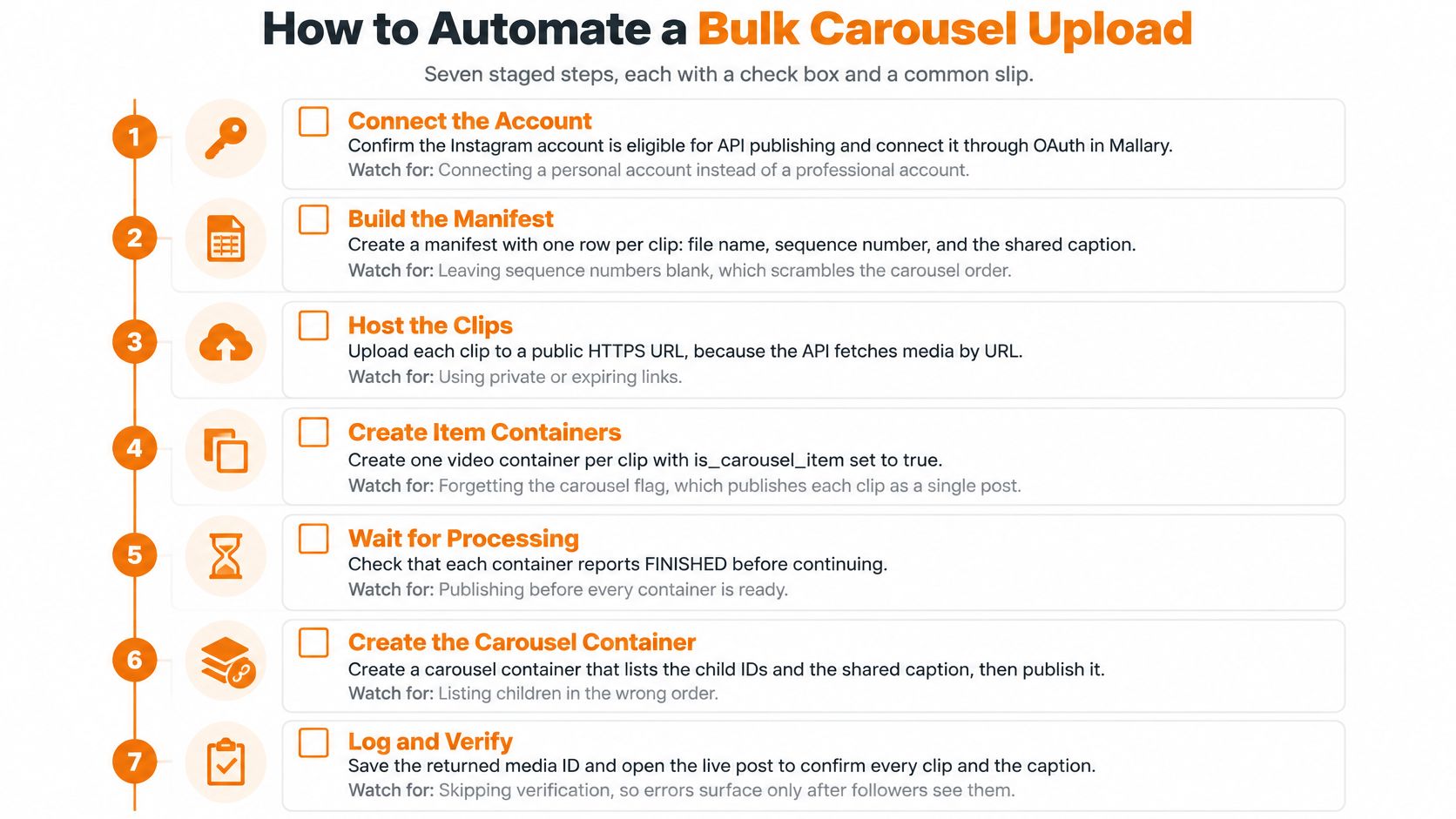
- Confirm account eligibility and connect through OAuth. Check that the Instagram account can publish through the API before preparing the batch. Connecting a personal account when a professional account is required will stop the workflow at the start.
- Build a manifest with one row per clip. Record the file path, checksum, duration, dimensions, frame rate, codec, caption, sequence index, and destination. Keep the manifest as the source of truth for each clip's settings and order.
- Run preflight checks for every destination. Confirm each file is accessible and meets that destination's codec, duration, aspect-ratio, and account requirements. Reject a failing row with the filename and the specific property that needs fixing.
- Upload each passing clip as a carousel child item. The official Instagram Graph API media reference specifies
media_type=VIDEOwithis_carousel_item=truefor video carousel children. Use resumable uploads for large files to avoid restarting the transfer after a connection drop. - Wait for each child container to finish processing. An upload completing does not mean its video is ready. Check every child's status and proceed only when all report success.
- Create the parent carousel in sequence order. Set the parent container to
media_type=CAROUSELand include the child IDs in itschildrencollection. Sort them by the manifest's sequence index, not by upload completion time. - Publish the parent, then verify the live post. Save the container IDs and returned media ID, and use webhooks to track status changes. Open the published post to check that every clip appears in the intended order with the correct caption.
Retries Without Duplicates
Container IDs are asynchronous job resources. Store them, enforce idempotency in your application, and use backoff for transient errors. Otherwise, a retry can create a duplicate carousel.
If a retry loop stops without resolving the issue, check for a permanent validation error. Repeated uploads will not fix a bad codec. Correct the file, then submit it again.
For carousel child videos, use the VIDEO media type specified in the Graph API reference above. Standalone Reels follow a different publishing workflow.
Failed Posts and Fixes That Actually Work
A carousel can fail at publication even when every clip has uploaded. One possible cause is a child container that is still processing or has failed before the parent is created. Uploading, processing, creating the carousel, and publishing are separate steps, so check which one stopped.
Use the symptom to narrow down the likely cause and fix.
Multi-Video Post Symptoms, Causes and Fixes
| Symptom | Likely cause | Fix |
|---|---|---|
| Carousel will not publish after uploads succeed | A child is still processing or failed | Check each child's status and create the parent only when all are ready |
| Slides cropped or shifted | Clips use different aspect ratios | Re-transcode all clips to the same target, such as 1080 by 1920 at 9:16 |
| Slides appear out of order | Sequence follows upload completion | Set an explicit sequence index in the manifest |
| Large clip fails to upload | Upload cannot resume after a connection drops | Use resumable upload and retry transient failures with backoff |
| Duplicate carousel after a retry | Container IDs were not saved or deduplicated | Persist container IDs and enforce idempotency in the application |
| Same error on every retry | The media fails validation | Stop retrying, fix the file, and resubmit |
| Clip missing from published carousel | A tool accepted or dropped an unsupported item | Validate each clip for its destination and reject unsupported files before queueing |
Order errors often start in the workflow, not in the app. If the parent carousel is assembled as uploads finish, a smaller file may appear before the clip intended to lead. Use the manifest's sequence index to build the parent in the planned order.
Repeated identical errors point to a different problem than a dropped connection. Fix the media or settings named in the validation response before submitting again.
Costly failure: A silently dropped clip can make a published post look complete in the dashboard while leaving a gap in the content, such as a missing step in a tutorial.
Prevent that gap with destination-specific validation before queueing. Reject unsupported clips and return an error that identifies the file. A clear failure before publication is easier to fix than an incomplete post already in the feed.
Run a Test Batch Before You Schedule the Month
Don't validate your workflow on a month of client content. Run one small batch, read every result, and scale only after it passes clean.
A Five Post Test Plan
- Pick one destination account and one campaign goal. Reach, saves, or comments. One goal keeps the results readable, since a test measuring everything tells you nothing.
- Build three carousels and two standalone Reels. Apply the format test from earlier. Sequential content, tutorials, and walkthroughs go into carousels. Clips that answer separate questions become Reels.
- Run the full preflight and read the rejection report. Confirm checksums, codecs, durations, aspect ratios, and sequence indexes before anything is queued. A clean small batch is worth more than a large batch with unknown failures, and planning batches with bulk scheduling only pays off once this step is boring.
- Preview each carousel on a phone. Check the first slide, the crops, and the order in the actual app. Desktop previews hide edge cropping that a phone screen exposes immediately.
- Compare results against the goal you set. After the posts are live, look at saves and comments on the carousels and reach on the Reels. If a format underperforms its assigned job, change the assignment before you scale.
Keep the manifest and the preflight log together after the test. When a post fails three weeks later, that pairing lets you trace it to the exact clip, the setting that was wrong, and the run that sent it. Without it, you're re-opening files and guessing.
Scaling is then a volume change, not a workflow change. Same manifest structure, same preflight, same staged publishing, more rows. That's the whole point of proving it on five posts first.
Connect your Instagram account once in Mallary.ai and publish multi-video carousels and Reels through the dashboard, API, CLI, or MCP, with preflight validation, resumable uploads, and webhook status handled for you. Run your first five post test batch there, read the rejection report before anything queues, and scale the same manifest to a full month once it passes clean.
Try it with Mallary
STOP!
Want ChatGPT or Claude to post on Instagram for you?
Connect your social accounts one time. Then tell your AI what to write. It can make your posts, share them, and reply on social sites that allow replies. You do not need to write code.
Pick your AI





Connect once. Ask in plain English. Mallary does the work.


