Written by Outrank. Published by Mallary Labs LLC.
Published .
Post Link on Facebook: Desktop, Mobile and Preview Fixes
You've polished the blog post, swapped in a sharper headline, and pasted the link into Facebook. The preview shows your old logo, a generic page title, and no description at all. Do you post it anyway and hope people click, or delete it and start over?
I would stop there. When you post a link on Facebook, the preview card is the gate. Readers decide from the image, headline, and caption before they ever see your page. Get the card right first, then publish.
Table of Contents
- Post a Link on Facebook on Desktop and Mobile
- Set the Link Preview Card with Open Graph Tags
- Fix Wrong Images and Stale Link Previews
- Write Link Posts That Earn More Clicks
- Publish Link Posts Through the Facebook Pages API
- Test Your Next Link Post Before You Publish
Post a Link on Facebook on Desktop and Mobile
A link post takes about a minute once you've copied the URL. Don't rush the preview check to save ten seconds.
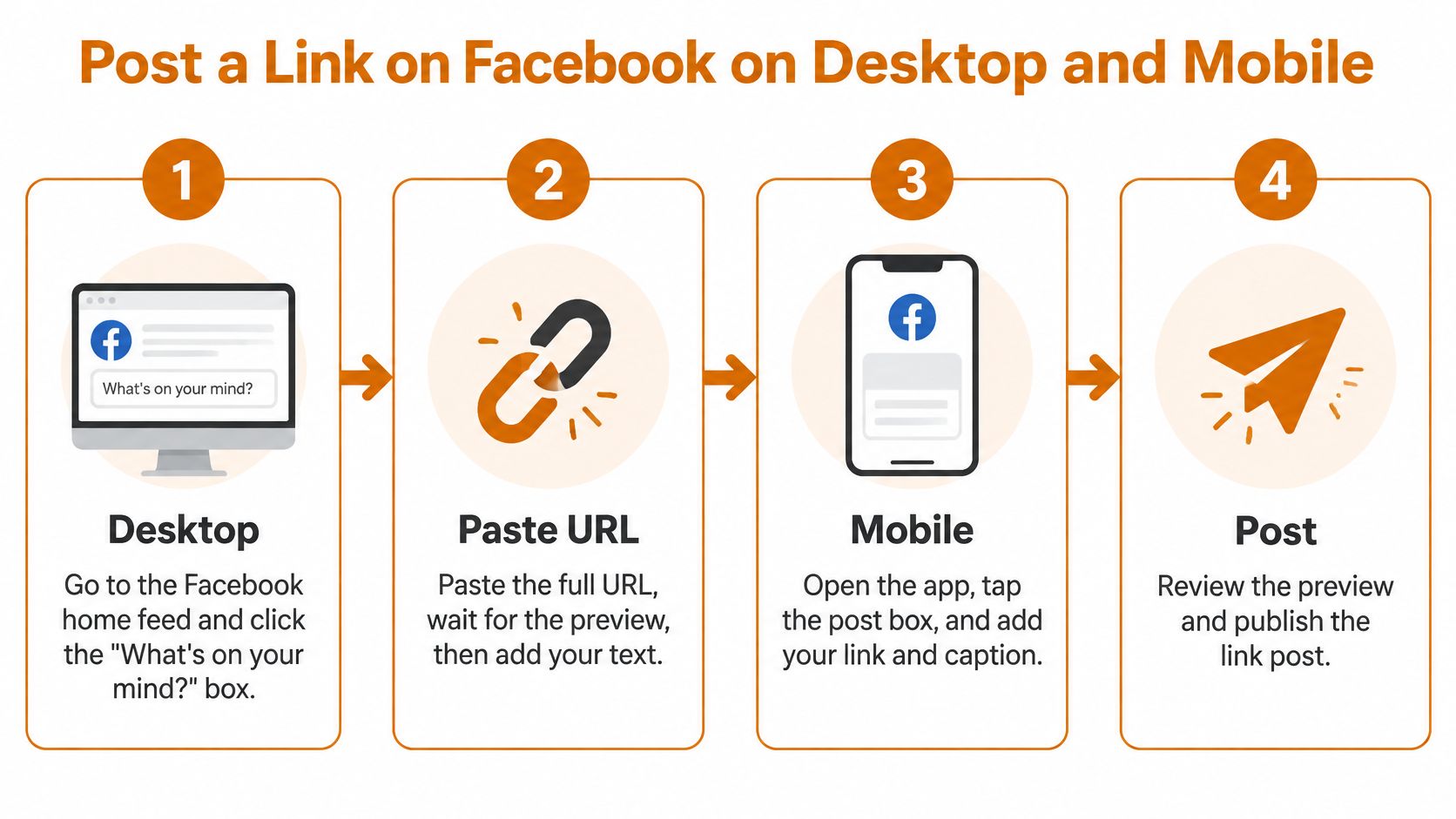
Desktop steps
- Open the composer: Go to the Facebook home feed and click the What's on your mind? box. If you're posting for a business, switch to your Page first.
- Paste the full URL: Include ** and paste it into the post text. A partial address won't trigger a reliable preview.
- Wait for the card: Give Facebook a few seconds to fetch the page. If nothing shows, wait once more before you assume it's broken.
- Clean up the text: Once the card appears, you can delete the raw URL from your caption and let the card carry the link. Keep it only if you want the address visible.
- Set the audience and post: Check who can see it, then click Post.
Practical rule: Facebook publishing goes to Facebook Pages, and personal Facebook profiles are not supported for business publishing. If you're posting as yourself by mistake, stop and switch to the Page.
Many people try the Page route from a personal account first and wonder why scheduling or insights are missing. That one switch fixes a surprising number of problems. Teams that also publish property clips can use a similar check before they share property videos on Instagram, because the caption and cover need the same review on each platform.
Mobile steps
- Open the app: Tap the What's on your mind? field at the top of the home feed.
- Paste and wait: Paste the full URL, including ** and wait a few seconds for the card to load.
- Check the card: Confirm the image and headline match the page you meant to share, not a homepage or login screen.
- Tap Post: Publish only after that check passes.
If you're sharing from a web page instead, use your browser's share option and choose Facebook. The card still comes from that page's own tags, so run the same preview check before sending.
Finish with one verification step. Open the live post on a second device and confirm the image, headline, and description match what you intended. The card in your own feed isn't always what others see at first. If it's wrong after publishing, don't rely on editing the text. You'll need to fix the page tags and force a fresh scrape.
Set the Link Preview Card with Open Graph Tags
Facebook doesn't build the card from your post text. It reads Open Graph tags declared in the destination page's head section. Change your caption all day and the card won't move. Change the tags, scrape again, and it will.
That distinction explains most preview complaints. The page owner controls the card. The person posting only controls the caption above it and whether they publish before checking.
The tags that matter
| Tag | What it controls | Recommended value |
|---|---|---|
| og:title | Headline on the card | Specific and readable on one or two lines |
| og:description | Summary under the headline | One or two sentences written for the reader |
| og:image | Main picture on the card | 1200 x 630 px, absolute HTTPS URL, 1.91:1 ratio |
| og:url | Address the card links to | Canonical HTTPS address of the page |
| og:type | Content category | article for posts and news, website for landing pages |
| og:site_name | Publisher name on the card | Your brand or site name |
Use 1200 x 630 px for og:image. 600 x 315 px is the minimum, and a 1.91:1 ratio is the safe choice. The image URL must be absolute and use HTTPS. Relative paths often fail, leaving you with a blank thumbnail and no error message.
A before and after example
Say a landing page is titled Home | Acme and has no og:image. Facebook shows a grey box with a generic headline. Nobody stops for that.
Now give the same page an og:title like How We Cut Onboarding Time by Half, a reader focused og:description, and a clear 1200 x 630 image. You get a full card that tells a busy reader exactly what they'll gain. Same URL. Completely different result.
Fix the tags on the page, not the wording in the composer. The composer can't repair a card the page never defined.
Check before you share
- Paste the exact URL: Open Facebook's Sharing Debugger and enter the URL you'll post.
- Read what Facebook scraped: Compare the title, description, and image against what you intended.
- Scrape again after changes: Use the scrape again option whenever you've updated tags, then recheck.
Run this short pre-share check every time. You want a unique title, a description written for a reader, a 1200 x 630 image, and one canonical URL. If og:url points somewhere else, Facebook may consolidate shares and previews under that other address. For blog posts and articles, set og:type to article so the content kind is clear. Small tags, large difference in whether anyone clicks.
Fix Wrong Images and Stale Link Previews
You changed the image. You rewrote the headline. Facebook still shows the old card. That's not a publishing bug, it's a cache.
Facebook keeps a cached copy of each URL it has scraped. Editing your page doesn't refresh that copy until the URL is scraped again. Until then, every new post can reuse the outdated preview.
The re-scrape sequence
- Update and deploy the tags: Publish the corrected Open Graph tags on the live page first.
- Enter the exact URL: Open the Sharing Debugger and use the precise address you normally share, including any tracking parameters.
- Click scrape again: Force Facebook to fetch the page anew.
- Verify the result: Check the returned title, description, and image line by line.
- Publish after it passes: Don't post while the debugger still shows the old card.
Find your symptom fast
| Symptom | Likely cause | Fix |
|---|---|---|
| Old image or headline still shows | Facebook cached the first version | Update the tags, then scrape again in the Sharing Debugger |
| No image appears | Missing or too-small og:image | Add a 1200 x 630 px absolute HTTPS og:image and scrape again |
| Blank or generic description | Missing or templated og:description | Write a page-specific description and scrape again |
| Preview fails completely | Login wall, blocked crawler or redirect loop | Allow public access, reduce redirects to one hop, test again |
| Link posts with no card | URL published before it was scraped | Scrape the URL first, then publish the post |
A re-scrape won't fix access problems. If the page requires a login, Facebook's crawler sees the login screen, not your article. A robots rule that blocks the crawler, an image URL that returns an error, or a redirect chain longer than one hop will also break the preview no matter how many times you retry.
Shortened links add another trap. The shortener inserts an extra redirect and can surface its own default card instead of your destination's. Test the exact shortened URL in the debugger if that's what you'll post.
Correcting the page takes minutes. A wrong post stays on your Page feed until you delete it or explain it in the comments. I would always spend the minutes first.
Write Link Posts That Earn More Clicks
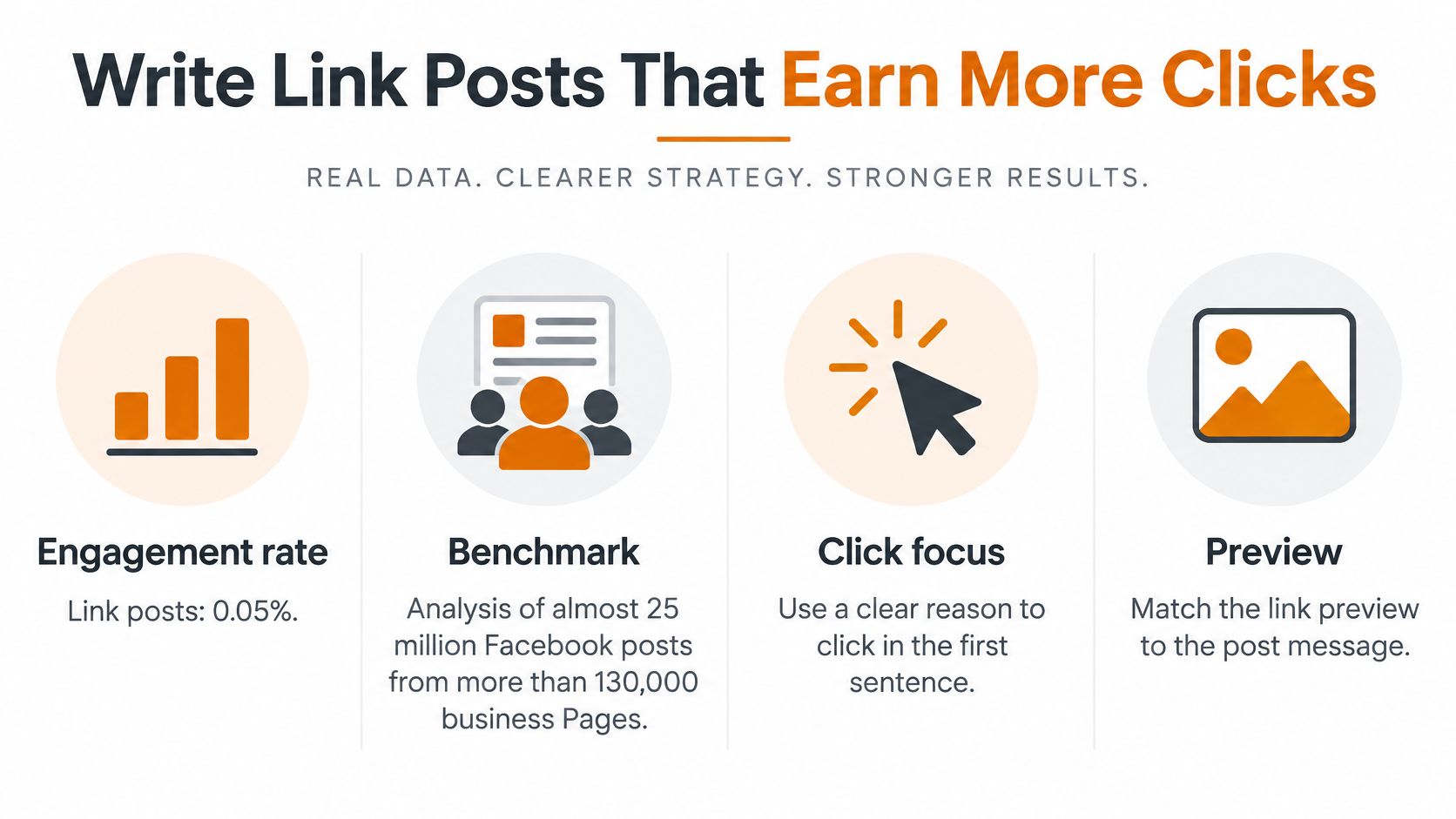
Judge a link post by clicks and visits, not likes. A benchmark cited from Socialinsider's analysis of almost 25 million Facebook posts from more than 130,000 business Pages reports a 0.05% engagement rate for link posts, while the reported average across Facebook Page posts is 0.15%, according to the Blumint summary of that benchmark. Treat those figures as directional, not universal, because industries, follower counts, and paid versus organic distribution differ.
The practical point still holds. A post can look quiet in your feed and still send valuable traffic to your site.
Five working rules for the caption
- Lead with the reason: Put the reason to click in the first sentence, before any URL. Readers who never expand the post should still get the point.
- Name the concrete result: Promise a checklist, a template, a number, or a clear outcome. Vague curiosity underperforms a specific payoff.
- Use one call to action: Say Read the 5-step checklist, not three competing asks in one caption.
- Add consistent UTM parameters: Tag every URL the same way so sessions and conversions show up cleanly in analytics.
- Match the preview to the promise: If your copy mentions a checklist, the card image and headline shouldn't show a generic stock photo and your homepage title.
Musicians face the same clarity problem off Facebook, which is why resources on bio link tools for bands stress one clear destination instead of a pile of competing links. Your caption needs that same single focus. For broader habits that support this, our guide to social media posting best practices covers consistency across platforms.
This short walkthrough shows the posting flow in action before you run your own test.
Test the first comment idea, don't obey it
Some teams move the link into the first comment and claim it always wins. Treat that as a hypothesis. Hold the landing page, offer, audience, and posting window constant, vary one caption approach at a time, and compare link clicks, landing-page sessions, and conversion rate across at least three posts. Don't change redirects, preview metadata, and creative at once, or you won't know what moved the result.
Publish Link Posts Through the Facebook Pages API
Manual posting works for a handful of links. It falls apart at volume, across clients, or inside a product. That's where the Pages API earns its keep, but only if you handle scraping, tokens, and retries properly.
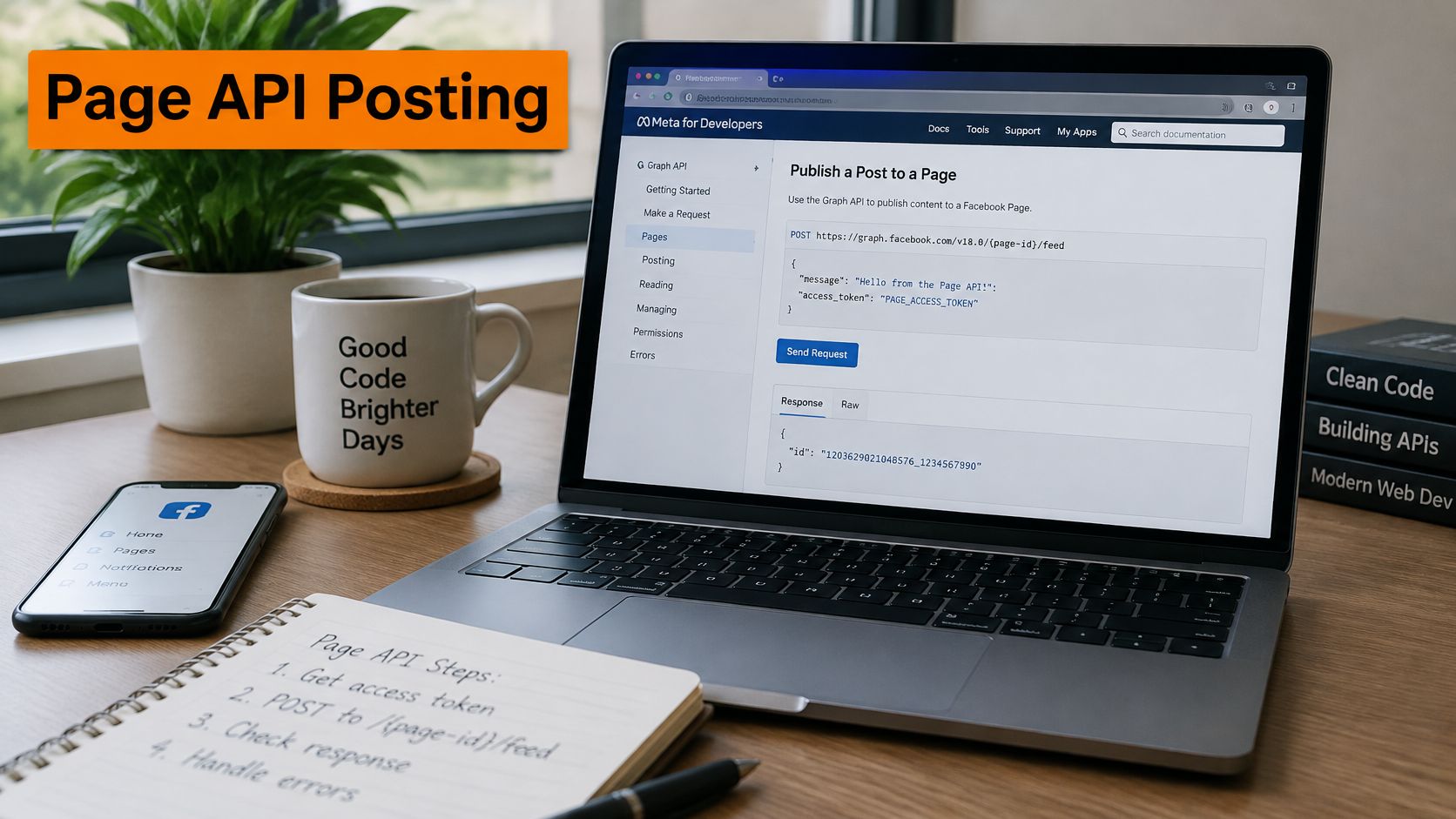
The publishing sequence
- Get a Page access token: You need the required publishing permissions, and pages_manage_posts covers creating Page posts. Confirm the token is still valid before each call.
- Validate and normalize the URL: Clean the destination address and confirm it resolves publicly.
- Scrape before you publish: Call Meta's URL node or scraping step when the URL hasn't been scraped before. Meta states custom link Page posts may not work for previously un-scraped links, as set out in the Meta Pages API documentation.
- POST to the feed endpoint: Send your request to /{page-id}/feed with the message, encoded link, and publication flag.
Payload fields to get right
| Field | What it controls | Developer note |
|---|---|---|
| message | Post copy shown above the card | Lead with the reason to click |
| link | Full HTTPS destination URL | Must be scraped before publishing |
| published | 1 publishes now, 0 creates an unpublished draft | Test with 0 first, then check the returned post ID and permalink |
| access_token | Page token with pages_manage_posts | Confirm it is still valid before each call |
| Your own request key | Identifier stored in your system | Stops a retry after a timeout from creating a duplicate post |
A minimal payload sets message to your post copy, link to the full HTTPS URL, and published to 1 for immediate publication or 0 for an unpublished draft. I would always test with published set to 0 first. Check the returned post ID and permalink before anything goes live.
Production rule: Never retry a timed out publish call blindly. You may create the same post twice and only find out from your followers.
For production, persist the post ID, permalink, request payload hash, and any error response. Use idempotency keys so a network timeout doesn't produce duplicates, and retry only transient failures with exponential backoff. Handle these failures explicitly: expired or insufficient Page tokens, malformed URLs, inaccessible Pages, missing Open Graph metadata, and links that haven't been scraped yet.
Privacy and access questions follow developers across platforms, much like the issues covered in this explainer on Pinterest visitor privacy with Pin Generator. On Facebook, your equivalent discipline is token hygiene and public crawler access. Our deeper guide to the Facebook API covers the surrounding setup. Strong automation validates destination metadata before a post enters the queue, so a broken card never reaches the feed.
Test Your Next Link Post Before You Publish
Publish now only when three gates pass in order. If any gate fails, fix that item and rerun it. Don't publish with a known wrong card.
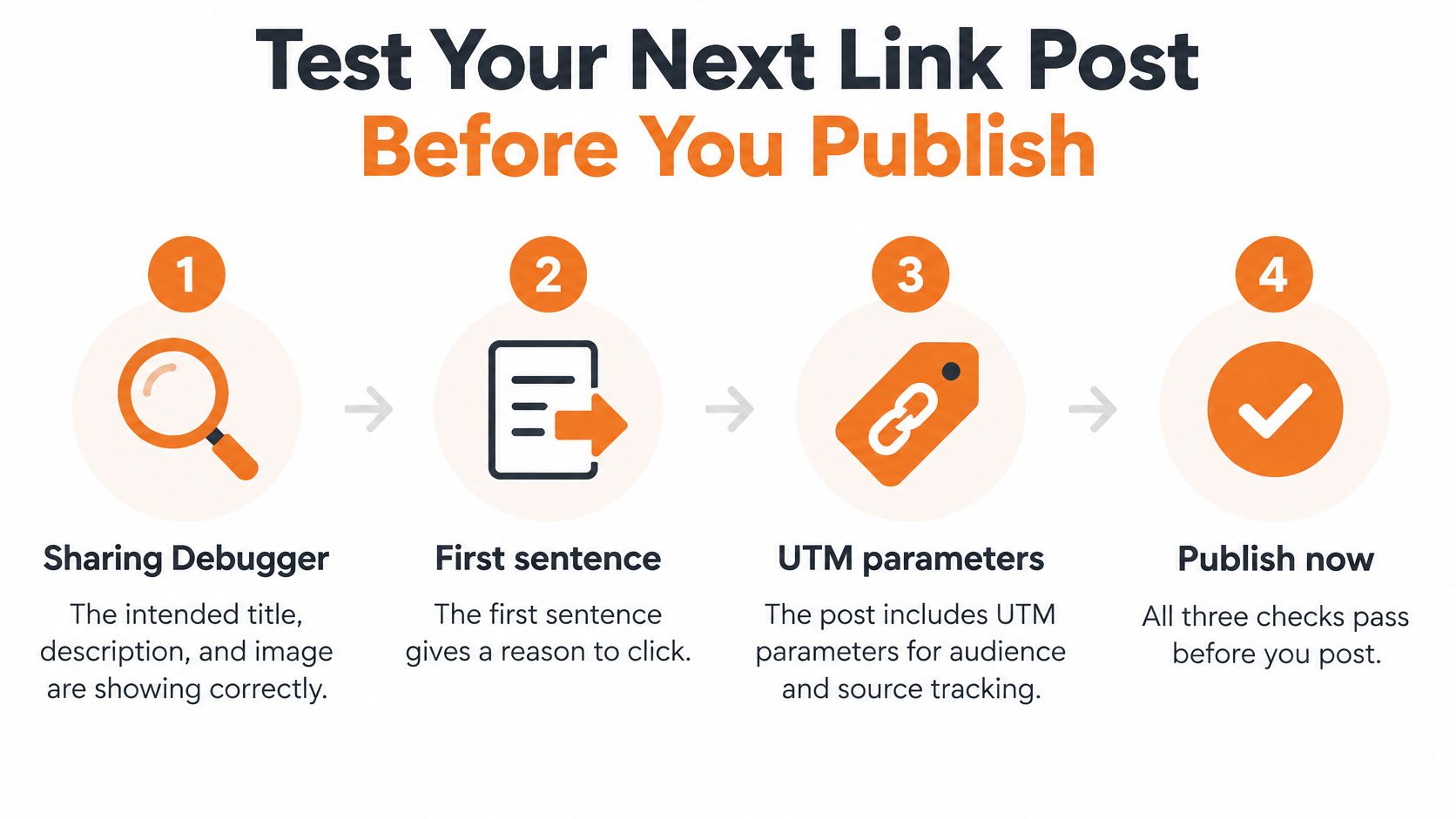
- Preview gate: The Sharing Debugger shows your intended title, description, and image for the exact URL.
- Copy gate: Your first sentence gives a reason to click and the post has one clear call to action.
- Tracking gate: UTM parameters are on the URL, and you've logged the audience, posting time, and caption variant in a shared sheet.
Our preflight checklist turns those gates into a repeatable routine. Mallary can publish Facebook feed posts and Stories, and you can see views, likes, and comments for each post on the platforms that share them, then use those results to choose what to post next.
After 48 to 72 hours, compare link clicks and landing-page sessions against earlier posts, not likes alone. Note whether the card or the copy changed. Schedule your first test post this week and log it before you make the first comparison.
Stop fighting stale previews and duplicate posts one link at a time. Mallary.ai lets you create, schedule, and publish Facebook feed posts through one dashboard or API, with preflight checks before your post goes live. Visit Mallary.ai to set up your first checked, tracked link post this week.
Try it with Mallary
STOP!
Want ChatGPT or Claude to post on Facebook for you?
Connect your social accounts one time. Then tell your AI what to write. It can make your posts, share them, and reply on social sites that allow replies. You do not need to write code.
Pick your AI





Connect once. Ask in plain English. Mallary does the work.


