
Written by Outrank. Published by Mallary Labs LLC.
Published .
How to View My Comments on Instagram: A Step-by-Step Guide
You left a comment on a friend's Reel months ago, and now you want to find the recommendation, check a reply, or remove what you wrote. You remember the conversation, but not the account or the post.
If you're searching for “how to view my comments on Instagram,” start with Your activity, not your notifications. Treat that list as a personal record you can review, then use an Accounts Center export when you need a more durable copy.
Table of Contents
- Where Instagram Keeps the Comments You Write
- How to Open Your Comments in the Instagram App
- Viewing Your Comments on the Instagram Website
- Export Your Full Comment Archive Safely
- Fixing Comments That Seem Missing or Changed
- Choosing a Method and When to Automate
Where Instagram Keeps the Comments You Write
Your comments sit beneath other people's posts and Reels, scattered across the accounts you interact with. Your profile doesn't display them as a continuous public feed. Instead, Instagram's Your activity documentation identifies Your activity as the signed-in area for reviewing and deleting comments you've made, with comment management also available on the website.
The important distinction is comments you wrote versus comments you received. Your activity covers your outbound interactions. Activity on your own posts concerns what other people did on your content.
Say a brand manager wants to find a comment she left under a competitor's launch post. She checks Activity, sees responses to her own brand's posts, and assumes the comment is missing. She's looking at the wrong record, not necessarily dealing with lost history.
Identify the right record before searching
Use these checks before reading through a long list:
- Read the heading. Make sure you're viewing Comments within Your activity, rather than notifications or engagement on your posts.
- Open the original post. Confirm the publisher and subject before deciding you've found the right conversation.
- Check the username. A renamed account can make a familiar thread look unfamiliar. Compare the post itself with what you remember.
For someone else's comment, open the relevant post and inspect its comment section. Your personal activity list isn't a directory of everything other people have said.
Your activity is for what you wrote, and Activity is for what others wrote on your posts.
That distinction matters more than remembering where a particular menu button sits. Once you've identified whose action you're searching for, the next step is straightforward.
How to Open Your Comments in the Instagram App
The direct route is Profile → Menu → Your activity → Interactions → Comments. Instagram's comment-management help describes this activity area as the place to review and manage interactions you've made, including comments.
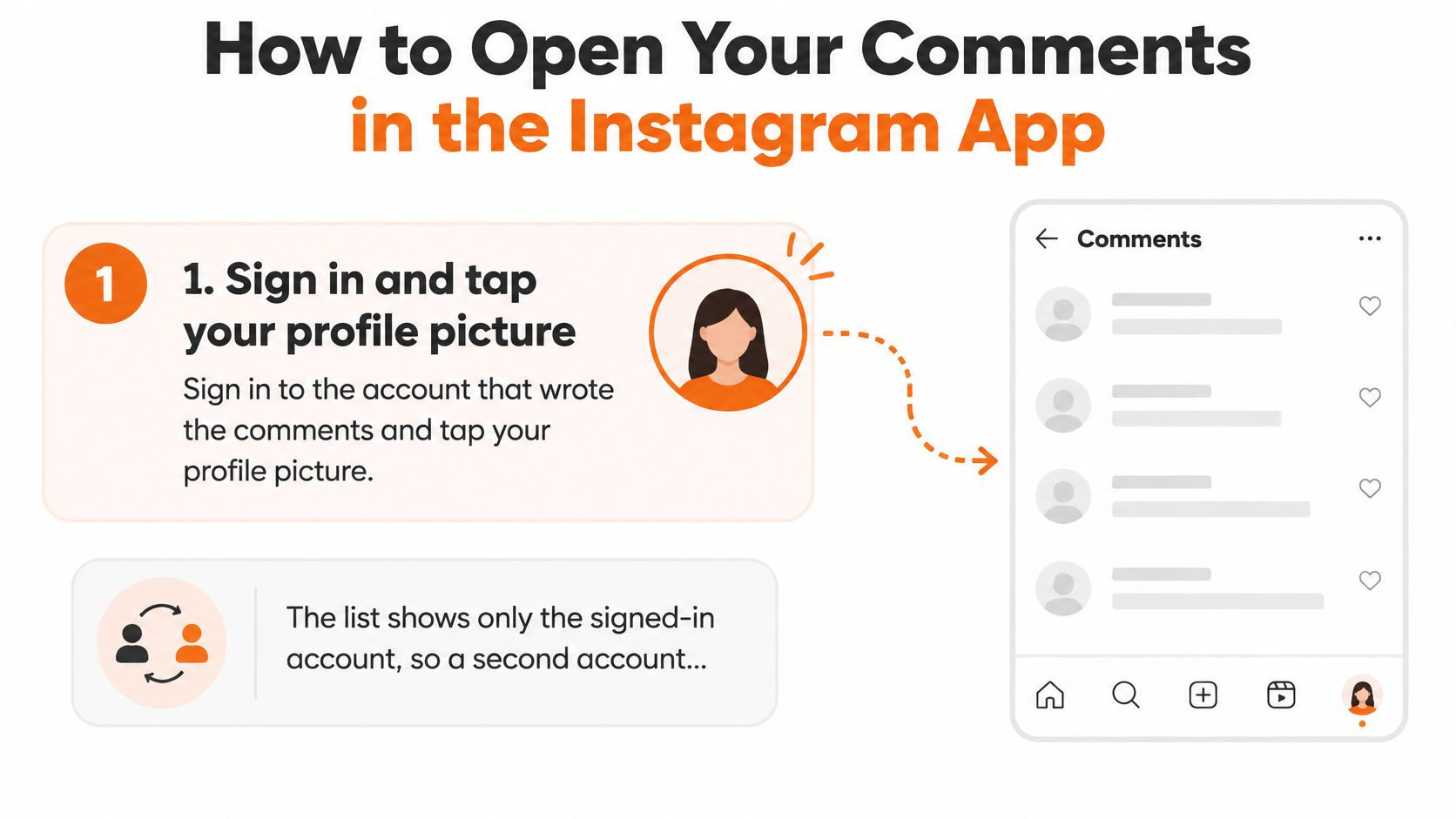
Use this visual as a guide to the starting point.
Follow the account's comment history
Sign in to the account that wrote the comment, then tap your profile picture. Check the displayed username before continuing, especially if you switch between personal and business profiles. A different account won't show the history you're looking for.
Tap the three-line menu and choose Your activity. Don't substitute the notifications screen or the activity associated with an individual post. Those screens answer a different question.
Open Interactions, then Comments. The grouping can differ by app version, so follow the Comments label rather than a remembered screen position. If Comments is already visible within the activity-management options, open it.
Apply the available filters. Use date or content controls if your version displays them. Start with the period you remember, but widen it if the first search produces nothing.
Tap a matching entry to inspect the original post. Read the surrounding conversation rather than relying on a short preview. Similar wording can appear under unrelated posts, particularly if you leave routine questions or campaign responses.
Delete or manage the comment using the available controls. Confirm the wording and account before deleting anything. Don't remove a comment merely to test whether you've found the right menu.
Check the conversation, not just the entry
When looking for a reply you wrote beneath another comment, inspect matching entries and expand the relevant reply thread on the post. Don't assume that opening a post will automatically reveal every parent comment or later response. A collapsed thread can conceal the context you need.
A successful lookup should let you match your username, the post, and the approximate date. If the entry appears but the destination won't open, repeated tapping won't tell you whether the post was removed or access changed.
For a video walkthrough of the navigation, use this demonstration alongside the labels in your own app.
Before ending a review, note the post's account and subject if you'll need the conversation again. That small record is more useful than relying on the comment's position in a changing list.
Viewing Your Comments on the Instagram Website
A browser is useful when you want more space to inspect a conversation or compare it with your own notes. The destination is still Your activity, but desktop navigation doesn't necessarily mirror the mobile app.
- Sign in to Instagram in your browser. Verify the active username before searching. If you manage several accounts, switch to the account that authored the comment.
- Open your profile page. Use it to confirm the account identity, rather than assuming your last browser session used the right profile.
- Open the navigation menu and select Your activity. The menu's placement can change with the layout or window size.
- Choose Interactions, then Comments where those labels appear. Follow the destination name if Instagram presents Comments more directly.
- Click an entry to open the original post. Match your username and the conversation before treating it as the comment you need.
- Use browser Find only on loaded content. It can help locate visible wording or a username, but it won't search your entire Instagram history.
Know what browser search can miss
Browser Find isn't an account-wide comment search. If entries haven't loaded, the browser can't find their text. Likewise, searching a post won't uncover replies that remain collapsed or unavailable.
Don't expect every mobile filter to appear on the website. If a useful date control is missing, switching to the app is usually more productive than trying to reproduce the mobile layout in your browser.
A correct result is a post you can inspect, a comment bearing your username, and a date consistent with your memory. If the browser displays an empty list, check the signed-in account before concluding that Instagram has removed your comments.
For an audit, keep a short note of what you confirmed and what remains unresolved. Separate found comment, inaccessible post, and no matching entry rather than recording all unsuccessful lookups as deleted.
Export Your Full Comment Archive Safely
Use an export when you need to review older activity, retain an audit copy, or investigate a history that seems incomplete. Export describes the process, not a guarantee of completeness. It's a copy of the information Instagram makes available, not a recovery tool for every comment ever written.
Request the relevant account data
Instagram's access-and-export documentation provides the official route through Accounts Center.
- Open your profile, tap the menu, and enter Accounts Center. Begin from the account you're investigating so you can verify the selection.
- Choose Your information and permissions, then Export your information. Follow the export labels displayed in your version.
- Select the Instagram account and relevant activity categories. Include comments. If category selection is available, requesting only what you need makes the resulting files easier to inspect.
- Choose the destination. Instagram supports exporting to a device or an external service. For a personal review, a device download keeps the workflow simple.
- Create the export and follow the completion instructions. Don't assume the file will be ready immediately. Wait for Instagram to make the download available.
- Inspect the comments data. Compare dates, wording, account references, and any available post links with your notes.
Preserve the file without overreading it
An archive can provide a more durable record than an activity screen, but it doesn't restore deleted or inaccessible threads. A recorded comment and a working link to its original conversation are separate things.
Keep the original download privately, and use a separate working copy for annotations. Avoid uploading the archive to an unverified comment viewer, especially one that also requests your Instagram credentials.
For a developer-led workflow, distinguish a personal data export from an integration before choosing tools. This Instagram API guide is a useful starting point for that separate technical decision.
Archive rule: Preserve what Instagram supplies, but don't treat a missing entry as proof of when, why, or by whom a comment was removed.
If the file looks thinner than expected, check the selected account, activity categories, and any date range offered during setup. Correct those choices before requesting another export. An unavailable post, changed username, or access restriction may still prevent you from returning to the original conversation even when you retain a record.
Fixing Comments That Seem Missing or Changed
A comment that appeared yesterday may be absent today, but that alone doesn't establish what happened. The author may have deleted it, Instagram may have removed it, or access to the post or account may have changed.
There's also a narrower observation worth understanding: a 2026 exploratory study found that 12% of Instagram comments differed between repeated crawls. That finding concerns comment sets collected from posts, not a measured failure rate for Your activity. It supports caution about treating a single view as definitive, not a promise that a missing comment will return.
Missing comment symptoms, causes and fixes
| Symptom | Likely cause | Fix |
|---|---|---|
| Comment missing from the list | Post deleted, comment removed, or account renamed | Confirm the post still exists and search the old username |
| Comment appeared, then disappeared | Deleted by you, removed, or account access restricted | Verify the signed-in account and access, then revisit after a day |
| Different comments on repeat visits | Comment sets can differ between retrievals | Recheck later and compare with an export |
| Original post will not open | Private account, blocked user, or deleted thread | Ask the account owner where appropriate, or accept that the thread may be unavailable |
| Older comments not listed | Incomplete visible history or filtering, with the cause unconfirmed | Create an Accounts Center export |
Don't infer an undocumented retention cutoff from an older comment's absence. The visible list alone can't establish that Instagram keeps comments for a particular period.
Use a stopping rule
Start with checks you can complete during the current session: verify the username, clear unnecessary filters, and see whether the original post still exists. If access seems to be the problem, this explanation of an Instagram restricted profile can help distinguish account restrictions from other visibility issues.
For a nonurgent lookup, revisiting the next day is a reasonable troubleshooting choice, not an Instagram recovery deadline. If you need a record for a client or formal review, request the export instead of spending another session scrolling.
Stop searching when the next scroll won't answer a new question. Switch to the archive when you've checked the account, filters, and post access.
Deletion isn't something these checks can reverse. Record the outcome accurately: an unavailable thread is not the same as a confirmed deleted comment, and neither tells you who took the action without further evidence.
Choosing a Method and When to Automate
Comment access methods compared
| Method | Where to find it | Best for | Main limit |
|---|---|---|---|
| Instagram app | Your activity, then Interactions, then Comments | Recent or specific comments | Shows the activity Instagram currently makes available |
| Instagram website | Navigation or profile menu, then Your activity | Reviewing on a larger screen | Layout may differ from the app |
| Accounts Center data export | Profile, Menu, Accounts Center, Your information and permissions, Export your information | Older records and audits | Takes time to generate and doesn't restore deleted content |
| Third-party comment viewers | Not an Instagram feature | Nothing recommended for this task | Can request login details or uploads of account data |
Use the app for a focused lookup. It's the most direct choice when you remember the conversation and want to inspect or manage your own comment.
Choose the website when screen space helps you compare wording, dates, and notes. Choose an export when keeping a record matters more than reaching the original post immediately. Skip unofficial viewers that turn a simple history check into a request for credentials or private files.
For a comment you remember leaving recently, start with the app. For a client record, a formal review, or a long audit, request the export and document its scope. A downloaded copy is useful evidence of what was supplied, but don't describe it as a certified complete history.
Automate ongoing engagement, not historical recovery
Manual checks make sense for a personal account. For a hypothetical agency managing many client profiles, the recurring task is different: identify new comments, assign attention, and reply without opening each account separately.
Our social media comments API retrieves and replies to comments from seven platforms: Facebook, Instagram, Threads, LinkedIn, X, YouTube, and Bluesky. Comments can be read and replied to through the API, MCP, or CLI.
That's an option for ongoing comment management, not a replacement for Instagram's personal activity archive. Don't assume that an API listing comments on supported posts can reconstruct every outbound comment you've written across other people's accounts.
Make the decision from the work you repeat. Open Your activity today, review the comments you can find for the last month, and note whether your task is a one-off lookup, a recordkeeping exercise, or recurring engagement management. Choose the app, a saved export, or an automated workflow accordingly.
Mallary.ai offers tools to retrieve and reply to comments across supported social platforms through an API, MCP, or CLI. If your comment review has become a recurring team task rather than a personal history lookup, visit Mallary.ai to explore an ongoing engagement workflow.
Try it with Mallary
STOP!
Want ChatGPT or Claude to post on Instagram for you?
Connect your social accounts one time. Then tell your AI what to write. It can make your posts, share them, and reply on social sites that allow replies. You do not need to write code.
Pick your AI





Connect once. Ask in plain English. Mallary does the work.


