Written by Outrank. Published by Mallary Labs LLC.
Published .
How to Post Facebook Video on YouTube
You've got a video performing well on Facebook, and now you want it on YouTube without downloading a blurry copy, losing the captions, or creating a rights problem. The share button looks like the obvious answer, but it usually shares a Facebook link rather than creating a native YouTube video. To republish properly, you need the original file, a YouTube-ready export, platform-specific metadata, and a clear record of who owns every element in the edit.
The practical way to think about how to post a Facebook video on YouTube is as a small integration pipeline. You move the source asset out of Facebook, validate and normalize it, translate the post into YouTube metadata, then upload and monitor a separate YouTube video object. That approach works for a one-off upload in YouTube Studio, an authenticated workflow built with the YouTube Data API, or a managed automation layer such as Mallary.ai.
Table of Contents
- Why Posting a Facebook Video on YouTube Takes More Work Than It Looks
- Exporting and Preparing Your Facebook Video for YouTube
- Choosing How to Publish the Video on YouTube
- Writing YouTube Metadata, Captions, and a First Comment
- Rights, Monetization, and Reused Content Rules to Clear First
- Timing, Sequencing, and a Final Cross-Posting Checklist
Why Posting a Facebook Video on YouTube Takes More Work Than It Looks
Facebook and YouTube maintain separate video systems. Facebook's Video API documents endpoints for retrieving Page and user videos, along with metadata such as IDs, descriptions, and update times, while YouTube's API handles its own uploaded video resources, publishing controls, and statistics through a separate platform surface. The result is simple but easy to miss: there isn't a native Facebook-to-YouTube post transfer that turns an existing Facebook object into a YouTube upload. See the Facebook Video API reference and YouTube video resource documentation for the separate models.
The Facebook share menu can place a link on another service, but it doesn't deliver the original media file with YouTube-ready metadata. You'd still need to handle the following yourself:
- Source retrieval: Export the video you own from Meta Business Suite, your account archive, or an approved media workflow.
- Format normalization: Prepare an MP4 with H.264 video and AAC audio, then validate the frame dimensions before upload.
- Metadata translation: Rewrite the title, description, captions, visibility, schedule, and audience settings for YouTube.
- Rights review: Confirm that footage, music, graphics, voiceover, and appearances are cleared for the new publication.
- Upload orchestration: Choose between YouTube Studio, direct API calls, or an automation platform that manages the handoff.
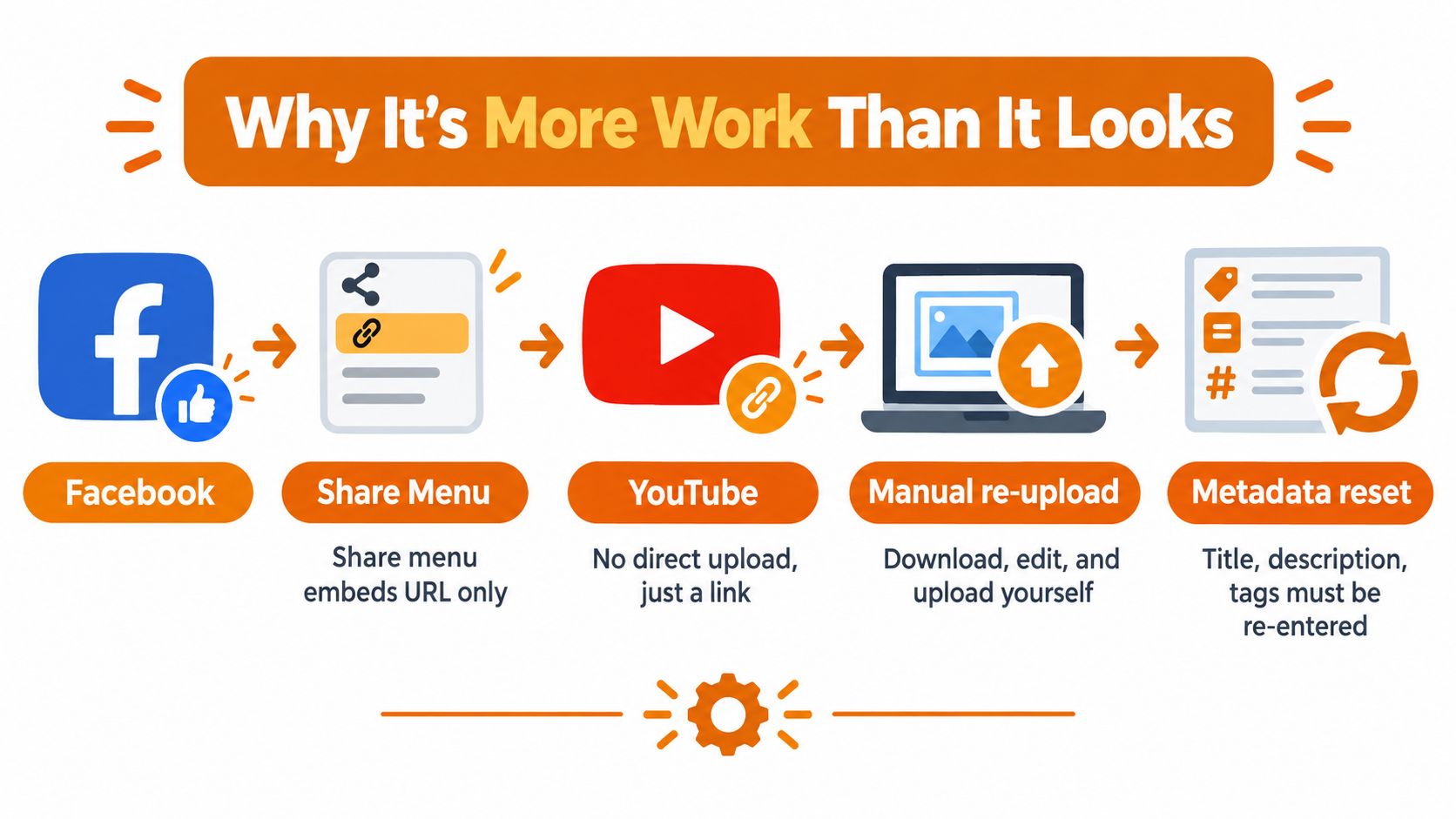
The most common failure happens when a team treats the Facebook post as the asset. It isn't. The post is a platform-specific wrapper around a media file, a caption, comments, and Facebook metadata. YouTube needs its own uploaded video object, its own publishing fields, and its own analytics record.
Practical rule: Preserve the master file outside Facebook before you start cross-posting. Platform downloads can be compressed, cropped, or missing production assets that you'll need for a clean YouTube version.
For a casual creator, that may mean downloading the file and uploading it manually. For a development team, it means building a small job that copies the source into storage, runs validation, generates YouTube metadata, uploads with retry handling, and records the resulting YouTube video ID. Both approaches follow the same logic. The difference is whether a person or a system performs each handoff.
Exporting and Preparing Your Facebook Video for YouTube

A Facebook download may look ready for YouTube, then fail inspection because it is cropped, compressed, or missing the original production assets. Start with the highest-quality source available. For a Page video, Meta Business Suite may offer a download of the published file. For a personal account, an account archive may include uploaded media. Use a public downloader only when you have permission to retrieve and republish the video. Access to a file does not establish ownership.
Facebook videos commonly use portrait, square, or feed-specific crops. YouTube accepts several shapes, but a non-16:9 upload can display side padding, and the same file may require different framing across Facebook placements. The Hootsuite video requirements guide outlines these platform differences. Validate dimensions before the upload job, not after viewers report letterboxing.
For a broadly compatible export, use an MP4 container with H.264 video and AAC audio. Cross-platform guidance also supports MP4 or MOV with H.264 and AAC, a frame rate at 30 fps or below, and a standard 16:9 YouTube frame, as summarized by VideoMaker's Facebook and YouTube format comparison. Upscaling a low-quality download will not restore detail. If you need browser-based conversion or enhancement, the MyImageUpscaler HD 1080p converter can be evaluated as part of the preparation workflow.
A practical FFmpeg normalization pass
A clean 16:9 source usually needs only a straightforward transcode:
ffmpeg -i input.mp4 -c:v libx264 -pix_fmt yuv420p -c:a aac -movflags +faststart output-youtube.mp4
For portrait or square footage, place the video on a 16:9 canvas. Letterboxing preserves faces and text better than stretching them:
ffmpeg -i input.mp4 -vf "scale=1920:1080:force_original_aspect_ratio=decrease,pad=1920:1080:(ow-iw)/2:(oh-ih)/2:color=black" -c:v libx264 -pix_fmt yuv420p -c:a aac -movflags +faststart output-youtube.mp4
Probe the output before passing it to an uploader:
ffprobe -v error -select_streams v:0 -show_entries stream=codec_name,width,height,r_frame_rate -of default=noprint_wrappers=1 output-youtube.mp4
Store the source, normalized file, and extracted thumbnail under predictable names. A pattern such as campaign-slug_platform_version.mp4 gives an automation job an auditable trail. Inspect the thumbnail for readable text and a clear subject before publication.
Use the Mallary.ai social media video specifications guide as a preflight reference when the workflow generates multiple platform renditions. The goal is a valid, deliberate asset for each destination, not one feed crop reused everywhere.
Choosing How to Publish the Video on YouTube
The right publishing method depends on how often you republish, who operates the workflow, and how much failure recovery you need. YouTube Studio is adequate for a single video. It becomes repetitive when every upload requires the same title pattern, description blocks, captions, thumbnail handling, and scheduling decisions.
The YouTube Data API is the engineering route. It supports video uploads and publishing metadata, including scheduled publication through status.publishAt, while YouTube's API also exposes video statistics through methods such as batchGetStats. That separation matters because a successful cross-post creates a new YouTube asset whose publication state and analytics must be tracked independently from the Facebook post.
| Method | Setup effort | Automation and retry | Best fit |
|---|---|---|---|
| Manual upload | Low | Human-led, limited recovery | Casual one-off reposts |
| YouTube Data API | High | Resumable upload logic, explicit metadata, custom retry handling | Developers and content infrastructure teams |
| Mallary.ai | Moderate | Managed publishing workflow with queue and platform handling | Marketers and teams that need governance without building every integration |
Manual upload
Open YouTube Studio, choose the prepared file, enter the title and description, upload captions and the thumbnail, set visibility, select the audience declaration, and schedule or publish. This is easy to inspect, but it leaves the process dependent on a person remembering every field and documenting every result.
Direct API integration
An API implementation should treat each upload as an idempotent job. Store the source path, checksum, intended publish state, YouTube video ID, caption status, and error response. Use resumable uploads for large files, then apply metadata and scheduling deliberately instead of assuming Facebook's settings transfer automatically. The YouTube API workflow guide is relevant when you're designing that developer-first path.
Managed automation
Mallary.ai can sit above platform APIs as a publishing layer. It can map source post fields into platform-specific payloads, validate media rules, queue jobs, and handle operational concerns such as authentication and retries. That's useful when a marketing team needs repeatability but doesn't want to maintain separate upload services and token logic.
Writing YouTube Metadata, Captions, and a First Comment
A Facebook caption is a source document, not finished YouTube metadata. YouTube viewers may discover the video through search, recommendations, channel pages, or an embedded player, so the listing needs enough context to stand on its own.
Put the main search phrase near the beginning of a concise title. Then write a description that identifies what the viewer will learn or see, adds relevant links, and gives the video a clear context. If the edit contains recognizable segments, add timestamps that match the final YouTube file, not the original Facebook cut.
| Facebook field | YouTube field | Recommended length | Notes |
|---|---|---|---|
| Post text | Title and description | Adapt to the video | Rewrite for YouTube discovery and viewer intent |
| Facebook permalink | Description or pinned comment | One clear link | Label the destination honestly |
| Auto-captions | Subtitle track | Match the full video | Export, upload, and proofread |
| Hashtags | Description and tags | Use selectively | Keep only terms relevant to the video |
| Publication setting | Visibility and schedule | Explicit value | Facebook context doesn't carry over |
Captions deserve a manual pass. Export the Facebook caption file when available, convert it to SRT or VTT if needed, and correct brand names, punctuation, speaker changes, and technical terms. Captions that were acceptable in a fast social feed can look careless in a searchable YouTube archive.
A first comment can summarize the video, add a relevant next step, and point viewers to the original Facebook discussion. Pin it only after checking that the link and call to action are correct. Don't fill the comment with unrelated hashtags or copy the Facebook caption word for word. The YouTube listing should make clear that this is an authorized publication of your material, while still offering a reason for viewers to engage on YouTube.
Set visibility, scheduling, the made-for-kids declaration, captions, thumbnail, and end-screen destinations explicitly. YouTube's status.publishAt property shows that scheduling belongs to the YouTube video resource, not to the imported Facebook post. The API won't infer those choices from Facebook, and a manual upload won't protect you from overlooking them.
Rights, Monetization, and Reused Content Rules to Clear First
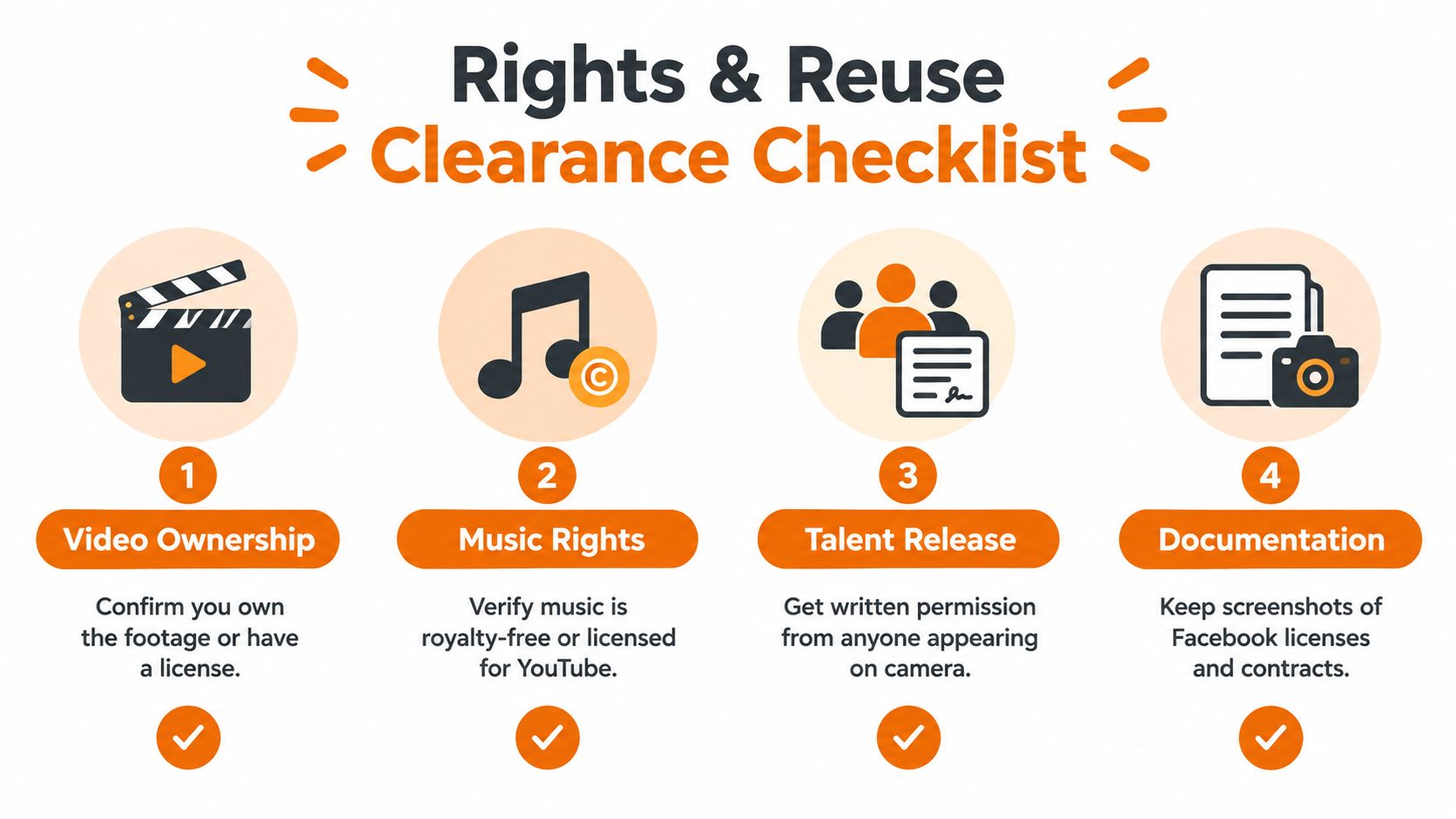
A video can be yours on Facebook and still contain elements you can't legally republish on YouTube. Audit the footage, music, graphics, stock clips, voiceover, and people appearing on camera before you upload. If a contributor, agency, musician, or client supplied an asset, locate the agreement that covers YouTube publication rather than relying on memory.
YouTube separates copyright enforcement from its reused-content rules. Its copyright and rights guidance is the appropriate starting point for checking what you can upload, but legal permission alone doesn't guarantee monetization eligibility. A video that looks like a low-effort repost can face a reused-content problem even when the uploader has permission to publish it.
Rights check: “I uploaded it to Facebook” proves where you published the file. It doesn't prove that you own every element inside it.
Music causes frequent trouble. A track available through a Facebook sound library may have terms that don't extend to YouTube, commercial use, or monetization. Replace uncertain music with original audio or a track whose license explicitly covers YouTube, and retain the license record with the project files.
Keep an evidence trail
Create a rights folder beside the video archive. Include:
- Footage records: The original camera files, contributor permissions, and stock licenses.
- Music documentation: The track title, license terms, receipt or agreement, and permitted platforms.
- Talent releases: Written permission for recognizable people, especially in commercial content.
- Publication evidence: The Facebook post URL, upload details, and relevant account records.
Adding original commentary, a new edit, explanation, or instructional context can make a republished video more meaningfully authored, but it doesn't repair missing rights. Don't re-upload someone else's viral clip under a new channel identity and assume a caption or logo creates sufficient originality. Review the edit from two angles before publishing, legal permission and substantive creative contribution.
The cross-posting workflow guidance from Mallary.ai can help teams formalize source records and platform handoffs, but no automation tool can grant a license for music or footage. The final responsibility remains with the channel owner.
Timing, Sequencing, and a Final Cross-Posting Checklist
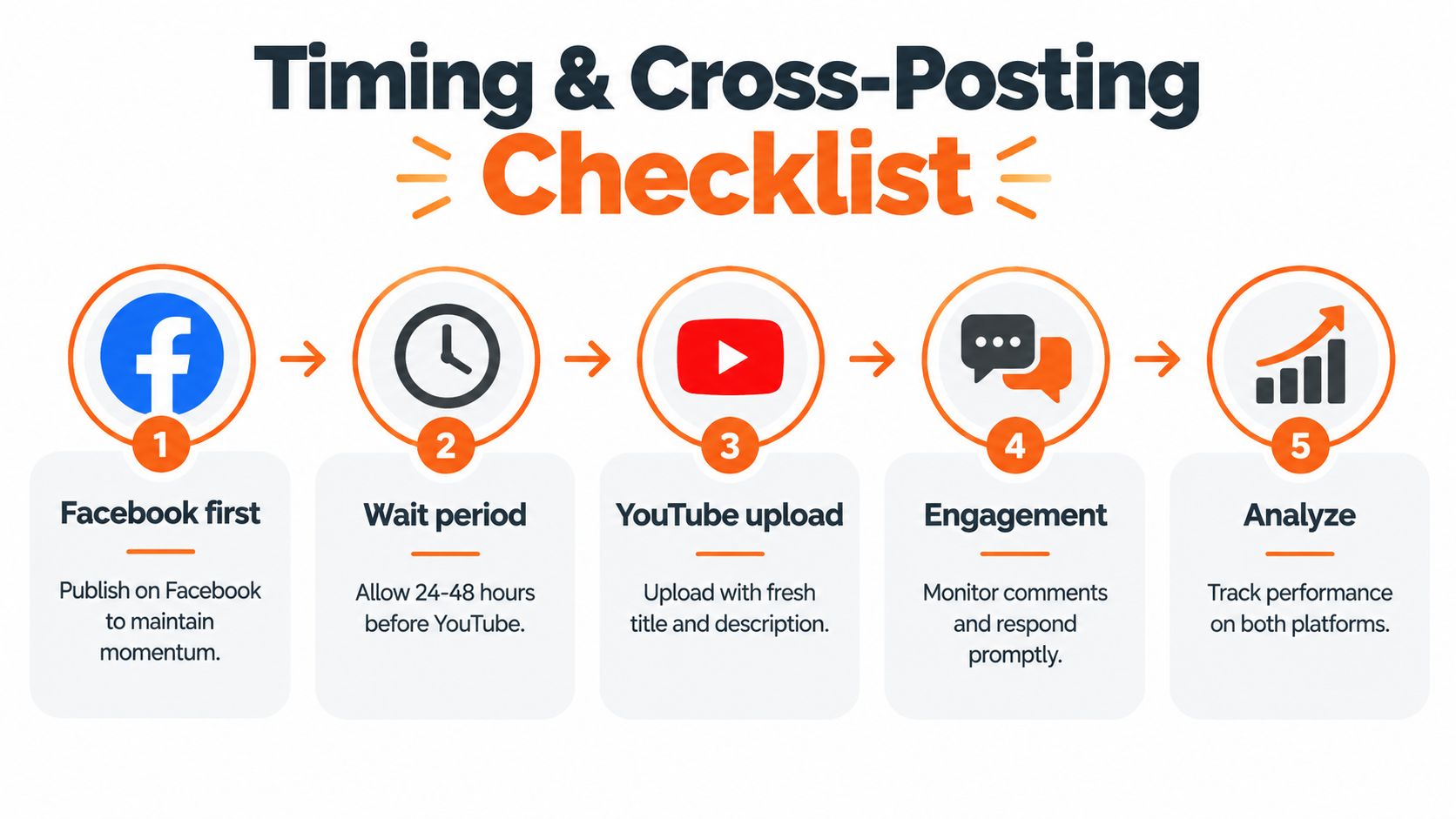
Publishing the same file on two platforms doesn't require identical timing. A staggered workflow gives you time to verify the first post, collect useful audience context, and prepare a YouTube listing that feels native rather than duplicated. One recent cross-posting recommendation is to publish on YouTube first and wait 48 to 72 hours before Facebook, as described by Circleboom's cross-posting guidance. Treat that as a sequencing option, not a universal rule. Your audience, launch objective, and platform strategy should determine which channel leads.
Whichever platform goes first, record the intended times and avoid accidental simultaneous publication when your team needs a controlled rollout. After YouTube processes the file, inspect the actual resolution, captions, thumbnail, visibility, and scheduled state in YouTube Studio. Then check that end screens and related-video links point to YouTube destinations instead of sending every viewer back to Facebook.
Reusable preflight list
- Archive the source: Save the original file, normalized MP4, thumbnail, caption file, and rights documentation.
- Validate the video: Confirm MP4, H.264, AAC, frame dimensions, audio playback, and the absence of unwanted padding.
- Review the listing: Check the title, description, timestamps, links, hashtags, audience setting, and visibility.
- Upload captions: Proofread names, punctuation, timing, and speaker changes before publication.
- Set engagement elements: Add the first comment, verify the pin, and confirm the call to action.
- Confirm publication: Check the intended schedule or public state and save the resulting YouTube video ID.
- Monitor both channels: Respond to early comments, inspect playback, and compare platform-specific analytics without treating one dashboard as a substitute for the other.
YouTube and Facebook expose performance through separate native systems. YouTube's API provides video resources and statistics for YouTube uploads, while Facebook's Video API treats Page, User, and Group videos as Facebook-native collections. Store both platform IDs in your content record so future edits, comments, and analytics jobs update the correct asset.
If you republish regularly, turn this checklist into a preflight job. Validate the media before upload, block files with unresolved rights status, require metadata fields, and send failed jobs to a visible retry queue. That's how a fragile manual habit becomes a dependable Facebook-to-YouTube publishing pipeline.
Mallary.ai gives teams a way to coordinate Facebook and YouTube publishing through a shared automation layer, with platform-aware payload handling, scheduling, retries, and workflow support. If you're ready to replace repeated downloads and manual metadata entry with a controlled republishing process, visit Mallary.ai and evaluate the workflow for your next video.
Try it with Mallary
STOP!
Want ChatGPT or Claude to post on social media for you?
Connect your social accounts one time. Then tell your AI what to write. It can make your posts, share them, and reply on social sites that allow replies. You do not need to write code.
Pick your AI





Connect once. Ask in plain English. Mallary does the work.


