Written by Outrank. Published by Mallary Labs LLC.
Published .
Facebook Video Resolution: Full Spec Reference for 2026
You've exported a clean 1080p video, uploaded it to Facebook, and watched the platform turn it soft, crop someone's face, or reject the file entirely. The frustrating part is that the export may be technically correct. Facebook video resolution isn't one universal setting, because each placement applies its own aspect-ratio, processing, file-size, and duration rules.
The reliable approach is to choose the delivery format first, then validate the media before upload. A wide-format Feed video, a full-screen Reel, a Story, and an In-Stream placement may all need different renditions from the same master file.
Table of Contents
- Why One Resolution Number Is Never Enough for Facebook
- Supported Resolutions by Format and Placement
- Aspect Ratios Across Facebook Surfaces
- Encoding, Bitrate, File Size, and Duration Limits
- Why HD Facebook Videos Still Look Blurry
- Practical Examples from SD to Vertical Reels
- Programmatic Uploads and API Preflight Checks
- Quick Reference Table for Common Facebook Video Specs
- Key Terms for Developers and Marketers
- Frequently Asked Questions About Facebook Video Quality
Why One Resolution Number Is Never Enough for Facebook
A developer notices the problem during a scheduled publishing test. The source file is 1080p, the container is MP4, and the upload works for Feed. The same asset then fails as a Reel or appears with unexpected padding in another surface. Nothing is wrong with the pixel count alone. The upload is being evaluated against a different placement envelope.
Facebook's own requirements distinguish between surfaces such as Feed, Marketplace, In-Stream, Stories, and Search Results. The official Facebook video requirements chart lists source ratios ranging from 16:9 to 9:16, including wider formats such as 1.91:1. A single answer such as “use 1080p” hides the decision that matters most, which is where the video will render.
The source file isn't the final rendition
Facebook re-encodes uploaded video. That means the platform controls the final playback stream, and a weak source cannot recover detail during processing. Independent guidance identifies 1080p as the safest high-compatibility target, while treating 720p, or 1280×720, as a practical minimum for usable quality (Crowbert's Facebook video format guide).
The same source can therefore behave differently across placements. A 16:9 file may look natural in a wide Feed or In-Stream, but Facebook may crop, pad, or reframe it for a vertical surface. The result depends on the declared ratio, the placement, the player, and the viewer's connection.
Practical rule: Decide the placement matrix before you encode. Resolution is only one column in that matrix.
Mobile upload settings add another variable. A creator may upload a good file while the Facebook app is configured for data-saving behavior, then judge the result from a lower-quality playback stream. The engineering fix is not always a larger export. Sometimes it's a correct placement variant, a stronger source encode, or a viewer-side setting.
Supported Resolutions by Format and Placement
Treat 720p as the floor and 1080p as the normal production target when the original footage supports it. For horizontal delivery, that usually means 1920×1080. For vertical delivery, use 1080×1920. Square Feed video uses 1080×1080 when a square canvas is the intended design.
Facebook's guidance varies by placement, so teams shouldn't build one “universal Facebook file” and expect identical results everywhere. The table below separates usable minimums from recommended production dimensions. The minimum column reflects a practical floor, not a quality target.
| Placement | Minimum Resolution | Recommended Resolution | Notes |
|---|---|---|---|
| Feed, landscape | 1280×720 | 1920×1080 | Use for genuinely landscape creative |
| Feed, square | 720×720 | 1080×1080 | Useful for mixed or square-first campaigns |
| Feed, portrait | 720×900 | 1080×1350 | Occupies more mobile Feed space |
| Reels | 720×1280 | 1080×1920 | Full-screen vertical delivery |
| Stories | 720×1280 | 1080×1920 | Build around a 9:16 canvas |
| Marketplace | 720×720 | 1080×1080 or 1080×1920 | Choose based on the listing creative |
| In-Stream | 1280×720 | 1920×1080 | Landscape is the natural production format |
The minimum values aren't interchangeable with recommended values. A 720p file may upload successfully, yet it has less source detail available after Facebook's re-encoding. Upscaling a smaller file to 1080p only changes the canvas dimensions. It doesn't recreate missing detail.
For teams documenting several platforms together, Mallary's social media video specs reference can sit beside your internal export presets. If you're also comparing tools for generated presenter videos or alternative production workflows, the ClipCreator.ai Synthesia comparison provides additional product context, but it shouldn't replace placement-specific validation.
The production decision is straightforward: export a dedicated vertical master for Reels and Stories, a horizontal master for In-Stream, and use square or 4:5 variants when Feed composition requires them.
Aspect Ratios Across Facebook Surfaces
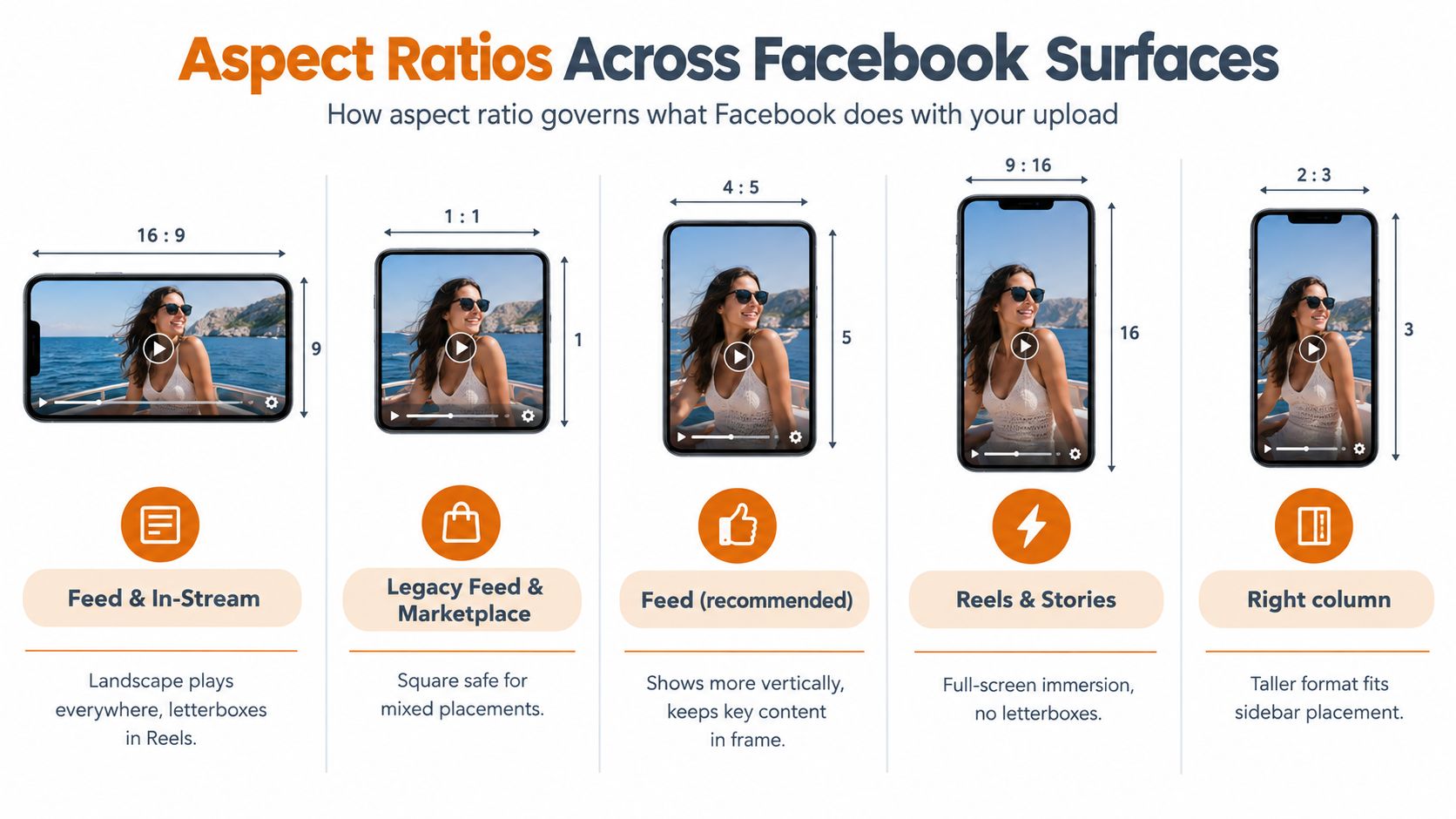
Resolution describes the number of pixels. Aspect ratio describes the shape of the canvas, and Facebook often makes cropping decisions from that shape before resolution becomes the visible problem.
Wide 16:9 remains appropriate for Feed content designed around wide footage and for In-Stream placements. Square 1:1 works for older Feed patterns and Marketplace listings. Portrait 4:5 is a useful Feed canvas when the creative needs more vertical presence without becoming full-screen. Reels and Stories are built for 9:16.
Cropping is a composition decision
A 1080p file can have very different dimensions. 1920×1080, 1080×1080, 1080×1350, and 1080×1920 all represent different framing choices, not merely different exports of the same image.
If you upload a horizontal master to a vertical placement, Facebook may crop the sides or add padding, depending on the delivery context. That can remove product details, subtitles, or a speaker's face. If the source already contains letterboxing, automatic reframing can compound the problem by preserving empty space inside an already constrained canvas.
Use one master when the content is visually flexible and the platform can crop without damaging meaning. Create dedicated variants when the video includes presenters, product demonstrations, captions, or UI elements near the edges. The LesFM access unprotected auth page is an unrelated example of a page whose layout matters to how content is presented, but the broader production lesson applies: the container and surrounding interface change what the user sees.
Keep important subjects and text inside a placement-aware safe area. Don't assume that a 1080p export protects framing. Facebook's ratio table can override that assumption through crop, padding, or surface-specific presentation.
Encoding, Bitrate, File Size, and Duration Limits
Codec, bitrate, file size, and duration form one ingest problem. Passing three checks doesn't help if the fourth blocks processing. The safest general-purpose baseline is an MP4 container with H.264 video and AAC audio, a combination described as the most compatible target in current independent guidance (Crowbert's encoding recommendations).
ProRes, image sequences, and uncompressed MOV files are useful during editing, but they're poor delivery inputs for an automated Facebook pipeline. They can be large, expensive to transfer, and more likely to trigger additional conversion work. H.265 and VP9 may work in selected contexts, but H.264 is the conservative choice when one normalized asset must pass through several upload paths.
Set the limits together
The verified placement guidance gives 4 GB as a working limit for Reels and 10 GB for in-feed video in the cited 2026 guidance, while the same source describes a 240-minute in-feed ceiling and a 90-second Reel cap (Vidico's Facebook video format guide). Treat those values as placement-specific and verify the limit associated with your upload method before a critical scheduled release.
| Surface | Recommended Codec | Bitrate Range | Max File Size | Max Duration |
|---|---|---|---|---|
| Feed, landscape | H.264 with AAC | Placement-dependent | 10 GB cited for organic Feed | 240 minutes |
| Reels | H.264 with AAC | Placement-dependent | 4 GB | 90 seconds |
| Stories | H.264 with AAC | Placement-dependent | Verify upload method | Verify organic or paid limit |
| In-Stream | H.264 with AAC | Placement-dependent | Verify placement limit | 240 minutes cited for in-feed guidance |
The brief doesn't provide verified bitrate ranges, so don't treat invented numeric bitrate presets as platform facts. Instead, encode a clean progressive source, inspect the actual output bitrate, and test the file against the placement you'll publish.
Before encoding, lock these values:
- Container: MP4 unless your workflow requires another verified option.
- Video codec: H.264 for broad compatibility.
- Audio: AAC, with a real audio track when the placement expects sound.
- Canvas: Match the destination ratio instead of relying on automatic crop.
- Duration: Validate against the specific surface, not a generic Facebook rule.
- File size: Check the final file after muxing, not only the video stream.
For a rough way to reason about how a file's size relates to runtime, use the 500MB video duration estimates from AI Video Detector as a planning aid, not as a Facebook limit. Teams implementing this as a release gate can pair it with a media preflight checklist before the upload request begins.
Why HD Facebook Videos Still Look Blurry
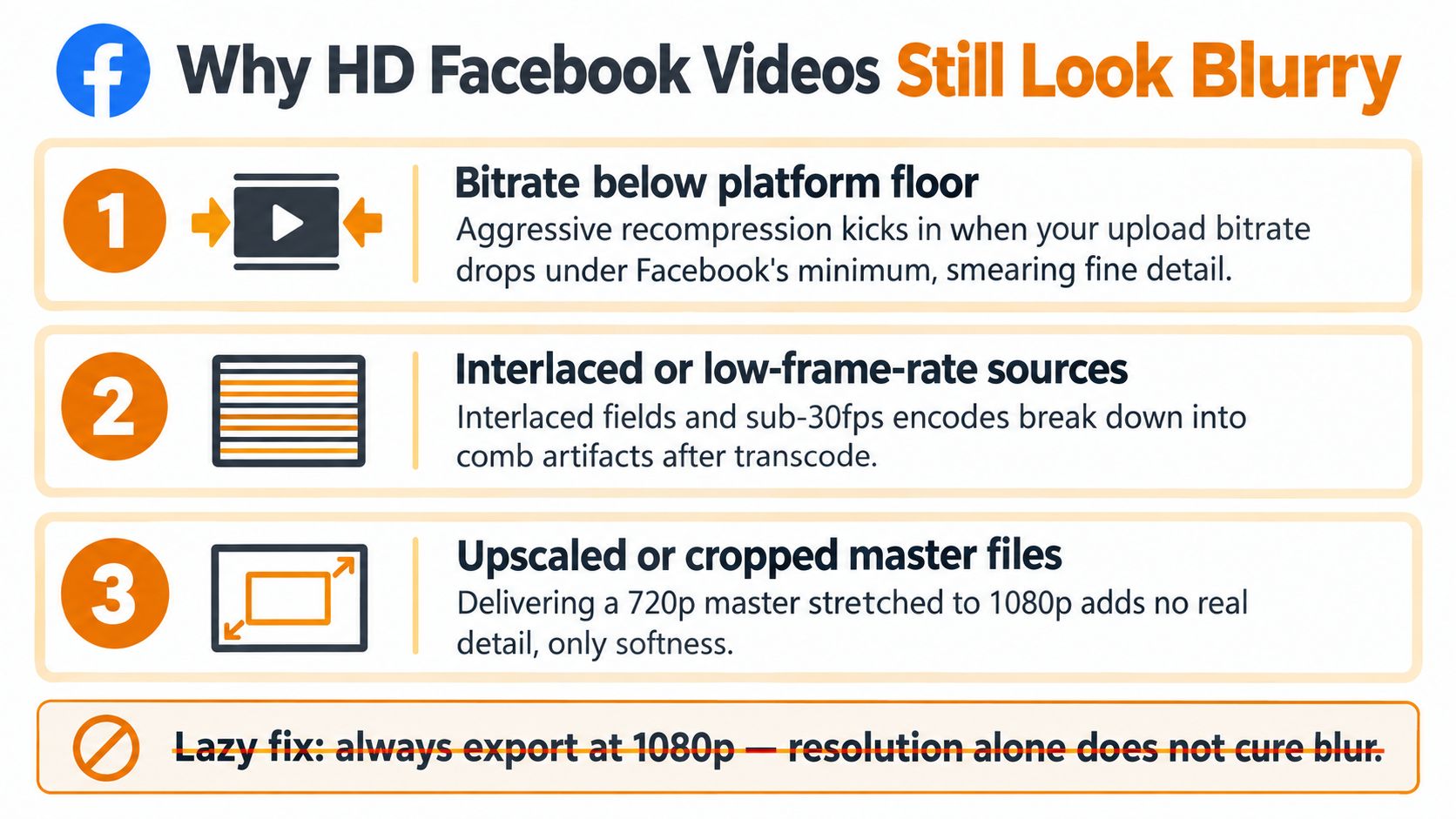
1080p doesn't guarantee sharp playback. It only tells you the dimensions of the source or one rendition. Facebook can recompress the file, and the viewer's device can request a lower-quality stream.
Start by separating source blur from transcode blur. If the original file is soft when viewed locally, no upload setting can restore detail. If the local file is sharp but Facebook's version shows smeared text, block edges, or banding in gradients, inspect the encode and the platform's processing behavior.
Diagnose the actual bottleneck
A low-quality source encode can leave too little visual information for Facebook's transcoder. A 720p master stretched to 1080p has more pixels on paper, but it still contains the detail of the smaller source. Interlaced footage can also produce combing or unstable edges after conversion, so deinterlace and inspect the result before upload.
Playback settings matter just as much. Independent coverage describes Facebook mobile options such as Data Saver, Optimized, and Original quality or Upload HD, and recommends moving away from data-saving modes when preserving upload quality matters (ShareIt's Facebook video quality guide).
Check the same post on a reliable connection and on the device where viewers watch. If the file looks sharp locally, the upload preview looks soft, and the result improves when the app uses Original quality or Upload HD, the problem was partly device-side rather than a resolution mismatch.
A clean lower-resolution source can look better than a badly compressed HD export. Detail comes from the source and the encode, not from the label alone.
Practical Examples from SD to Vertical Reels
Consider a legacy clip from an older campaign. It's standard-definition footage, so exporting it at a larger canvas won't create missing detail. The useful workflow is to inspect the source, deinterlace it if necessary, crop it deliberately for the target placement, and upload a progressive H.264 version rather than pretending the material is native HD.
Example one, a legacy SD clip
Use the original dimensions where possible, preserve the intended framing, and avoid aggressive sharpening. If the clip contains interlaced fields, run a proper deinterlace pass before encoding. Facebook may accept the file, but acceptance doesn't mean the resulting edges will look clean.
Example two, a landscape Feed or In-Stream video
For a truly wide composition, create a 1920×1080, 16:9 H.264 MP4. Don't place the same horizontal image inside a square canvas unless the design specifically calls for it. Padding wastes available pixels and can make captions or product details harder to read after Facebook processes the file.
Example three, a vertical Reel
Create a 1080×1920, 9:16 H.264 MP4 with the subject framed away from interface overlays. Keep text and calls to action inside the central safe area, and validate the duration against the Reel workflow you're using. Current guides commonly identify 90 seconds as the practical Reel cap (Crowbert's Reel specifications), while platform behavior can vary by account and upload path.
The export preset should follow the source. Don't upscale SD footage to satisfy a 1080p checkbox, and don't force vertical content into a horizontal frame because one pipeline only supports one canvas. A placement-specific preset is usually cheaper than repairing a damaged crop after publication.
Programmatic Uploads and API Preflight Checks
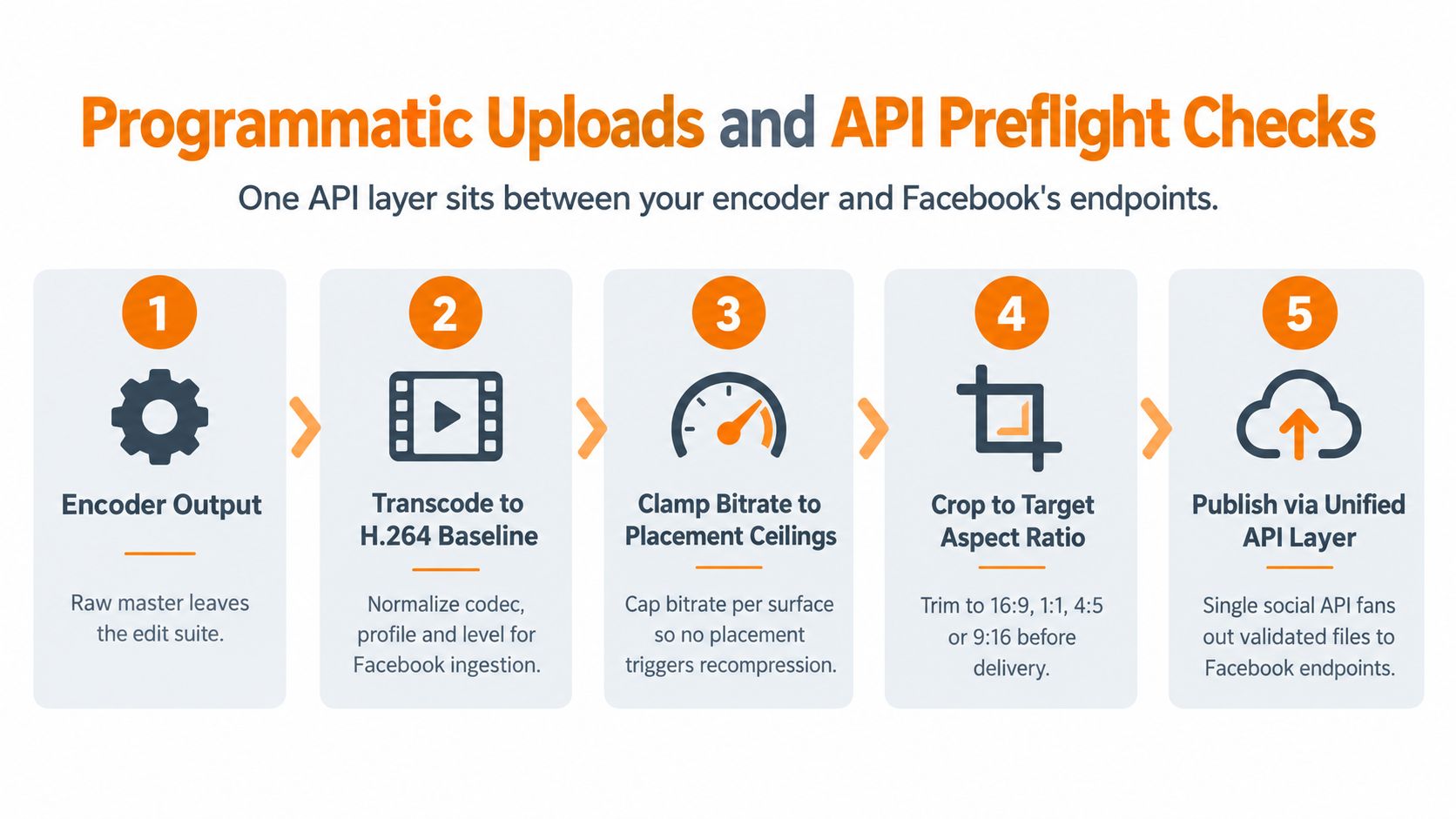
A unified social API belongs between the encoder and Facebook's upload endpoints, but it shouldn't hide platform constraints. Its job is to normalize media, validate the final asset, and return a useful error before a scheduled publish becomes a failed or stuck job.
A practical pipeline looks like this:
- Probe the source. Read width, height, duration, frame rate, scan type, audio streams, codec, container, and file size.
- Select the placement. Choose wide-format, square, 4:5, or vertical based on the destination rather than the original file.
- Transcode when required. Normalize to H.264 and a compatible MP4 package when the source uses an unsuitable codec or container.
- Crop or pad intentionally. Apply the target ratio before submission, with rules that protect faces, logos, captions, and product boundaries.
- Run preflight. Reject mismatches before the upload POST.
What preflight should catch
A useful validator checks more than the filename extension. It should confirm that declared dimensions match probed stream dimensions, duration fits the selected placement, file size is within the upload method's limit, an expected audio track exists, and the codec is supported by the chosen route.
The validator should also identify ambiguous cases, such as a variable frame rate, interlaced scan, rotated metadata, missing pixel dimensions, or a container that reports one format while the video stream uses another. Those conditions often create failures that a simple “is this MP4?” check misses.
Mallary.ai provides Facebook publishing workflows, including Feed and Stories support, plus preflight-oriented media validation in its social publishing platform. Its Facebook API workflow documentation is relevant for teams that need to put these checks before a publish request rather than discovering the failure after a scheduled job starts.
The operational payoff is concrete: fail in CI, return a placement-specific error, and let the caller fix the asset before it enters a retry queue. A normalized error taxonomy is easier to maintain than parsing inconsistent platform responses after the fact.
Quick Reference Table for Common Facebook Video Specs
Use the following table as an export lookup, but keep one qualification in mind: the bitrate range is not verified in the supplied data, so it's safer to treat bitrate as an inspected output property than to copy an invented numeric preset.
| Format | Resolution | Aspect Ratio | Bitrate Range | Duration Cap | Best Placement |
|---|---|---|---|---|---|
| Landscape | 1920×1080 | 16:9 | Validate against source and workflow | 240 minutes cited for in-feed guidance | Feed and In-Stream |
| Square | 1080×1080 | 1:1 | Validate against source and workflow | Placement-dependent | Feed and Marketplace |
| Portrait Feed | 1080×1350 | 4:5 | Validate against source and workflow | Placement-dependent | Mobile Feed |
| Vertical | 1080×1920 | 9:16 | Validate against source and workflow | 90 seconds cited for Reels | Reels and Stories |
| Tall portrait | 1080×1620 | 2:3 | Validate against source and workflow | Placement-dependent | Custom portrait Feed creative |
For a fast decision, use 1920×1080 for widescreen, 1080×1080 for square, 1080×1350 for portrait Feed, and 1080×1920 for Reels or Stories. A file below the recommended HD dimensions may still encode, but successful ingestion doesn't make it a good production master.
The frame size and ratio should be selected together. A 1080p label without dimensions is incomplete, because it doesn't tell the encoder or the placement whether the intended canvas is wide, square, portrait, or full-screen vertical.
Key Terms for Developers and Marketers
Bitrate is the amount of encoded video data used over time. It affects file size and how much detail survives compression, but a larger bitrate doesn't fix an already soft source.
Codec is the compression method used for the video stream. H.264 is the conservative Facebook delivery choice because it's broadly compatible across upload workflows.
Aspect ratio is the relationship between width and height. It's separate from resolution. Two files can use similar pixel counts while presenting entirely different shapes.
Container is the wrapper that stores video, audio, metadata, and sometimes captions. MP4 and MOV are common examples, but the container doesn't determine the codec by itself.
Preflight check is a validation pass that probes media metadata before submission. It should catch dimension, duration, file-size, audio, and codec problems before an API request starts.
Transcode means re-encoding media into another codec, bitrate, frame size, or frame rate. Facebook performs its own transcoding, so your delivery encode should give that process a clean source.
Keyframe interval describes how often a complete frame appears. It affects seeking and stream startup, especially when a player needs to jump into the middle of a video.
Frequently Asked Questions About Facebook Video Quality
Why does an HD upload still look soft?
The source may be upscaled, heavily compressed, interlaced, or being viewed through a data-saving playback setting. Compare the local master with Facebook playback, then test the app's Original quality or Upload HD option before changing the resolution.
What's the minimum usable resolution?
Treat 720p, or 1280×720, as the practical floor for major landscape delivery, while 1080p is the safer production target when the source supports it (Crowbert's Facebook resolution guidance). Vertical placements need a vertical canvas, so a 720p horizontal file isn't an equivalent substitute for a 720×1280 vertical rendition.
Should every Facebook video be 1080p?
No. Use the dimensions that match the placement. A 1920×1080 wide master is appropriate for wide Feed or In-Stream creative, while Reels and Stories need 1080×1920 when you want full-screen vertical framing.
Why did Facebook crop my video?
The uploaded aspect ratio didn't match the destination presentation, or Facebook applied placement-specific reframing. Create a dedicated variant when cropping would remove a face, caption, logo, or product detail.
Which mobile setting helps preserve quality?
Avoid data-saving modes when uploading or evaluating quality. The exact labels can vary, but settings described as Original quality or Upload HD are the relevant choices in the cited mobile guidance.
What should teams test before a campaign?
Upload representative files to every surface you'll use, inspect framing and playback on both desktop and mobile, and record the resulting errors and renditions. A successful API response only proves ingestion started. It doesn't prove that the final crop, sharpness, or playback quality is acceptable.
Mallary.ai provides a unified social publishing API and dashboard with Facebook workflows, media validation, scheduling, retries, and platform-specific payload handling. Visit Mallary.ai to evaluate how preflight checks and placement-aware uploads can fit into your SaaS, agency, or campaign pipeline.
Try it with Mallary
STOP!
Want ChatGPT or Claude to post on Facebook for you?
Connect your social accounts one time. Then tell your AI what to write. It can make your posts, share them, and reply on social sites that allow replies. You do not need to write code.
Pick your AI





Connect once. Ask in plain English. Mallary does the work.


